Editing Your Dashboard
How to enter edit mode, arrange widgets, and what every gesture does in both live and edit mode.
Hold the dock
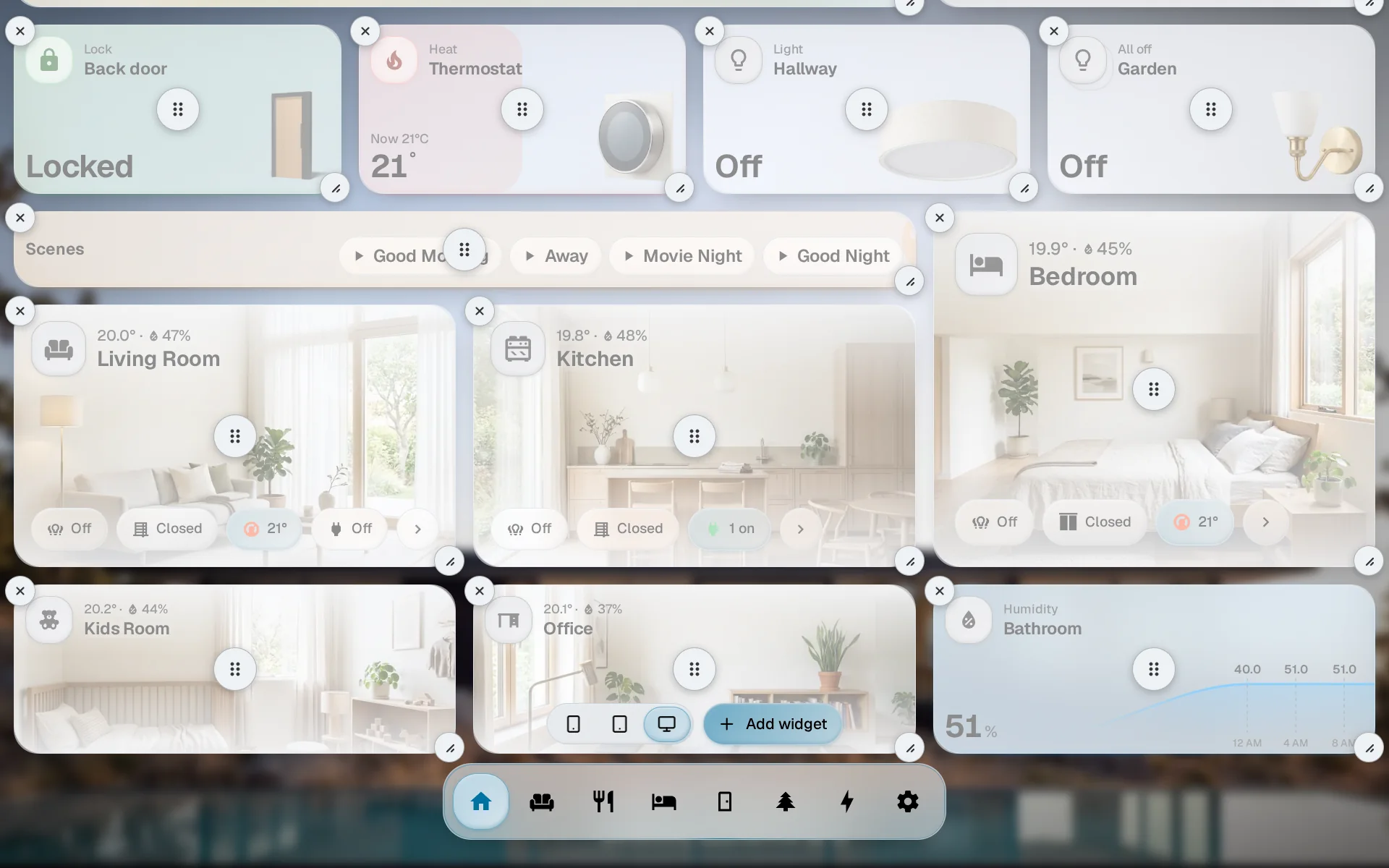
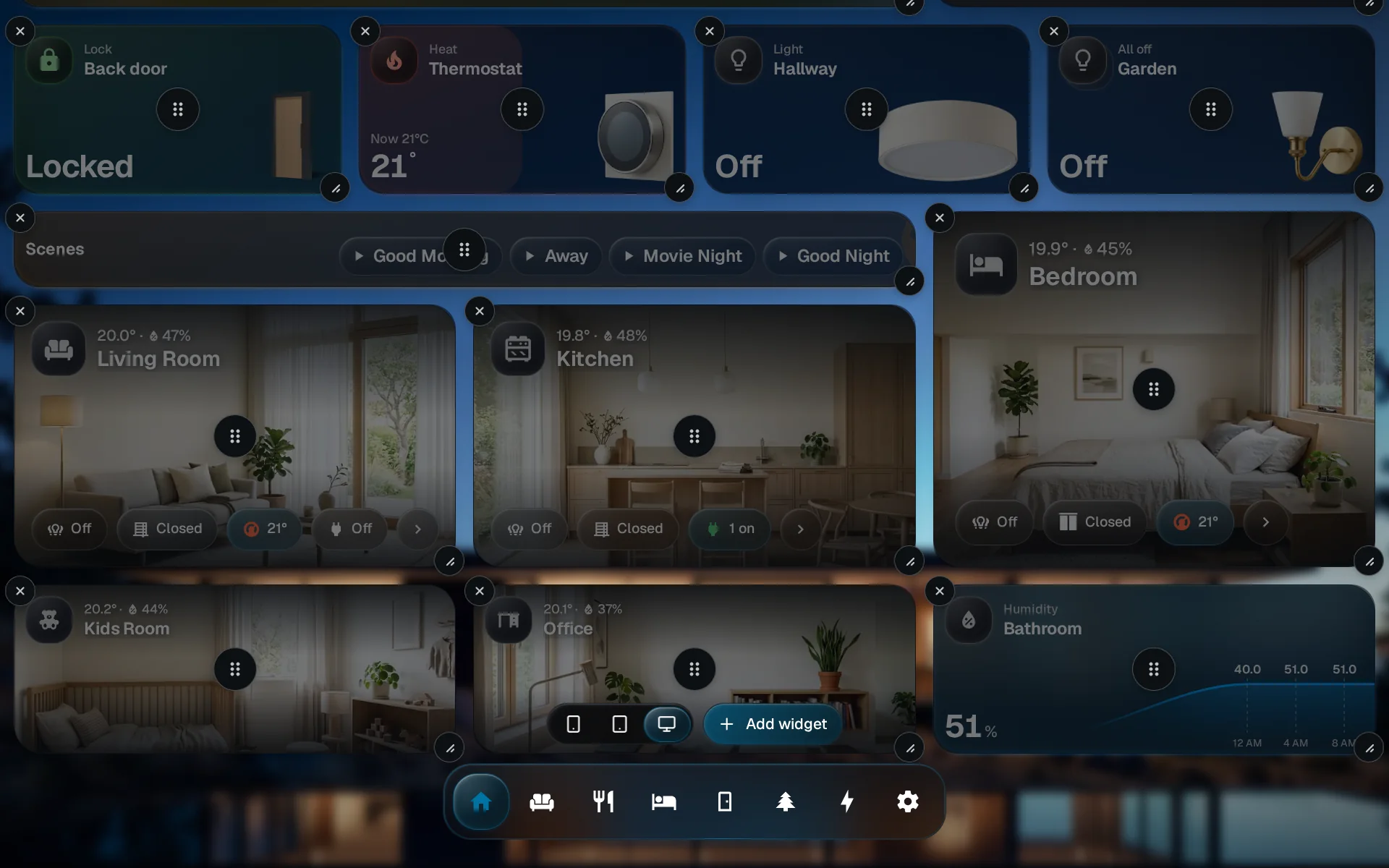
Press and hold the dock for about half a second, or press and hold the dashboard background and choose Edit dashboard. A faint grid overlay appears.
Rearrange
Move, resize, add, remove. Every action saves automatically.
Hold the dock again
Returns to the live dashboard. Escape does the same on a keyboard, the background menu offers the same choice, and edit mode leaves itself after three idle minutes. No Save or Discard buttons; changes are already persisted.
The Header widget carries your dashboard’s name, the time, the weather and what is on. Move it, resize it, or remove it like any other widget, and add a second one with your own title as a heading for a section of the grid.
If holding the dock does nothing, ask someone who manages this home.
Editing is something they grant per person, see People & access.
Gestures
The same input produces different effects depending on whether you are in live mode or edit mode.
| Gesture (desktop) | Gesture (touch) | Live mode | Edit mode |
|---|---|---|---|
| Click | Tap | Primary action (toggle, run scene) | Select widget |
| Click and hold 350 ms | Long-press 350 ms | Open the widget’s sheet (see Holding a widget) | (n/a) |
| Click and hold 300 ms | Long-press 300 ms | (n/a) | Open the widget’s settings |
| Click and drag inside widget | Slide along the widget | Adjust primary value (brightness, cover) | (n/a) |
| Press and drag the widget | Drag the grip in the middle | (n/a) | Move widget; surrounding widgets make room |
| Drag corner grip | Drag corner grip, or pinch with two fingers | (n/a) | Resize widget |
| (n/a) | Second finger while holding a widget | (n/a) | Scroll the page |
Holding a widget
Hold a widget anywhere, its buttons included, and it fills from your finger, like the dock. When the fill is complete, a sheet grows out of the widget over the blurred dashboard, centred on it and kept on screen near the edges; on a phone it comes up from the bottom. The sheet holds only what the widget has no room for: each light, blind or speaker in a group, colours, modes, sources, the days ahead and history. A widget that already shows everything says so, and a widget you have not set up yet opens its settings.
A light’s sheet has a row of whites and the colours you used last on this screen, a bar from warm to cool white, and a colour disc when the lamps take colour. If only some lamps in the group take colour, the sheet says so. Hold one lamp’s row to set that lamp alone.
In edit mode, holding a widget opens its settings directly. With Developer Mode on (an admin switch, see People & access), the sheet and the settings also show Edit, Controls and Debug tabs, and Debug lists each entity’s state and attributes.
Adding
While editing, tap Add widget above the dock, or choose Add widget from the background menu. Pick a widget from the picker and it lands in the first free spot at the current breakpoint. Drag it where you want, then hold the dock again to leave edit mode.
The background menu also shows Done while you are editing, next to Add widget. If the dock is hidden, this menu is how you enter and leave edit mode.
After you pick a widget, a dialog asks whether it goes on this screen size or every size.
Editing another screen size
Each screen size keeps its own layout. While editing, the phone, tablet, desktop and wide-screen buttons beside Add widget switch the dashboard to that layout at its real width, so you can arrange your phone layout from your computer. Only sizes that fit on your screen are offered, and leaving edit mode returns to your own screen.
When some of the dashboard’s widgets aren’t on the size you’re looking at, a button next to them says how many, for example 2 not on Phone. Tap it and pick a widget to put it on this size; the dashboard scrolls to where it landed.
For widget types, community widgets, and building your own, see Widgets.
Moving
Desktop
Press on a widget and drag. Widgets make room as soon as it is a third of the way into their spot, and the marker shows where it will land.
Mobile
Drag the grip in the middle of a widget. Swipes on the rest of the widget scroll the page. While you hold a widget, scroll with a second finger to reach further down.
Autoscroll while dragging
Hold a picked widget still near the top or bottom edge of the screen (just above the dock) and the page scrolls automatically. You can place a widget anywhere on a long dashboard without dropping it, and passing by the edge on the way to the dock does not scroll.
To another dashboard
Drag a widget onto a dashboard in the dock. The dock’s highlight slides to that dashboard; let go and the widget moves there, into the first free spot. That dashboard opens with the moved widget lit until your next touch, so you can drag it into place. Undo on the message puts it back where it was.
If the dock has more dashboards than fit, rest the widget on the dots under the dock to turn the page.
Resizing
Drag the small grip at the bottom-right corner of any widget, or pinch it with two fingers: spread sideways to widen it, up and down to make it taller. The touch hit area extends beyond the visible grip so even 1x1 widgets are resizable with a finger. Each widget declares its own min and max size; the widget stops growing when you reach a limit.
Motion
Settings > Grid picks how widgets appear and leave, what marks the spot a moved widget will land on, and whether widgets appear one by one when a dashboard opens. The small dashboard at the top plays each choice as you pick it, and Replay plays it again. Reduce motion, in Settings > General, turns all of it off.
Removing
In edit mode each widget shows an X in the top-right corner. Tap it and a dialog asks you to confirm. If the widget is on more than one screen size, the dialog also asks whether to remove it from this screen size or from every size. The widget stays installed locally and can be re-added from the picker.
Widget settings (config dialog)
To configure a widget’s bound entity, display options, size, or color: press and hold the widget while in edit mode. The config dialog opens with fields auto-generated from the widget’s schema. Changes save instantly, no apply button.