Connect your own phone
Already signed in on your computer? Scan one code with your phone and it’s signed in too.
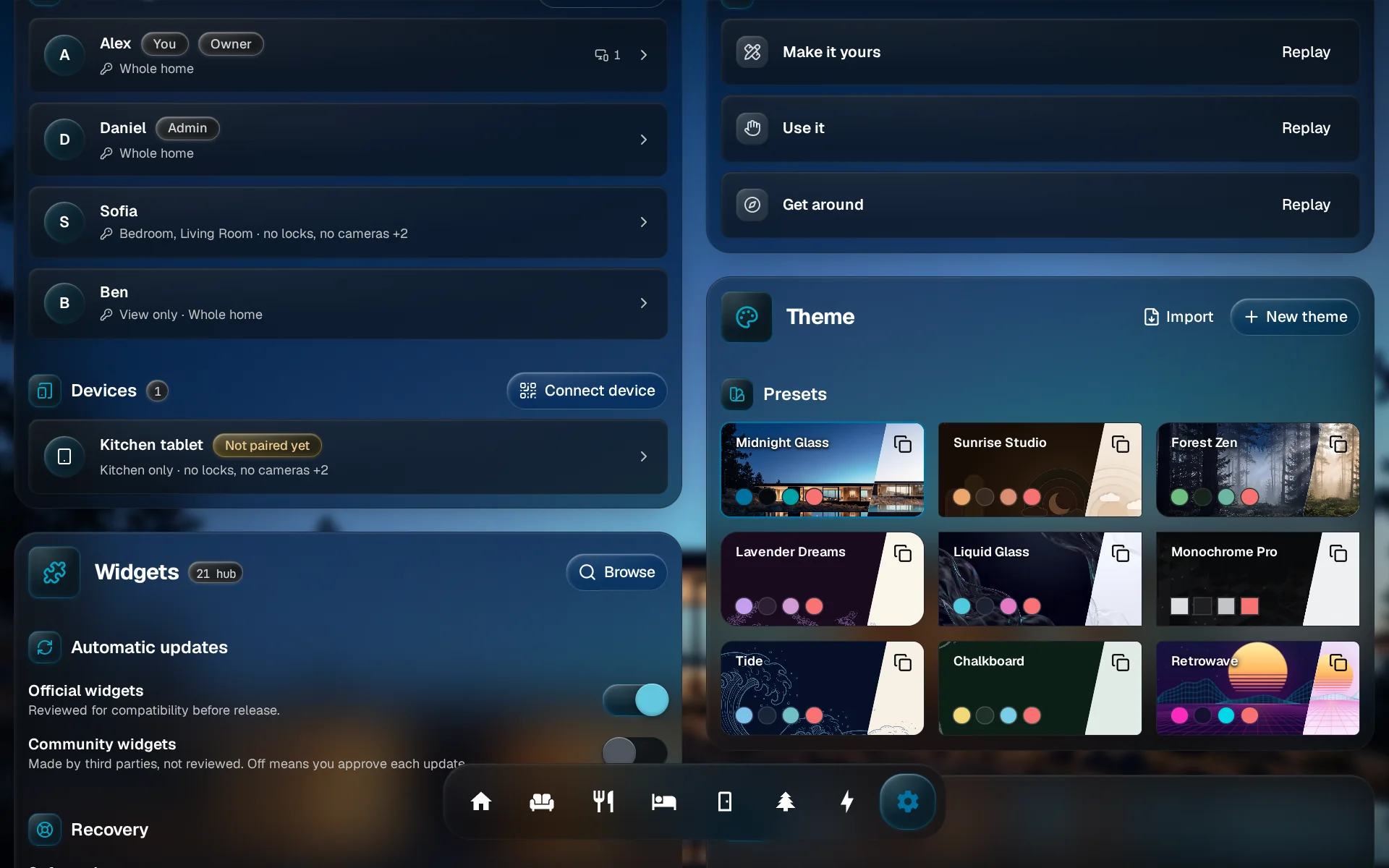
Tap Connect device
In Settings, go to People & Devices and tap Connect device above the Devices list.
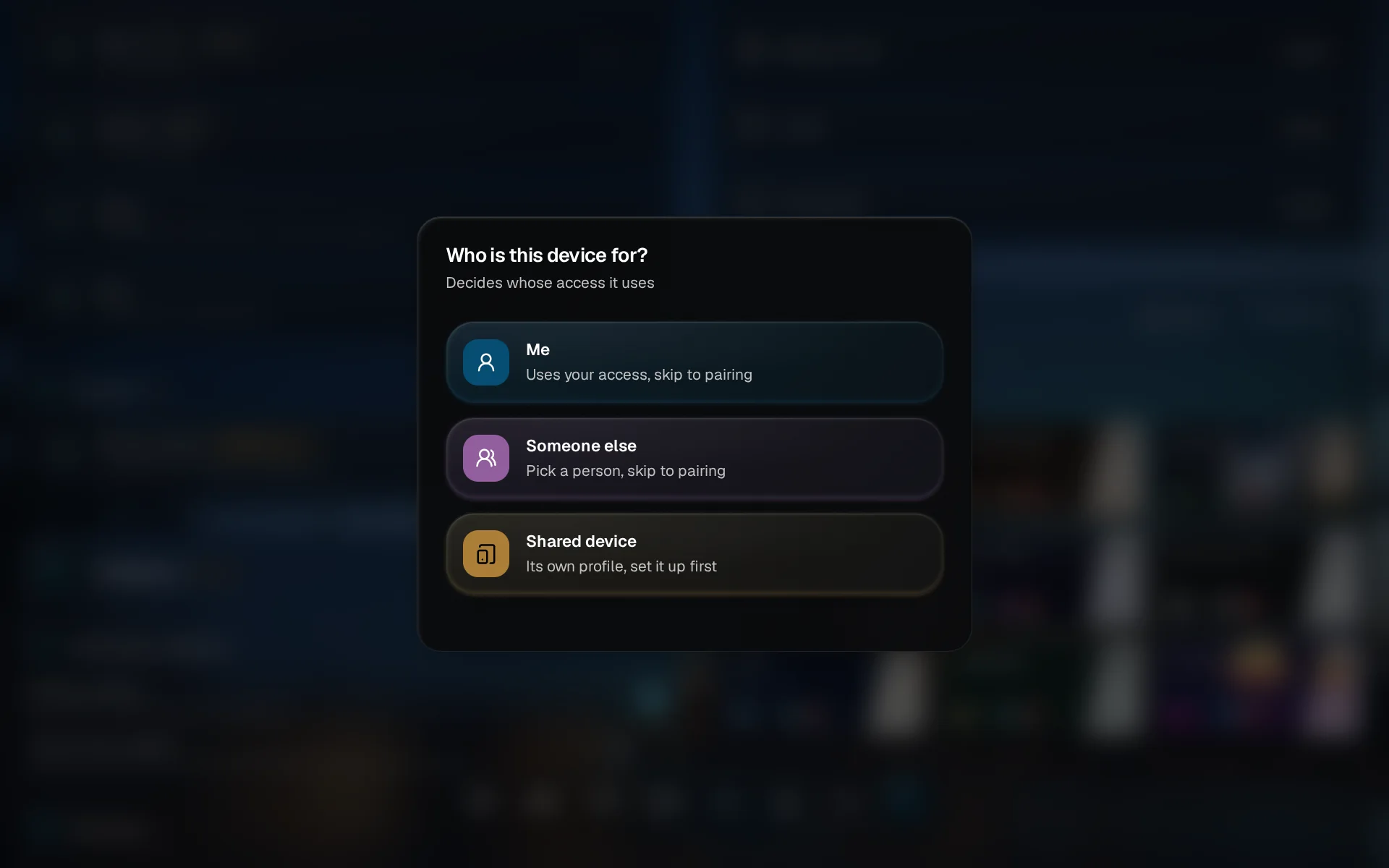
Choose Me
Pick Me. The phone follows your own access and shows up under your sessions.
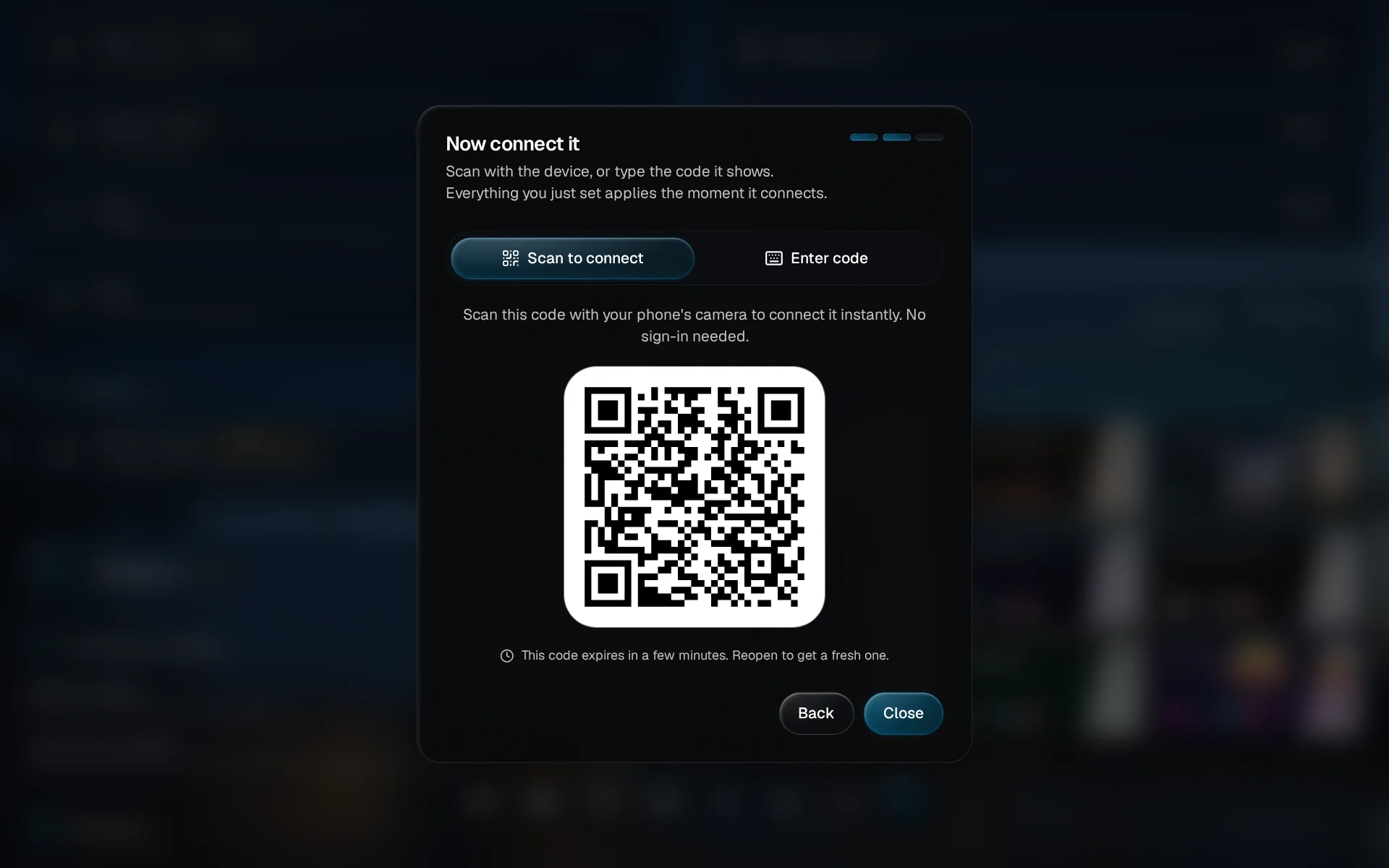
Scan the code with your phone
Point your phone’s camera at the QR code and open the link it offers. The code runs out after a few minutes; reopen the dialog for a fresh one.
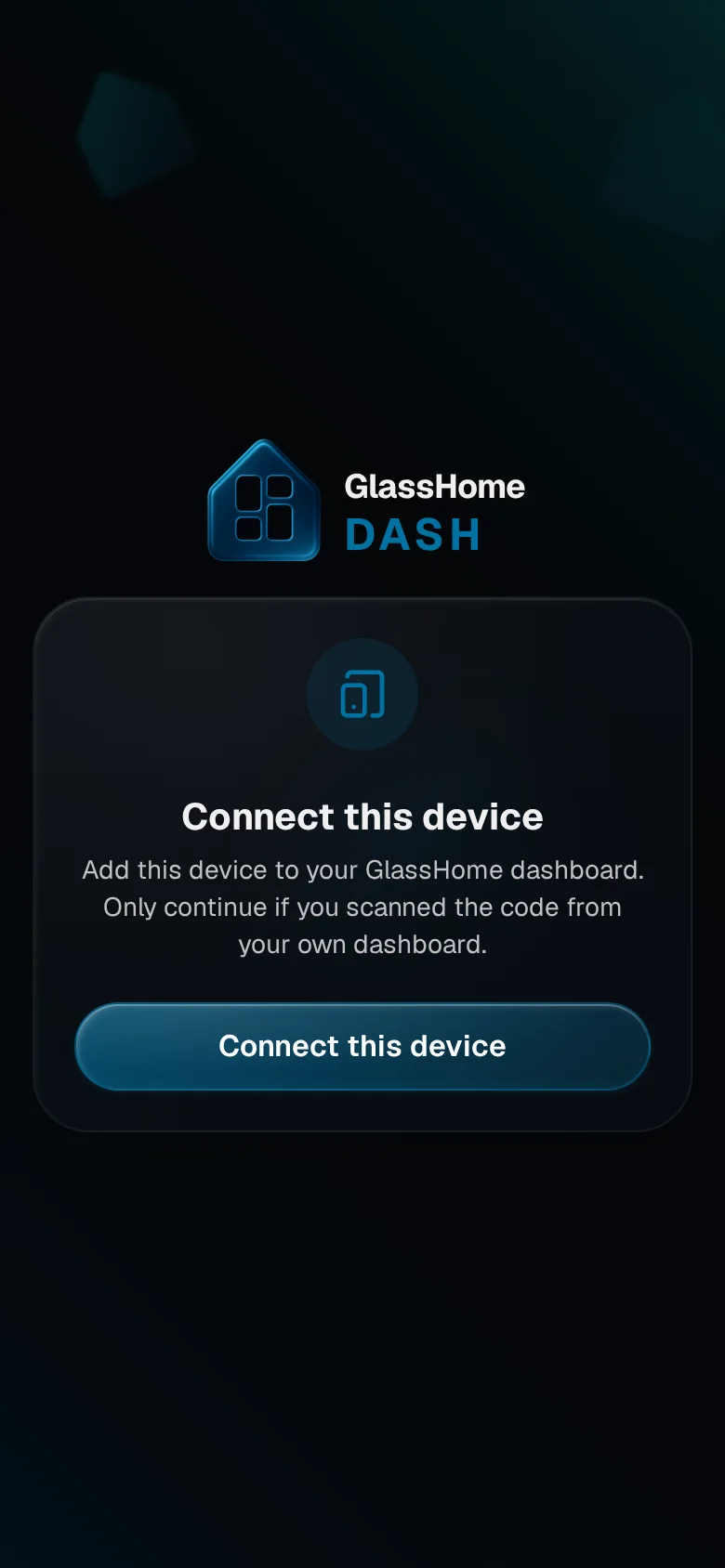
Tap Connect this device
Your phone asks once. You scanned it from your own dashboard, so go ahead and tap Connect this device.
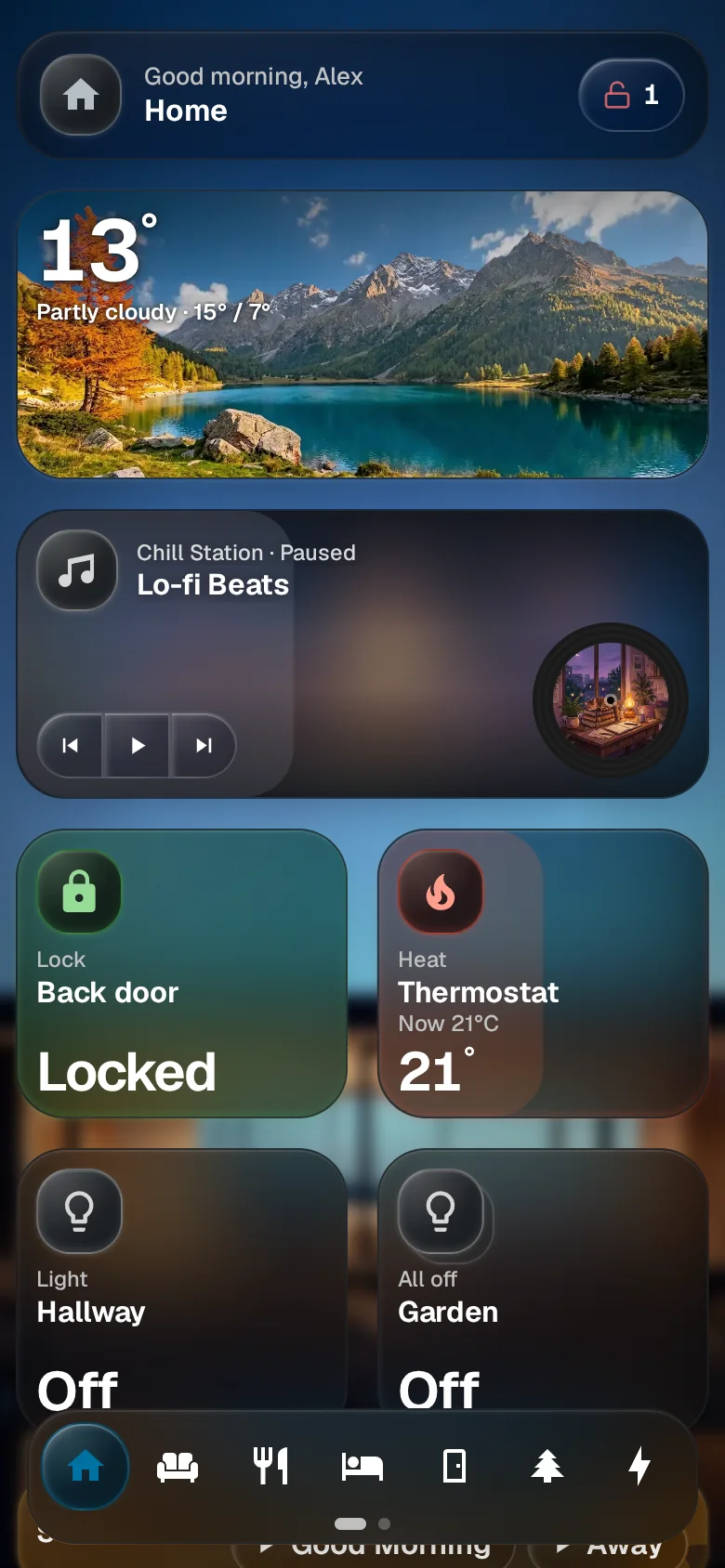
Your dashboard, on your phone
Your phone opens on your dashboard and greets you by name.
You are done when
Your phone shows your dashboard, and your own row in People & Devices counts one more device. Add it to your home screen and it opens like an app. Lost the phone? Sign that one device out from your card, see People & access.