Set up a kitchen tablet
A shared screen gets a profile of its own, with its own rooms and dashboards. You set it up on your computer first, then the tablet joins with a code.
Open Settings
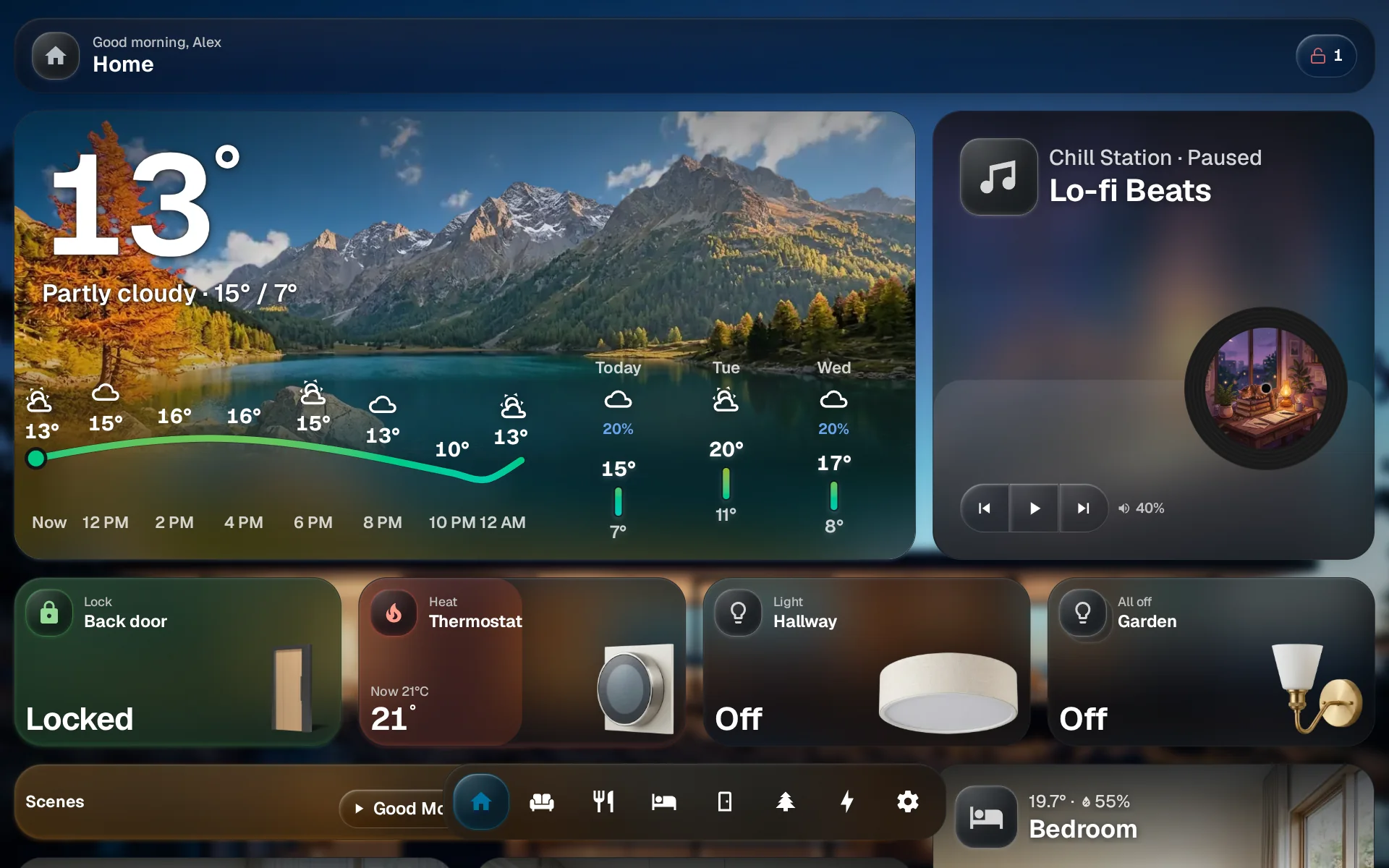
On your own dashboard, tap the gear at the end of the dock.
Tap Connect device
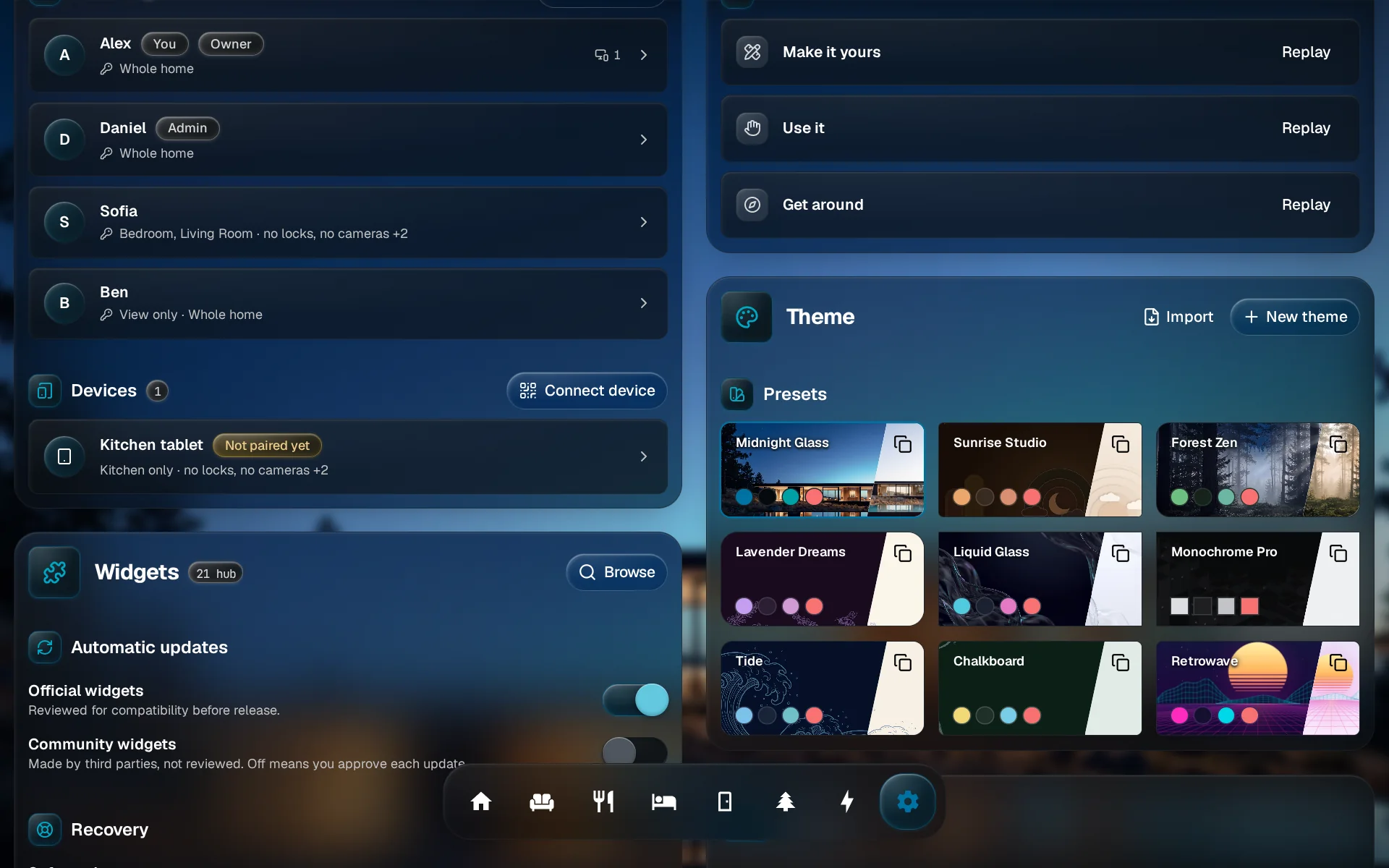
In People & Devices, find the Devices list and tap Connect device.
Choose Shared device
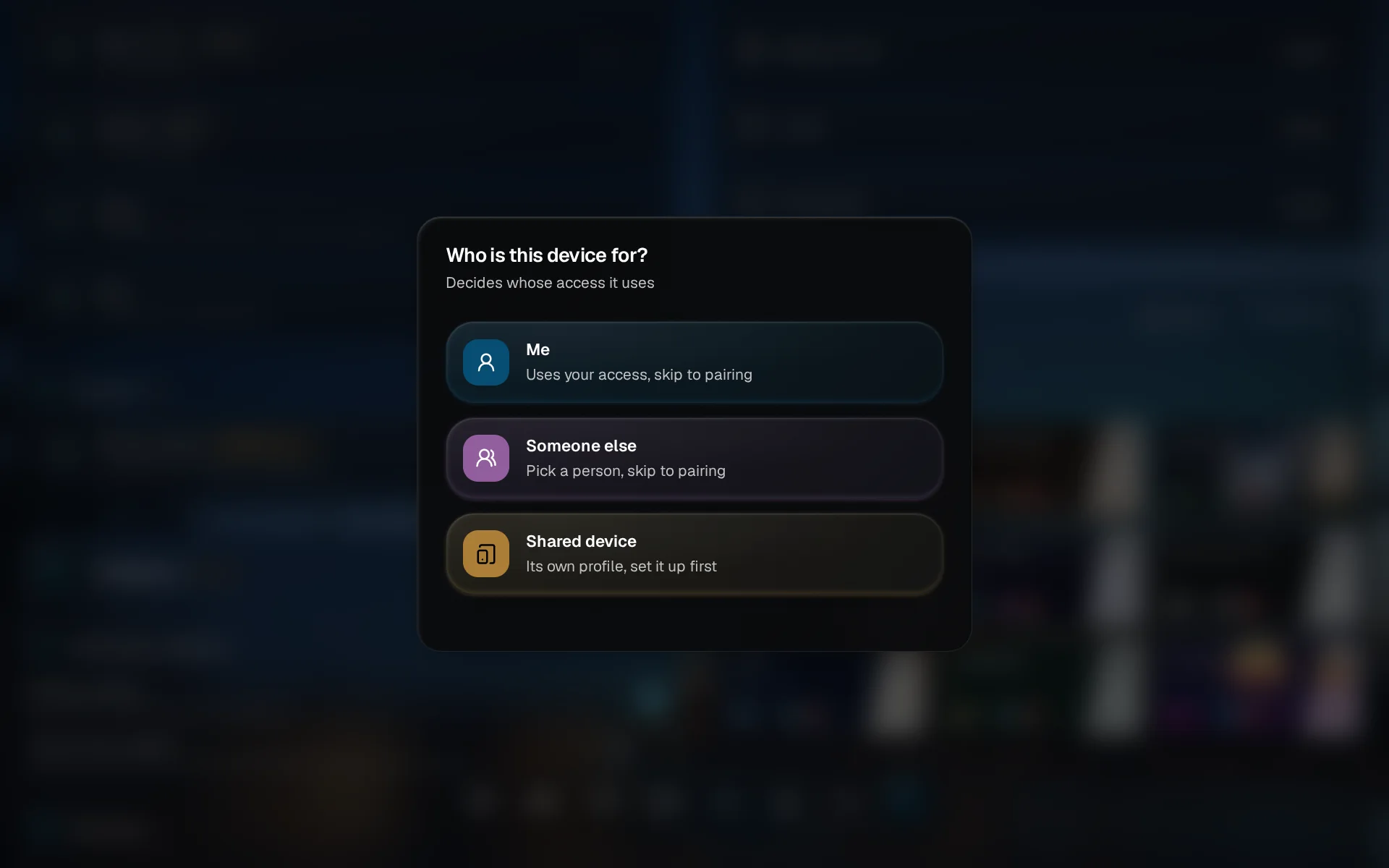
GlassHome asks who the device is for. Pick Shared device: the tablet gets a profile of its own.
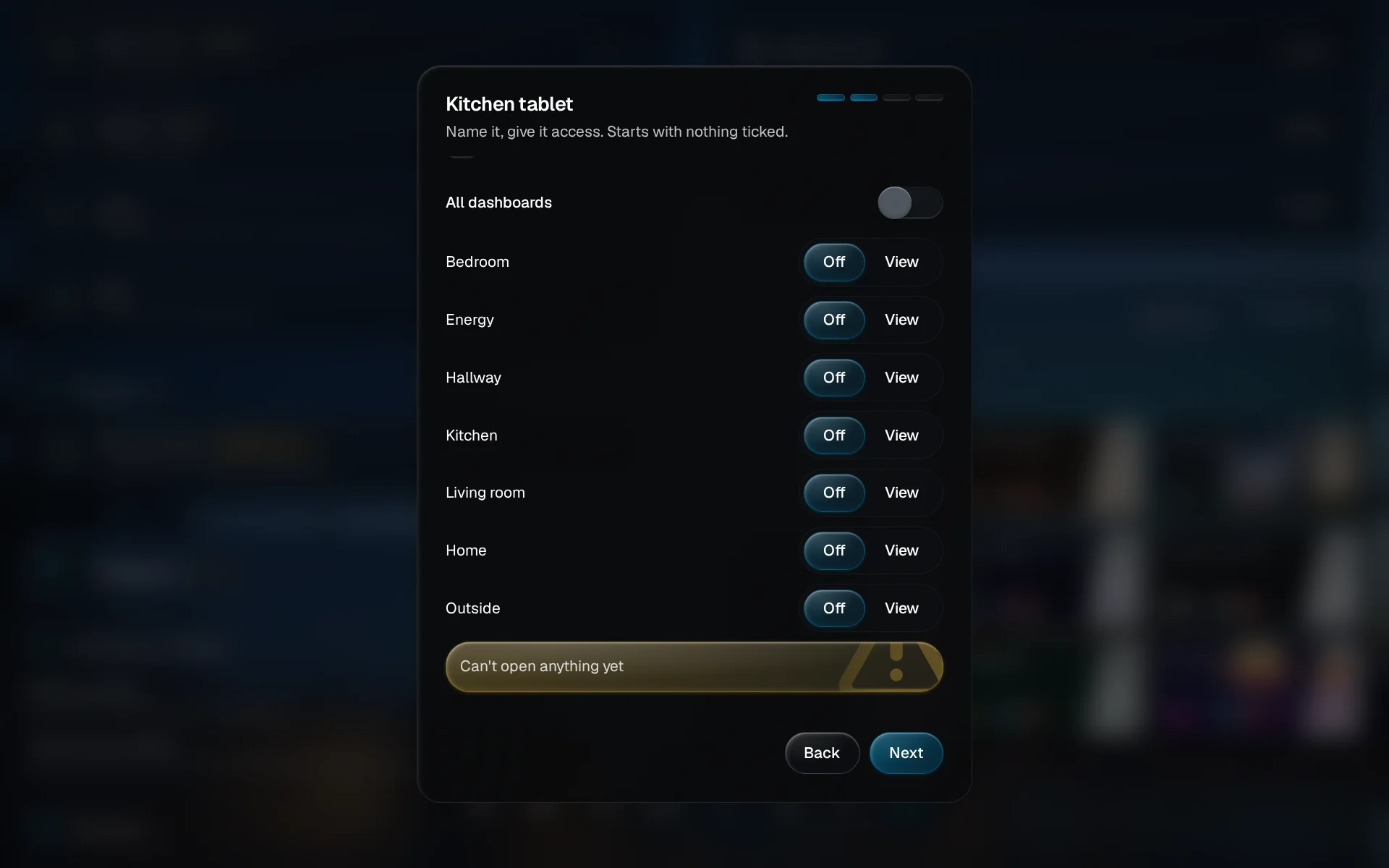
Name it and pick its dashboards
At the top, type a name you will recognise later, like “Kitchen tablet”. Then choose which dashboards it shows; everything starts switched off.
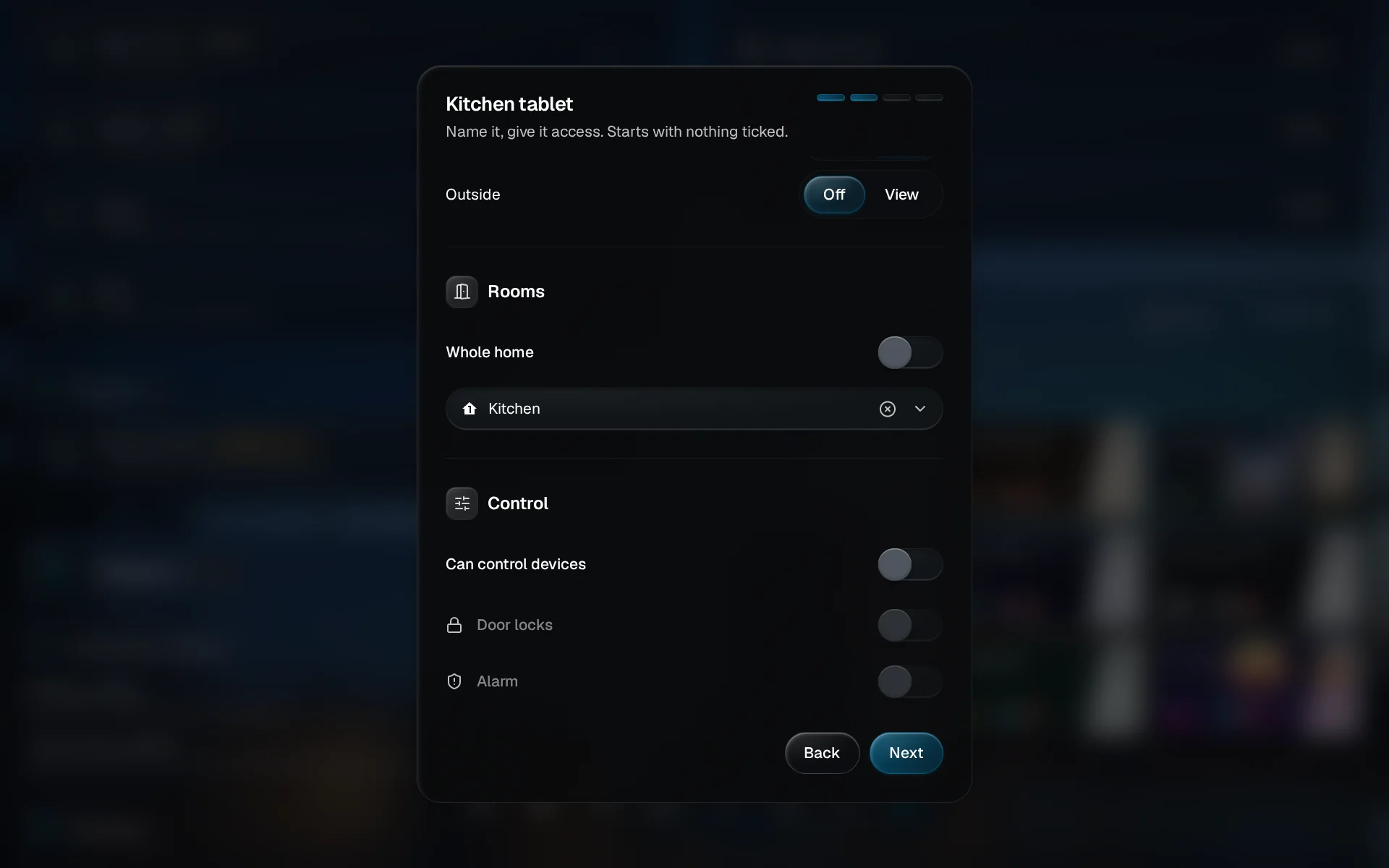
Pick its rooms
Scroll to Rooms and pick the rooms it may see, then decide under Control whether it can switch things or only show them. Tap Next.
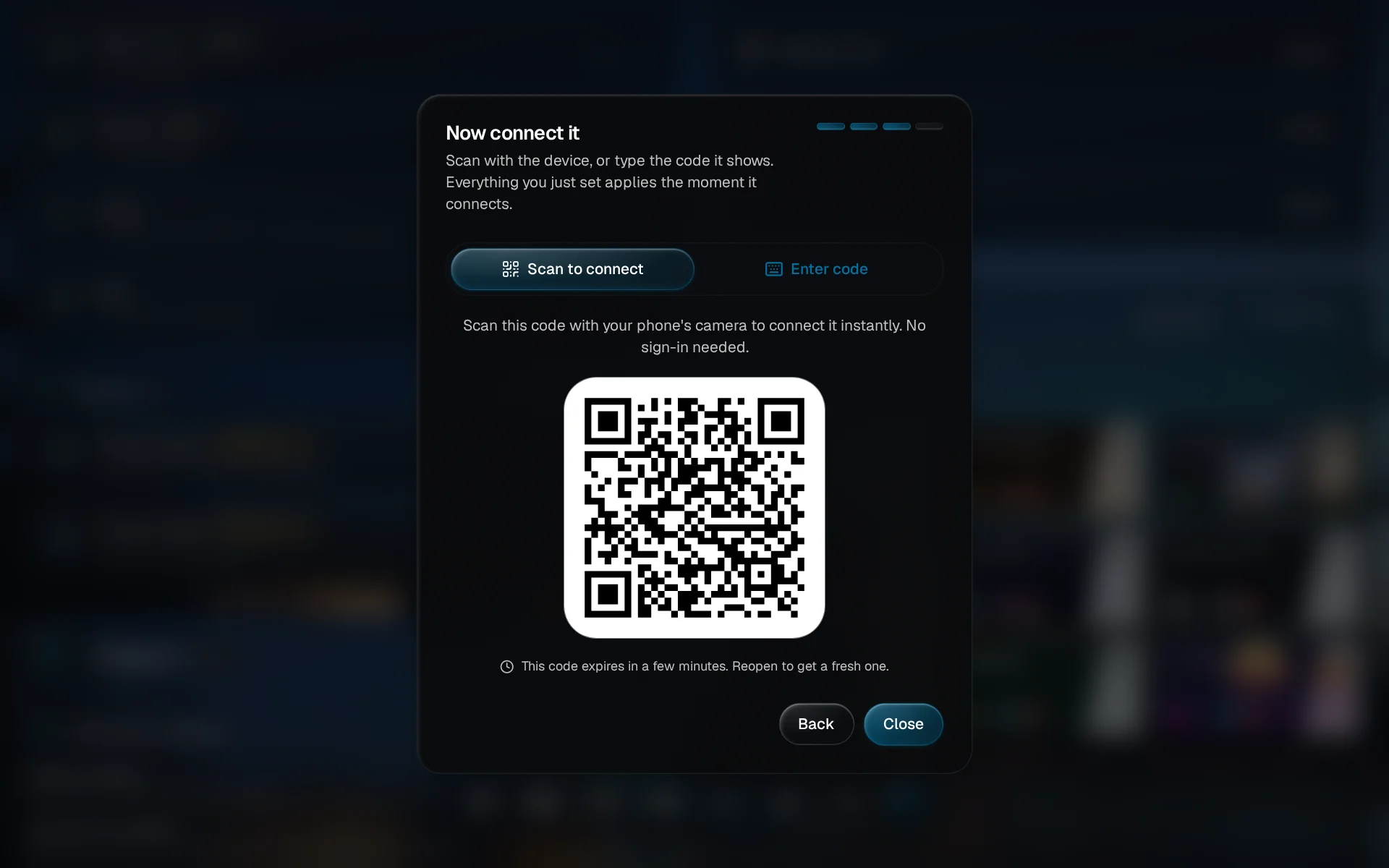
Switch to Enter code
You land on Now connect it. Tap Enter code. If the tablet has a camera, it can scan the QR code instead and skip the typing.
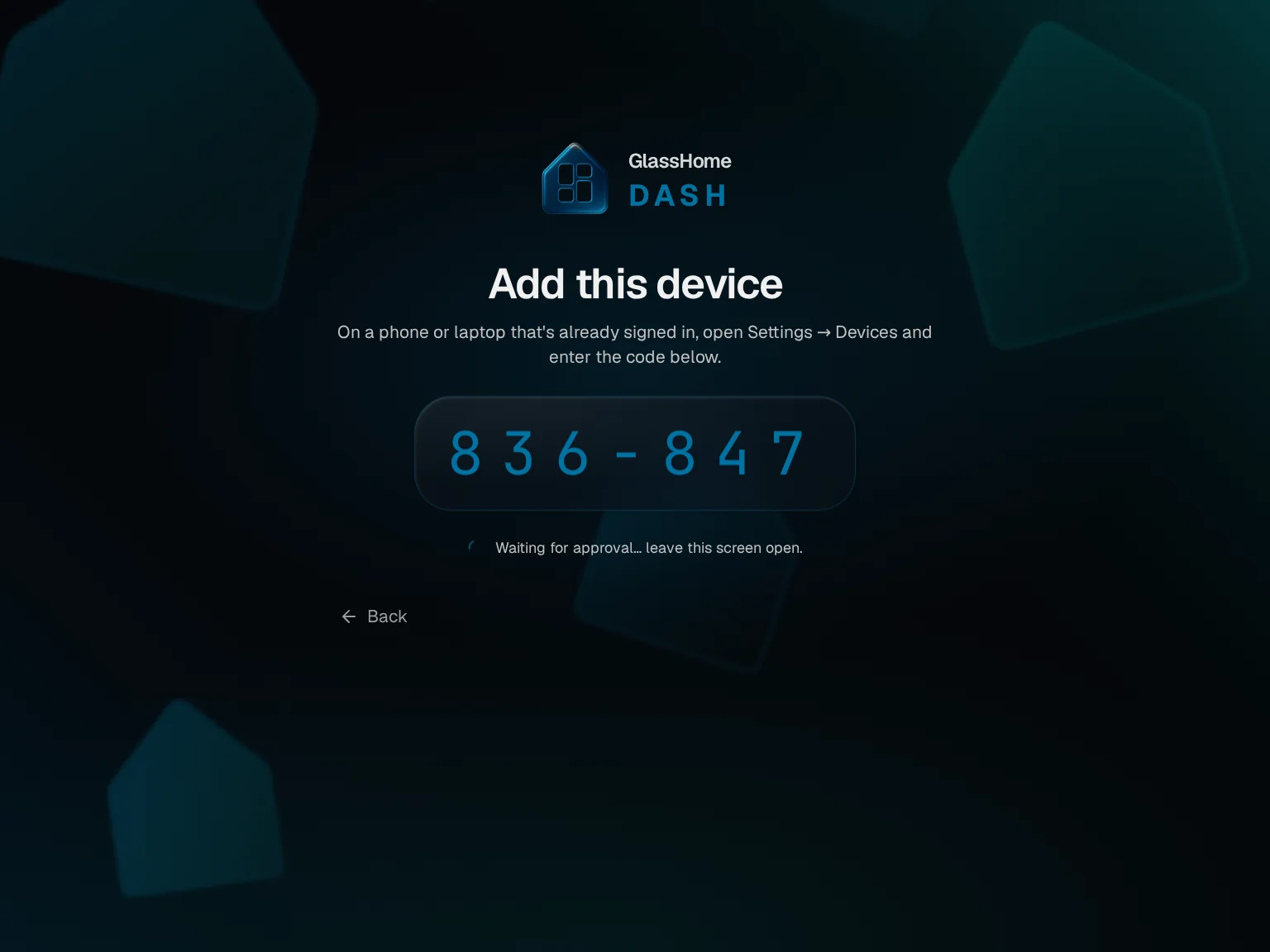
Get the code on the tablet
On the tablet, open your dashboard’s address and tap Code from a phone on the welcome screen. It shows a six-digit code and waits. Leave it be.
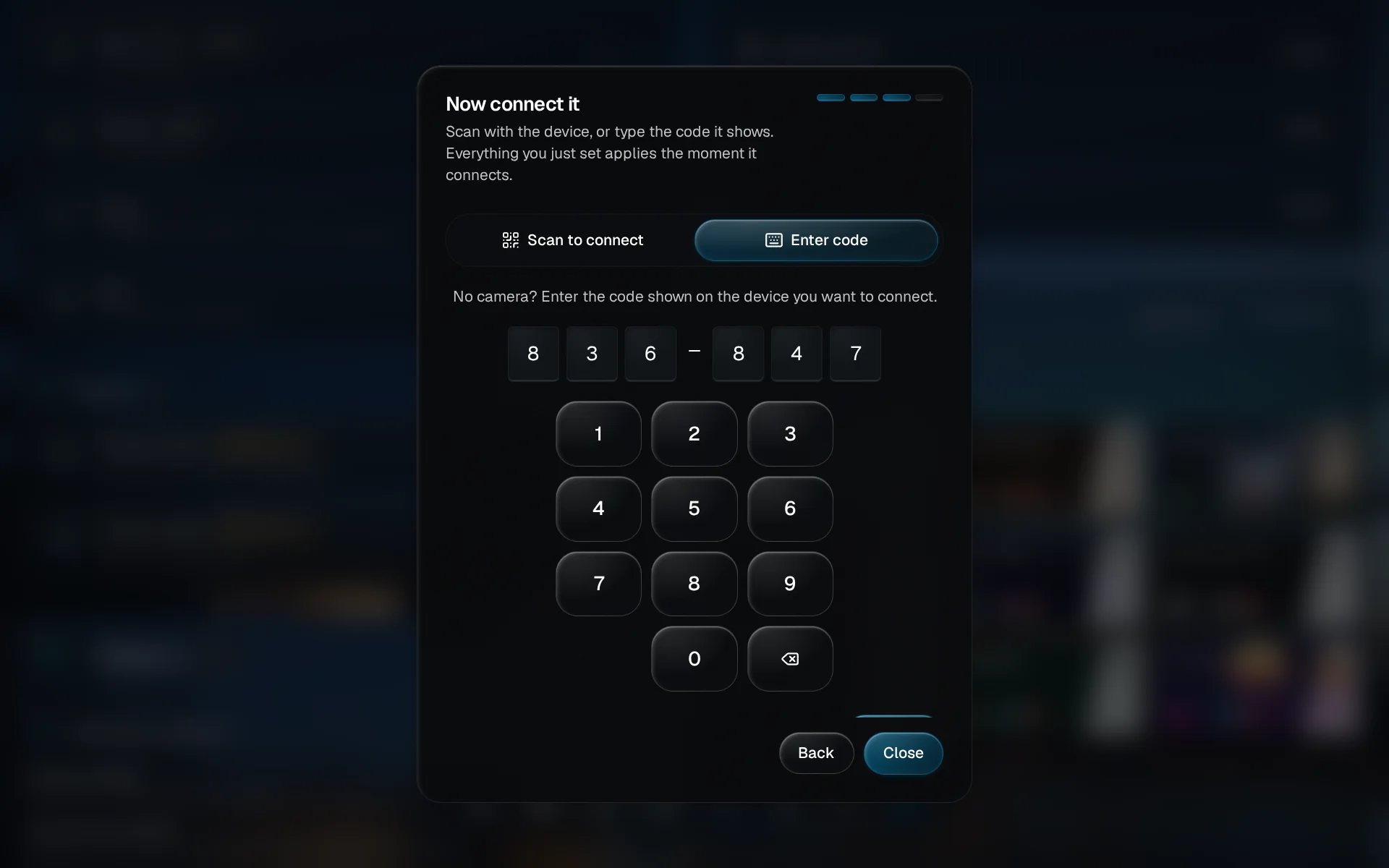
Type the code
Back on your computer, type the six digits from the tablet. It connects as soon as the last one goes in.
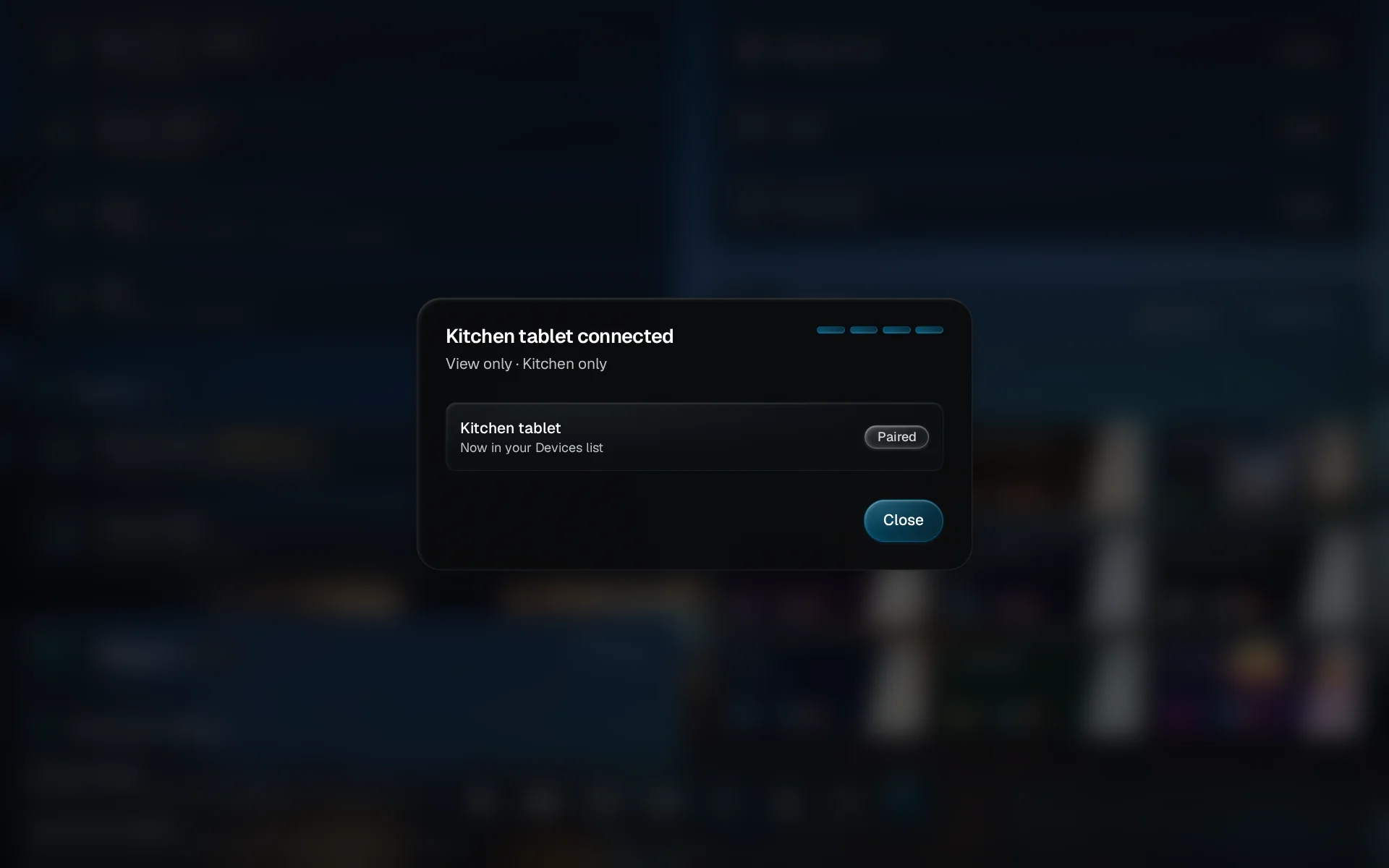
See it connect
The dialog says Kitchen tablet connected and sums up what it can do. Tap Close.
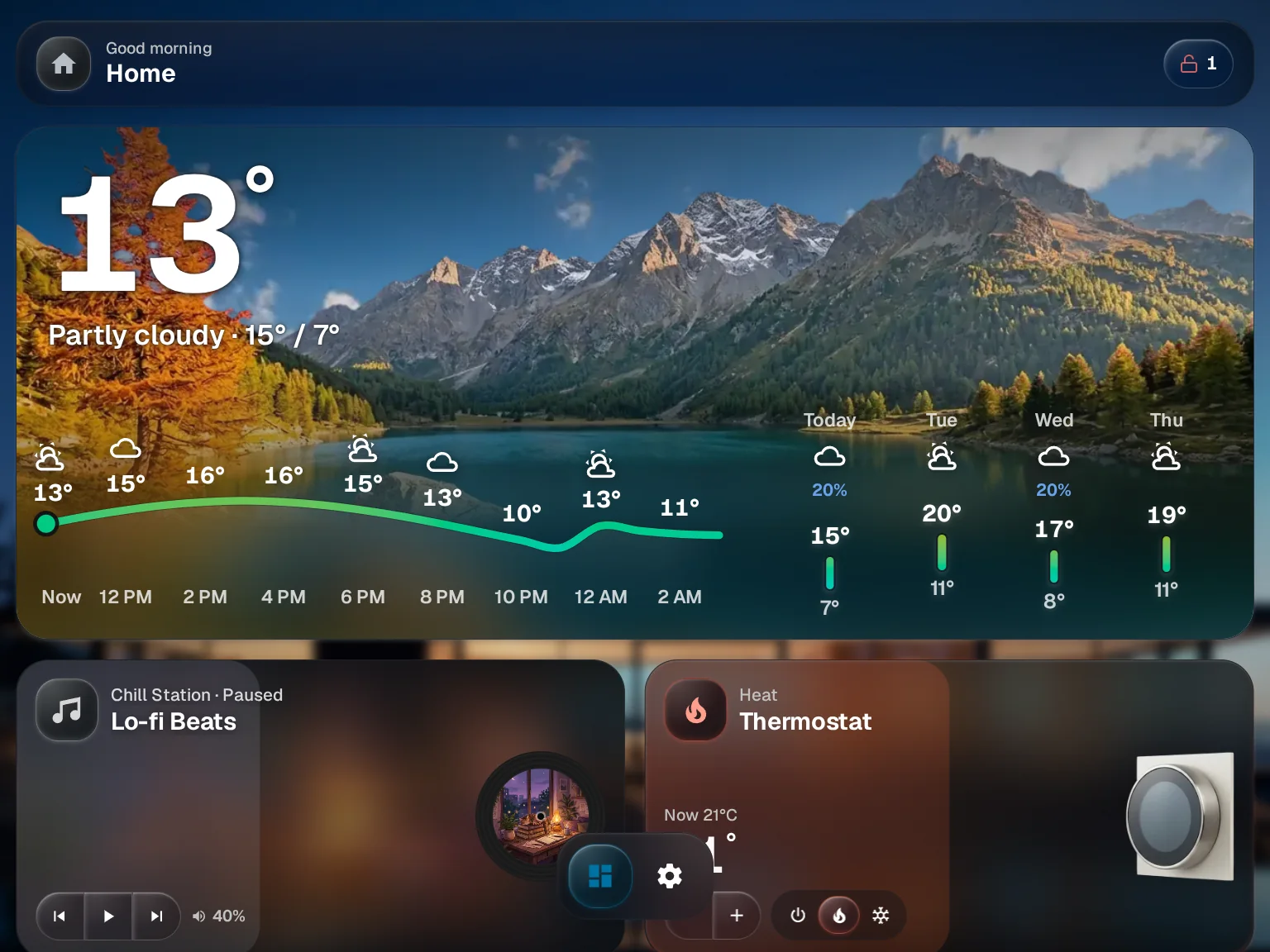
The tablet shows its dashboard
The tablet opens on its dashboard, with only the rooms and controls you picked. Nobody is signed in on the wall, and it stays that way.
You are done when
The tablet shows its dashboard, and Kitchen tablet sits in your Devices list marked as paired. Changed your mind about its rooms or theme? Open its row in People & Devices; its start dashboard and theme update the next time the tablet reloads. For every setting, see People & access.