
Make your own theme
Start from a theme or from a photo of your own, and the whole home takes on your colors, your picture and your material. You can try every control for free. Pro is only asked for when you save.
Open the studio
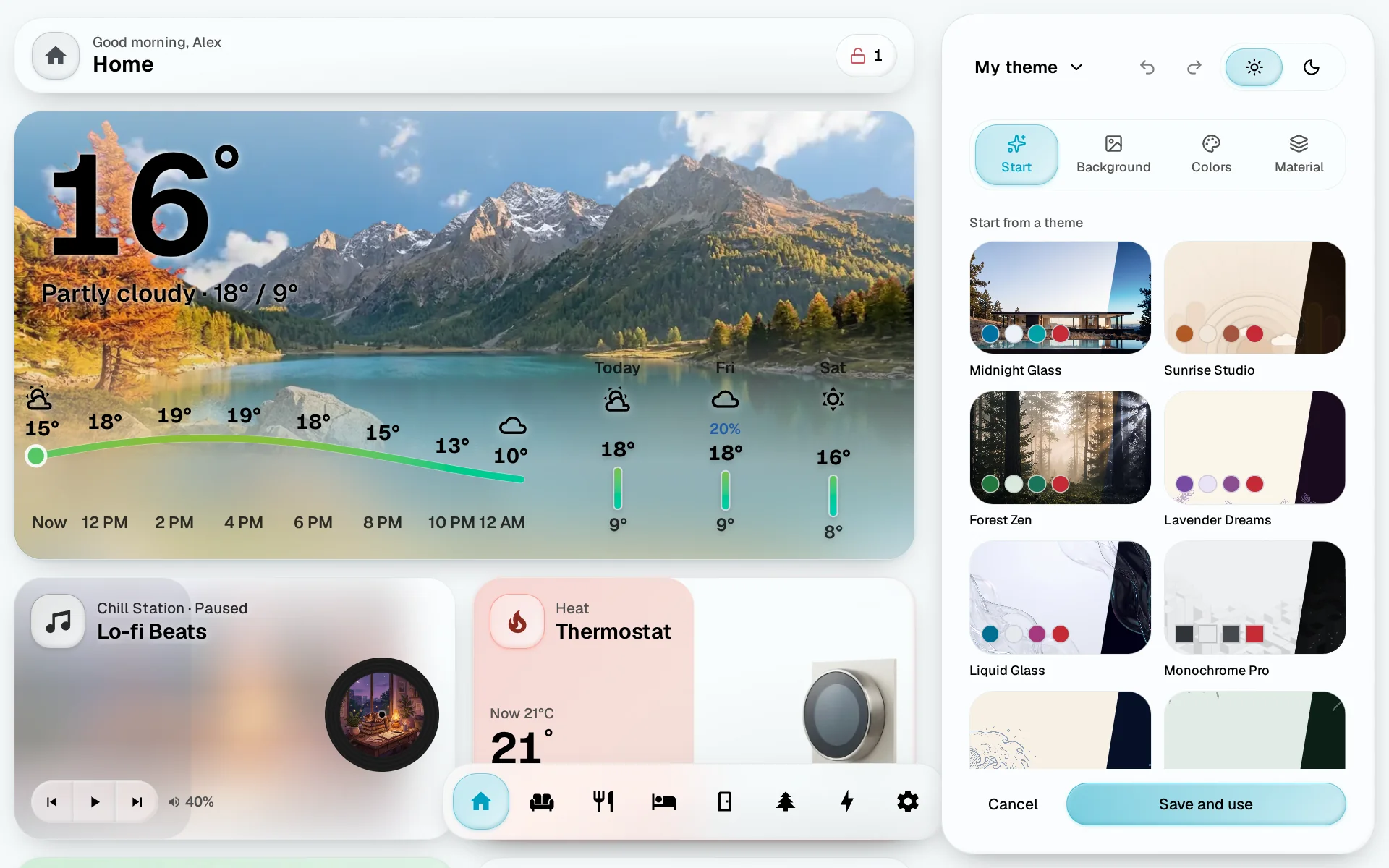
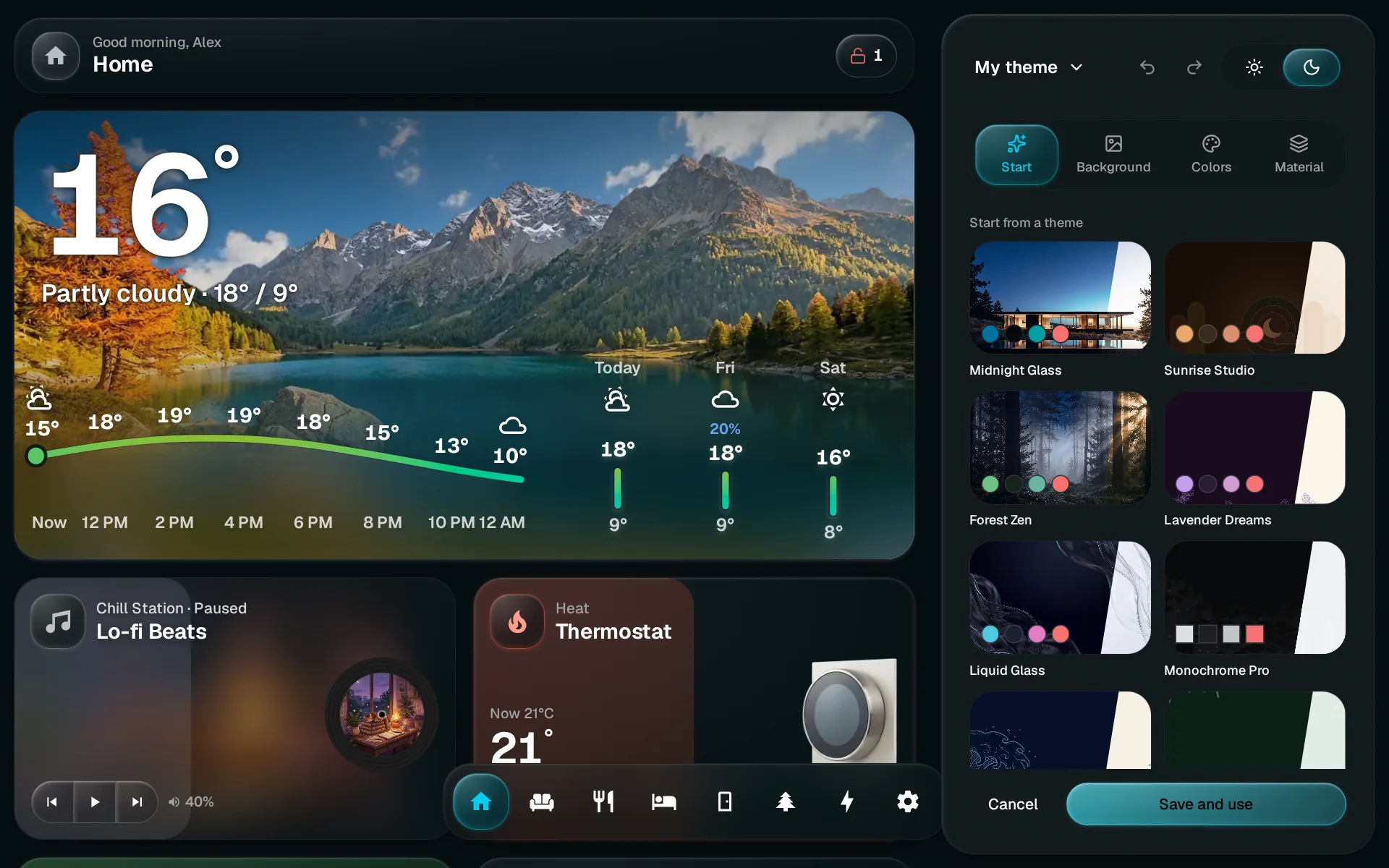
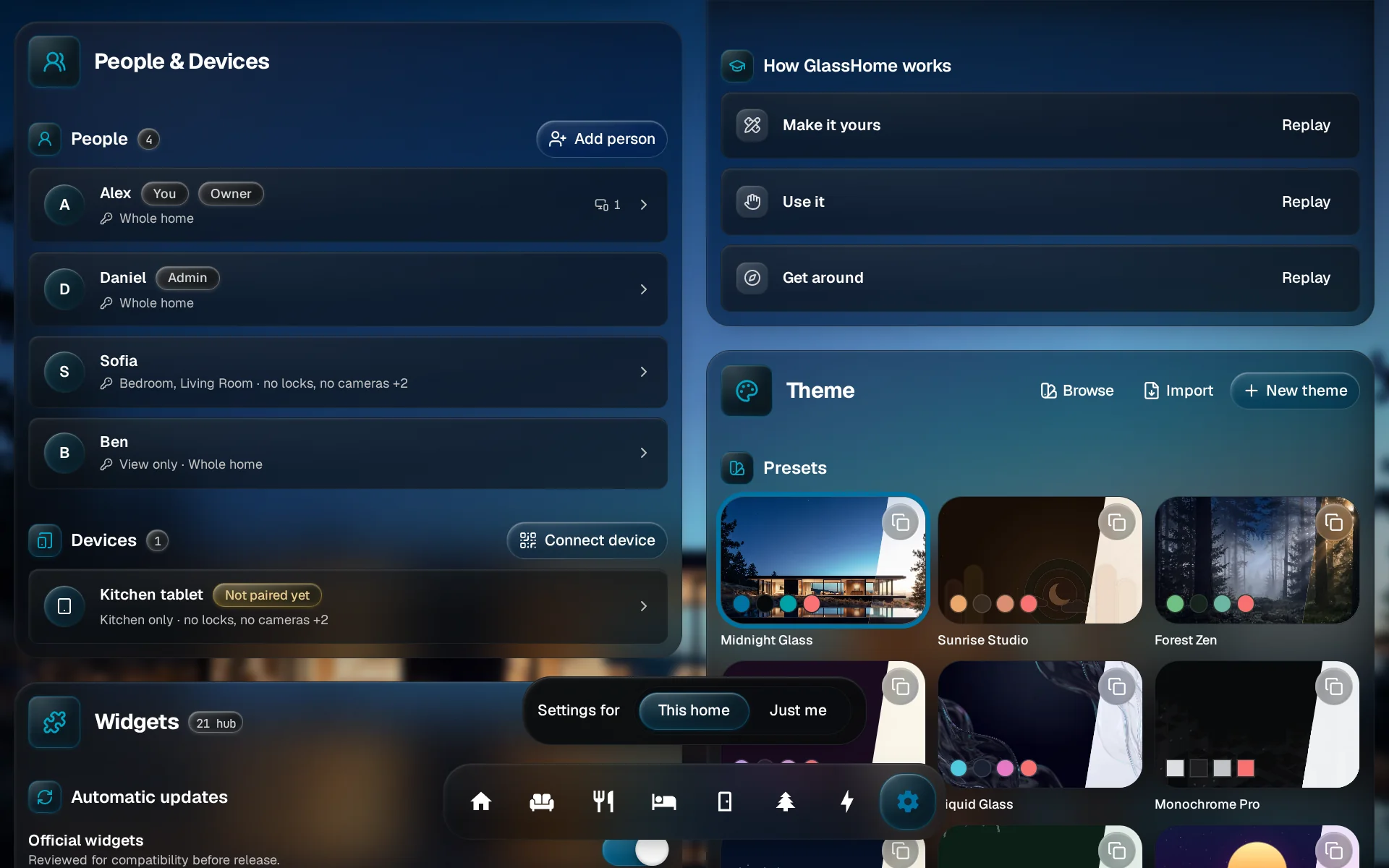
Go to Settings, open Theme and tap New theme. The creator studio opens beside your dashboard, and your home wears the theme as you change it.
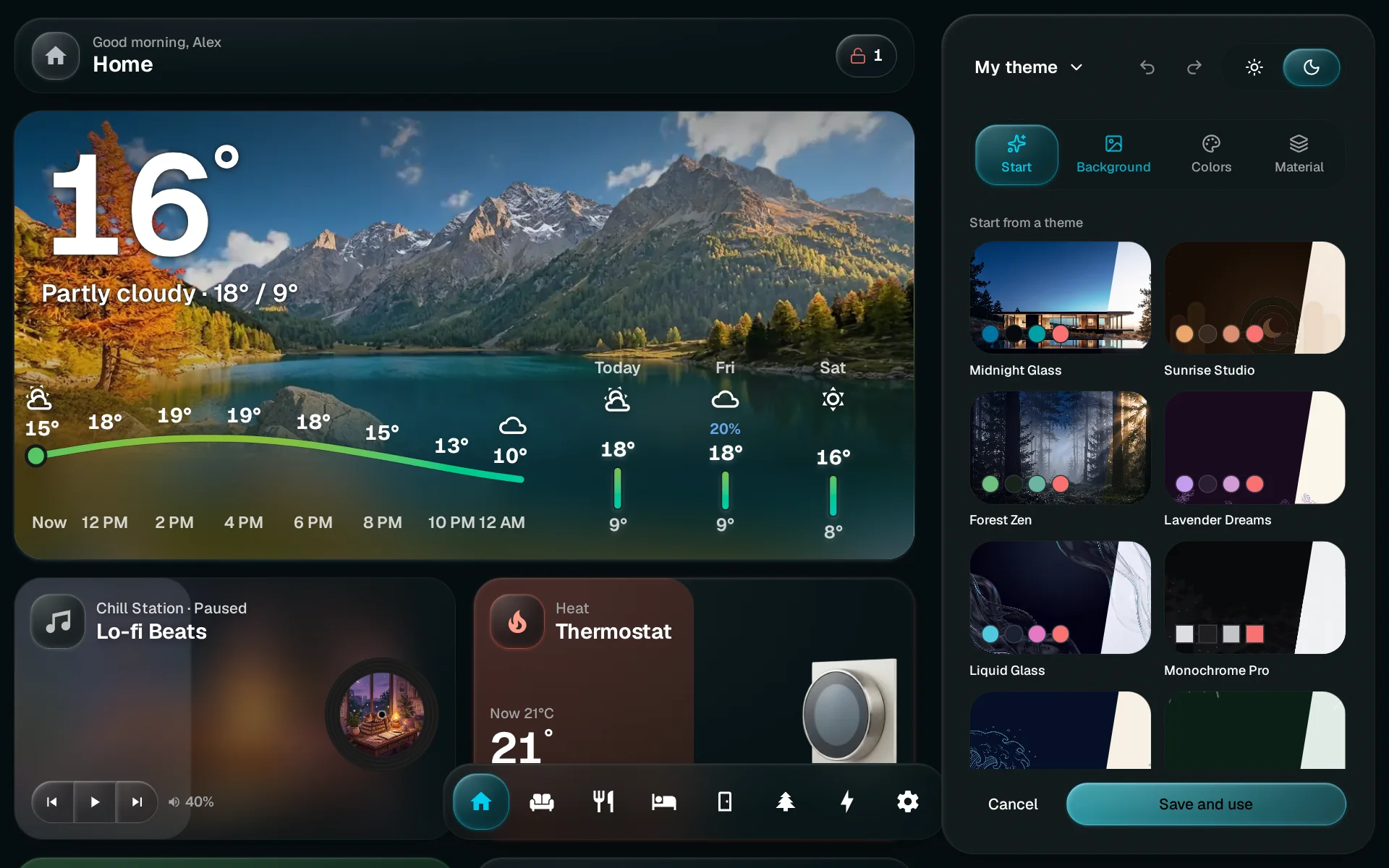
Pick a starting point
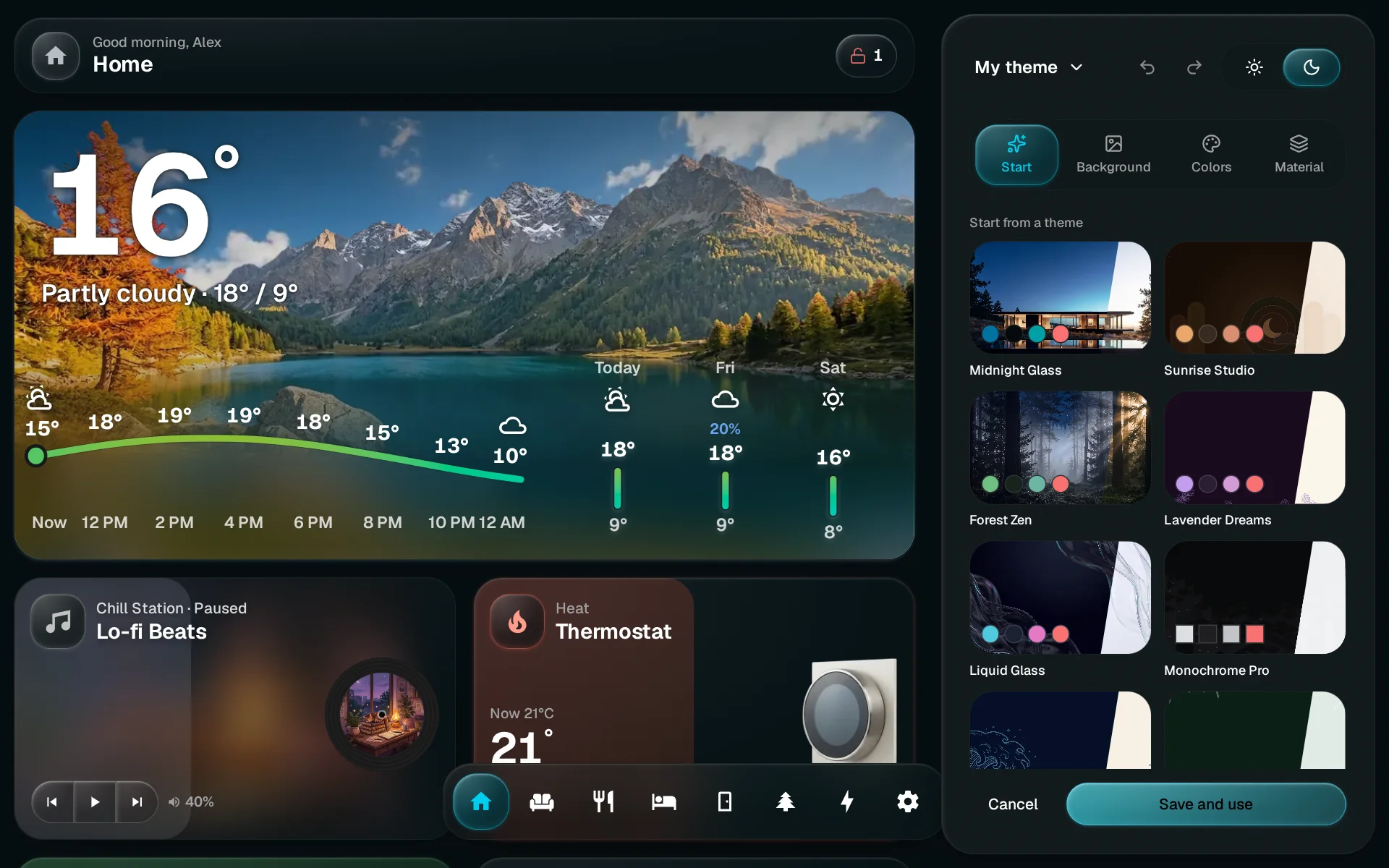
On Start, tap a theme under Start from a theme. Or tap From your photo to make a picture the background, which sets the colors from it, or From a color. Themes from other homes wait under Shared themes.
Set the background
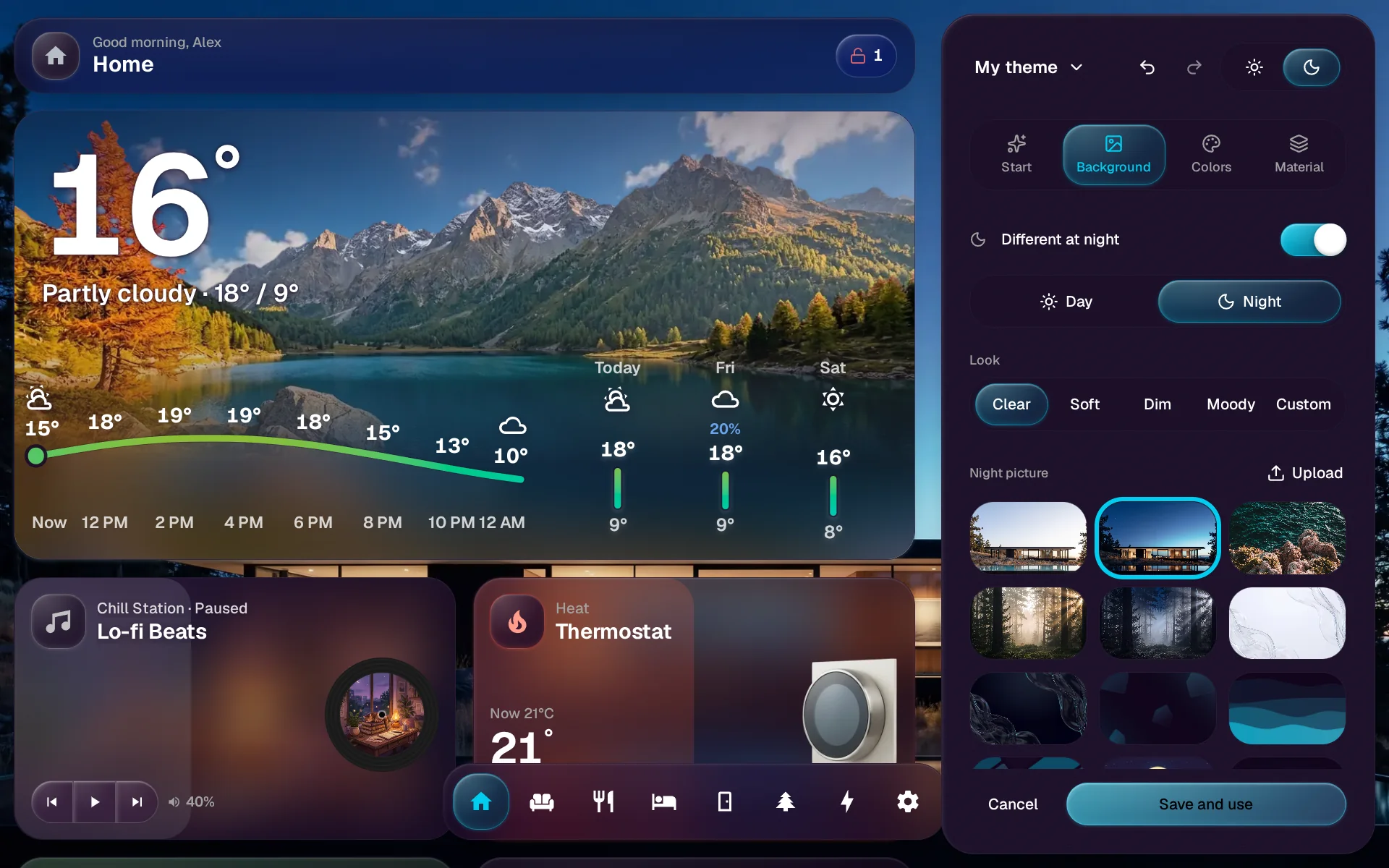
On Background, tap a picture. Look sets how the picture sits behind the cards, from Clear to Moody.
Give night its own picture
Different at night gives dark mode its own picture. Switch it on, then choose the picture under Night picture.
Pick the colors
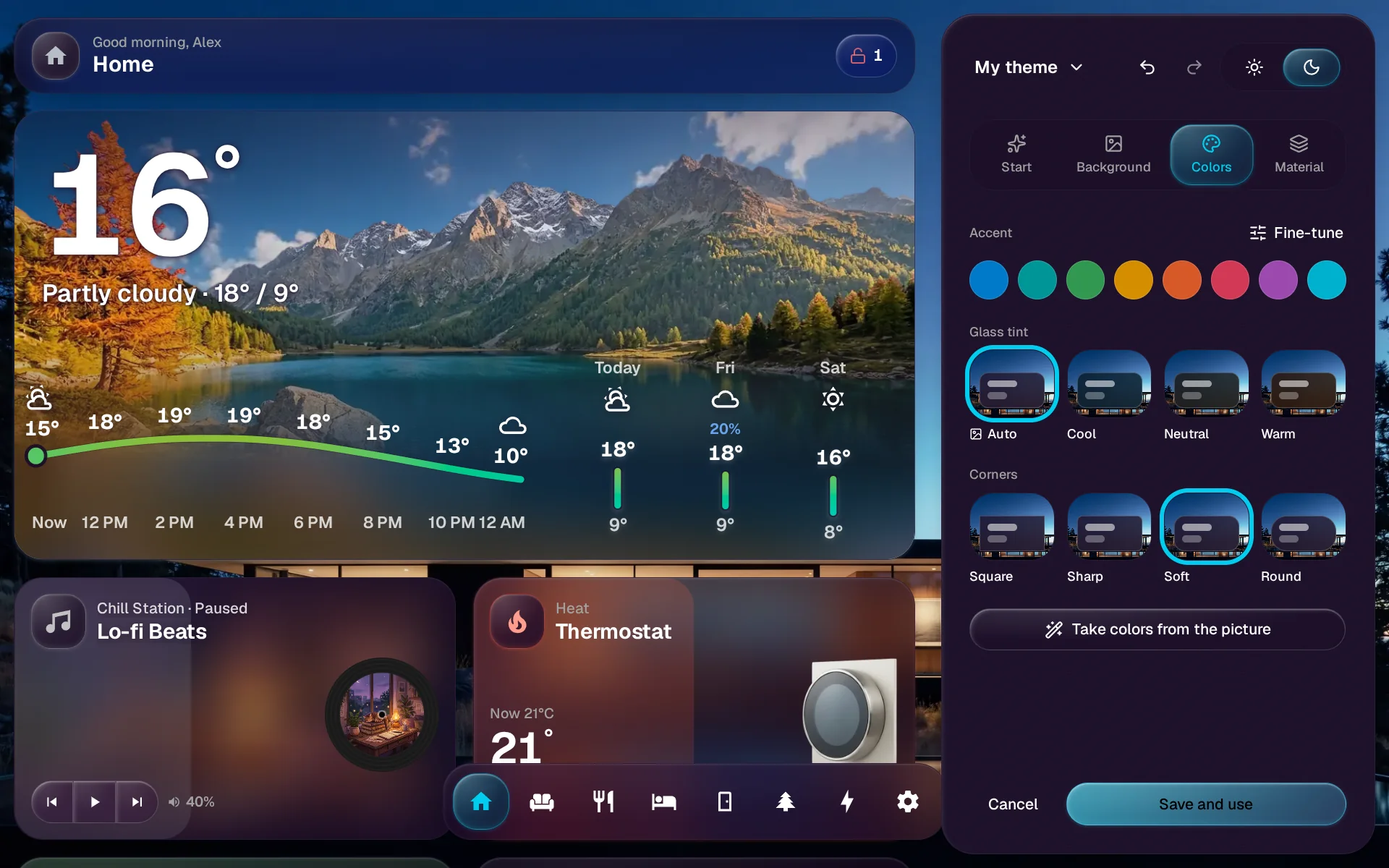
On Colors, choose the Accent for buttons and switches, the Glass tint for the cards, and the Corners. Take colors from the picture picks an accent and a tint from a photo. Fine-tune every color lists every color for light and dark, and each one goes back to automatic when you tap it.
Choose a material
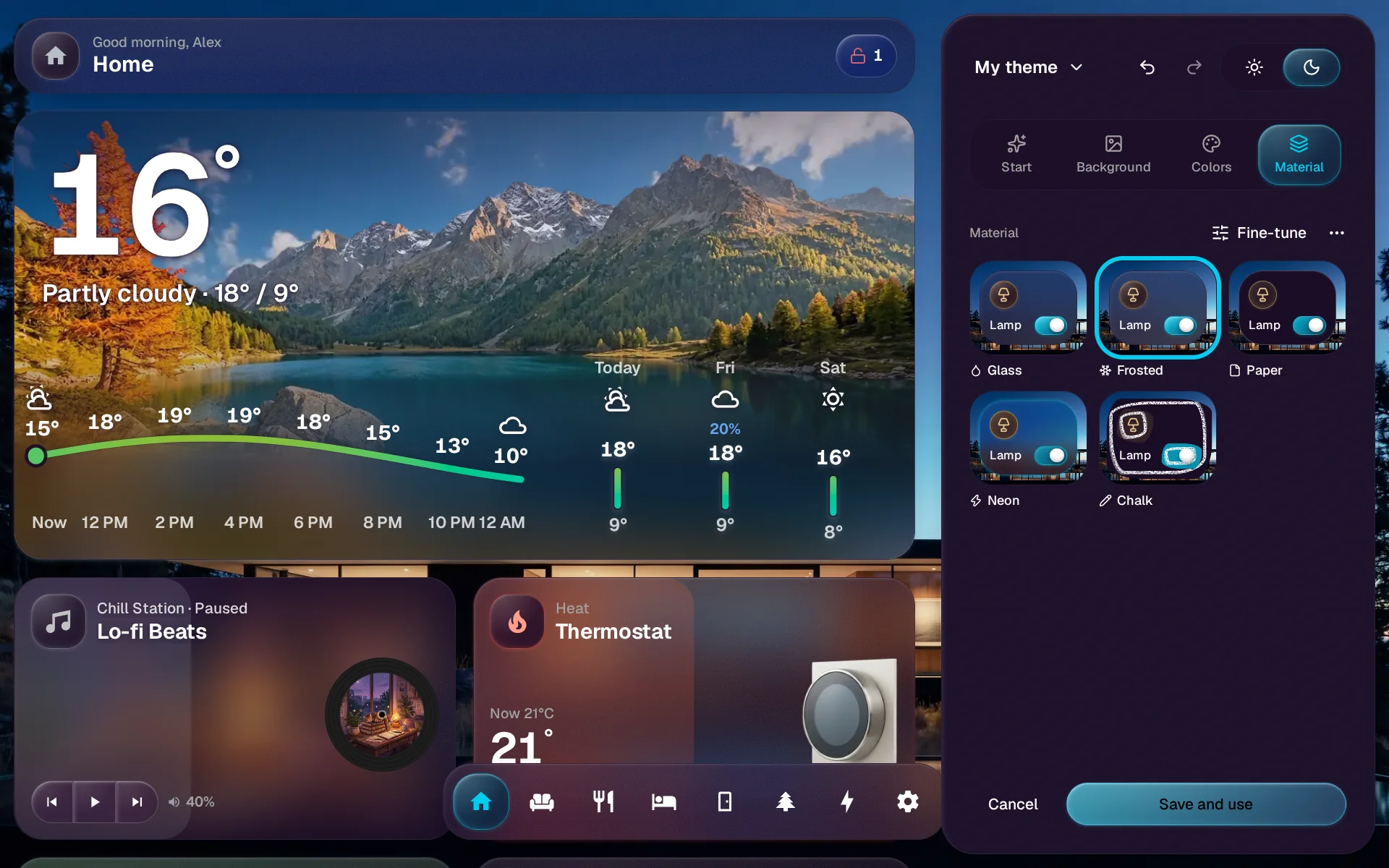
On Material, pick Glass, Frosted, Paper, Neon or Chalk. A row of switches and sliders under them shows the material as you tune it. Fine-tune opens every setting, and Reset puts the material back the way it came.
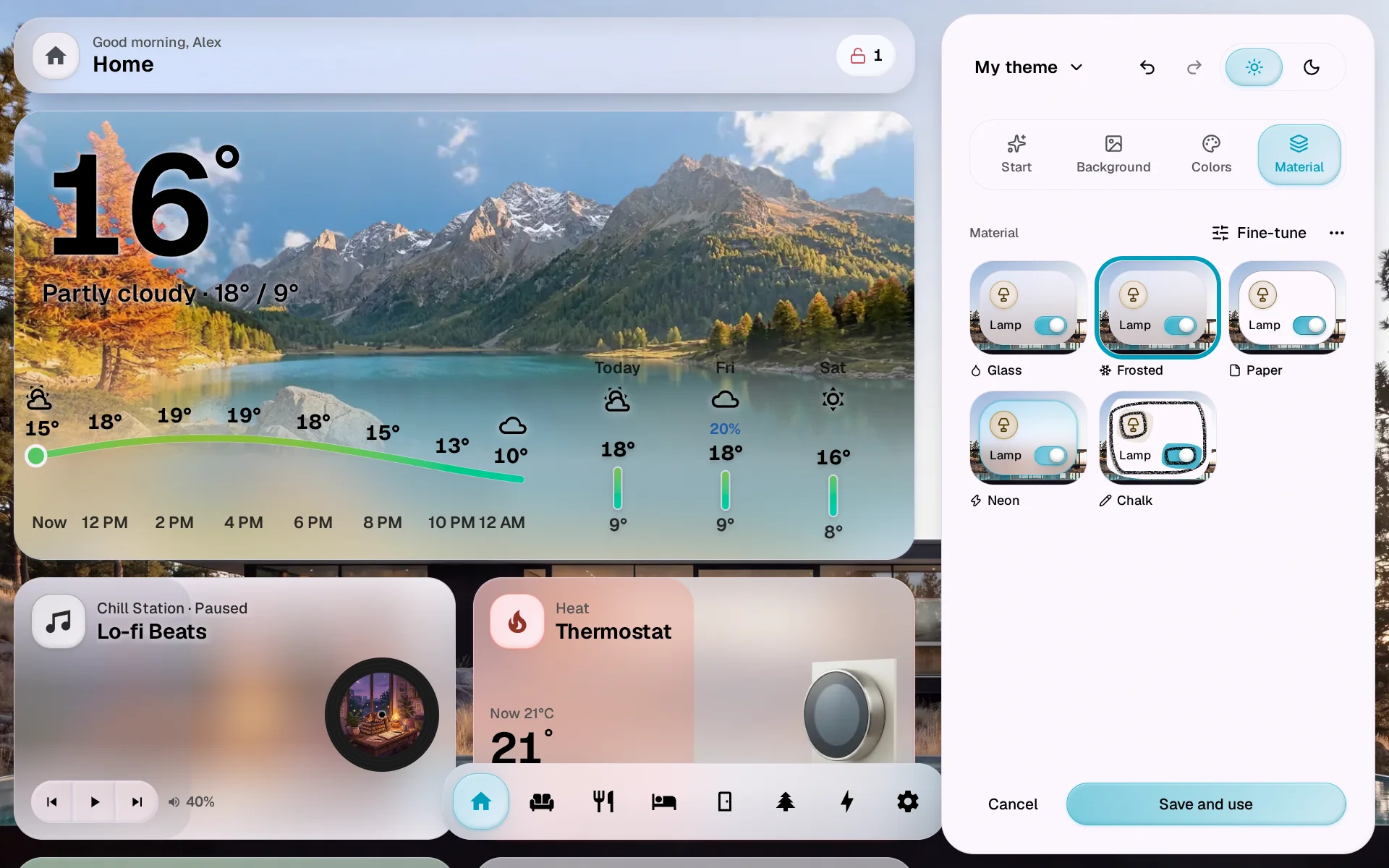
Check both modes
The sun and the moon at the top of the studio flip the preview between light and dark. If text would be hard to read, the Colors tab says so, and Fix it offers a fix.
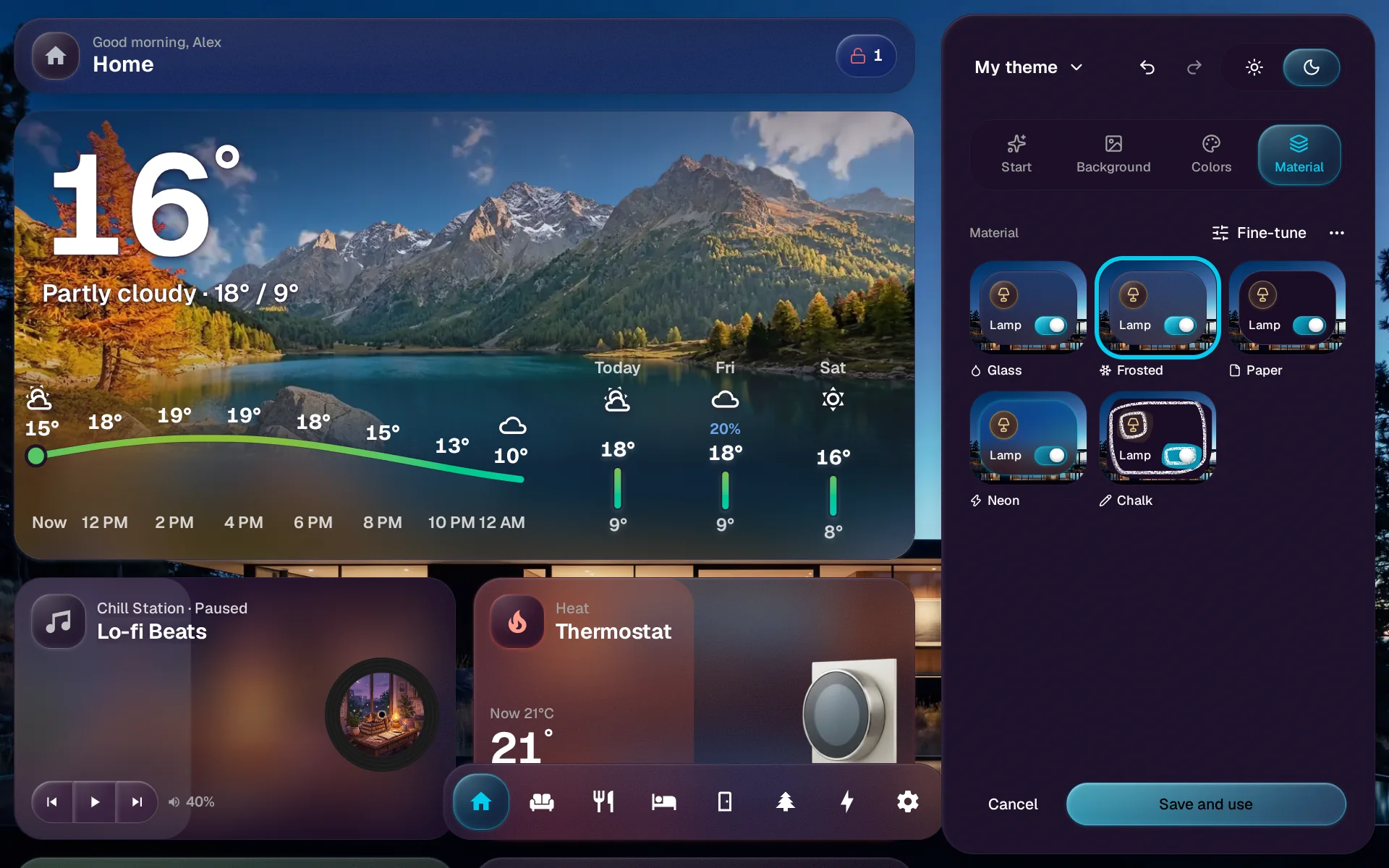
Save and use
Tap Save and use. The theme joins your shelf and your home switches to it. To keep it on the shelf without switching, choose Save without using from the name menu at the top. Saving is where Pro is asked for.
If something looks off
Closing the studio with changes you have not saved brings them back the next time you open it. To drop them, choose Start over in the name menu. Cancel puts your home back as it was.
Save a theme as a file
A theme file moves a theme to another GlassHome without going through glasshome.app.
- To save one, open Share with other homes from the theme’s menu and choose Save as a file instead.
- To open one, go to Settings, Theme and tap Import. The studio opens with the theme, so you see it before it joins your shelf.
An image you uploaded stays home. The file carries a plain background instead.
You are done when
The theme is on your shelf under Settings > Theme, and your home wears it. To share it with other homes, see Find and share. For every control in the studio, see Themes.