Give each person their own look
The kids can have neon, you can have the calm one, and the kitchen tablet can match the wall. Admins set what the home starts with, and every person changes the rest on their own.
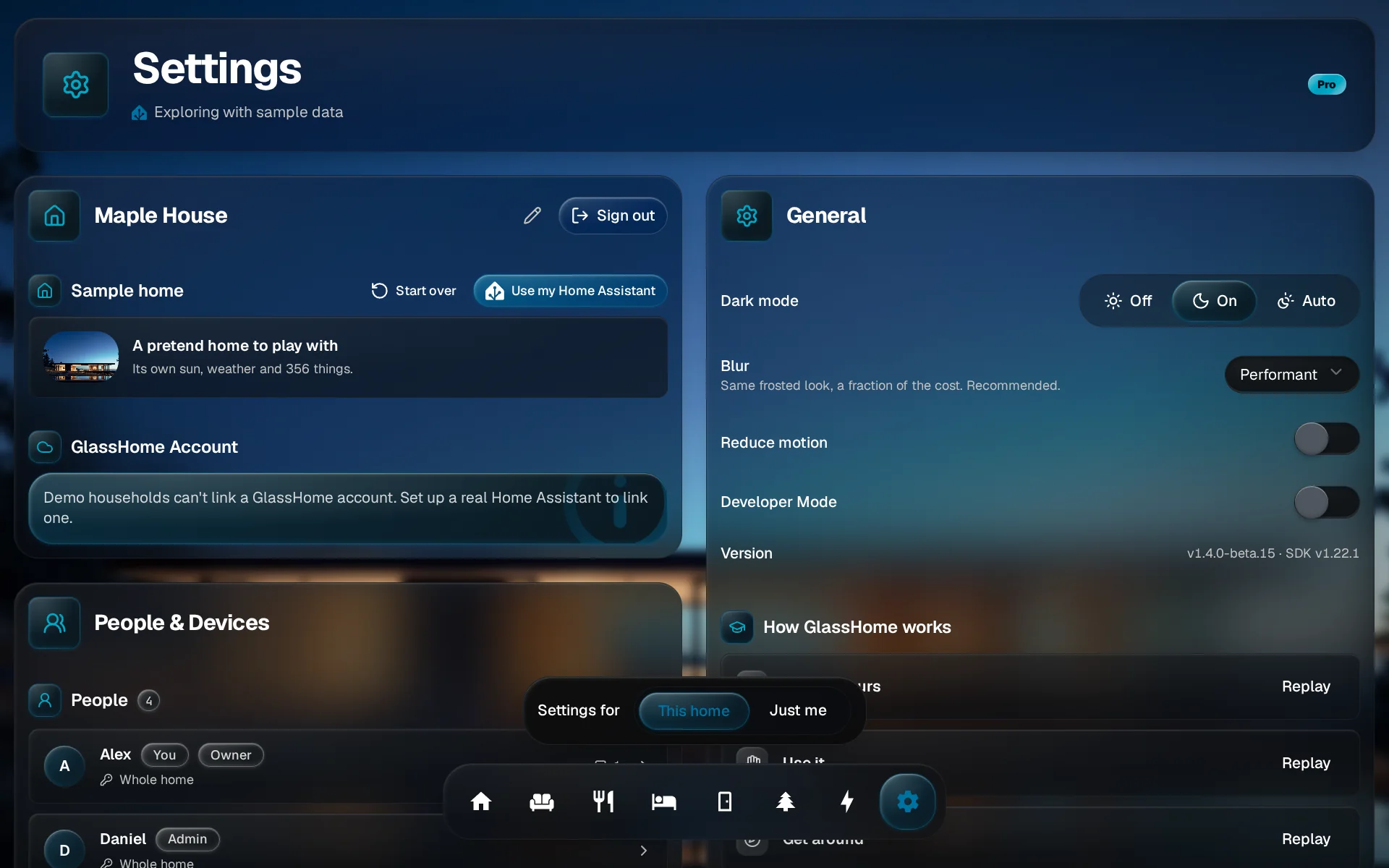
Open Settings on This home
Open Settings. The bar above the dock reads Settings for. With This home selected, what you pick applies to everyone who has not picked their own.
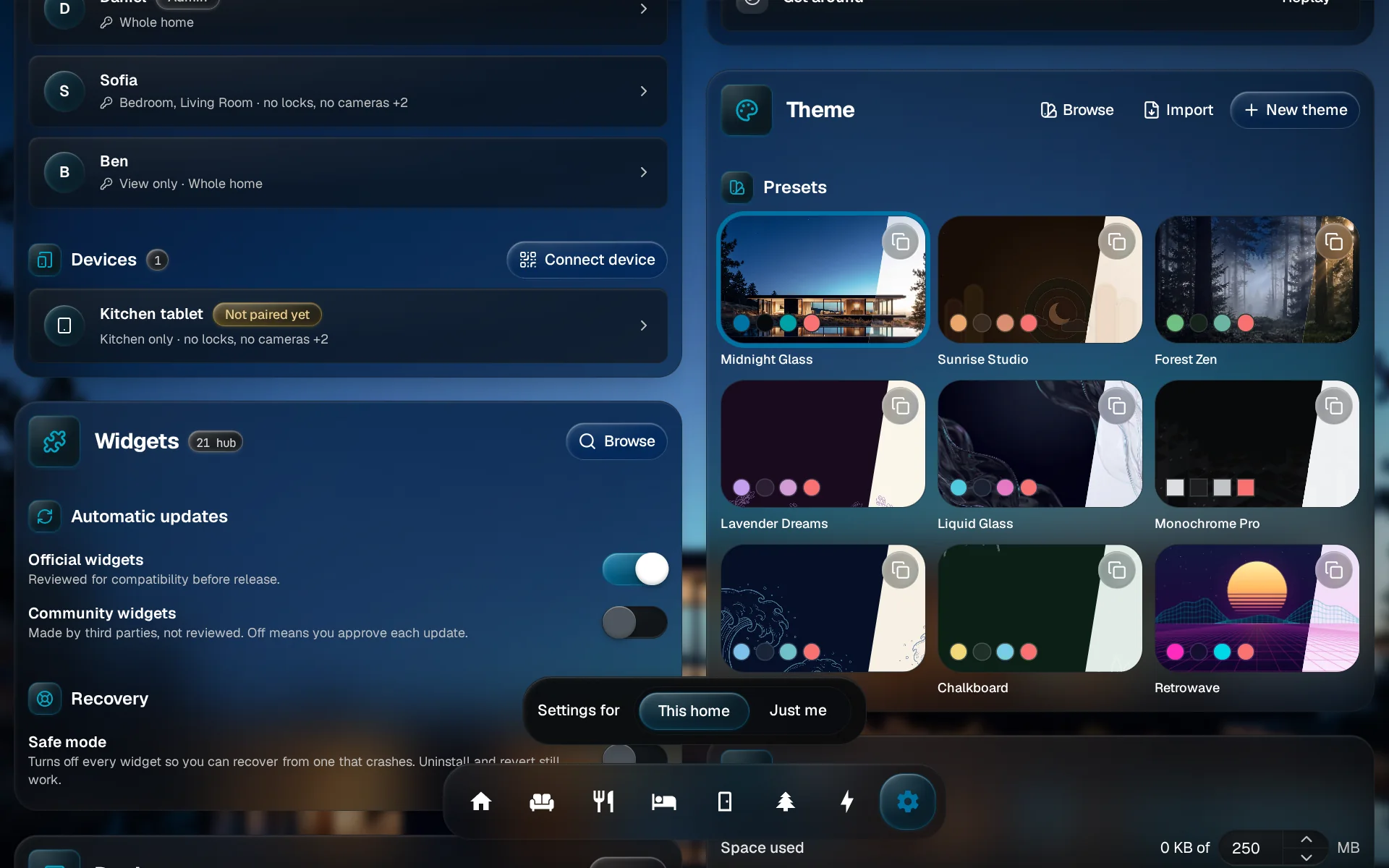
Pick the home's look
In Theme, pick the theme the home starts with. In Dashboards, set Main dashboard. In Dock, set Display mode to Floating, Fixed or Hidden. In General, set Dark mode, Blur and Reduce motion.
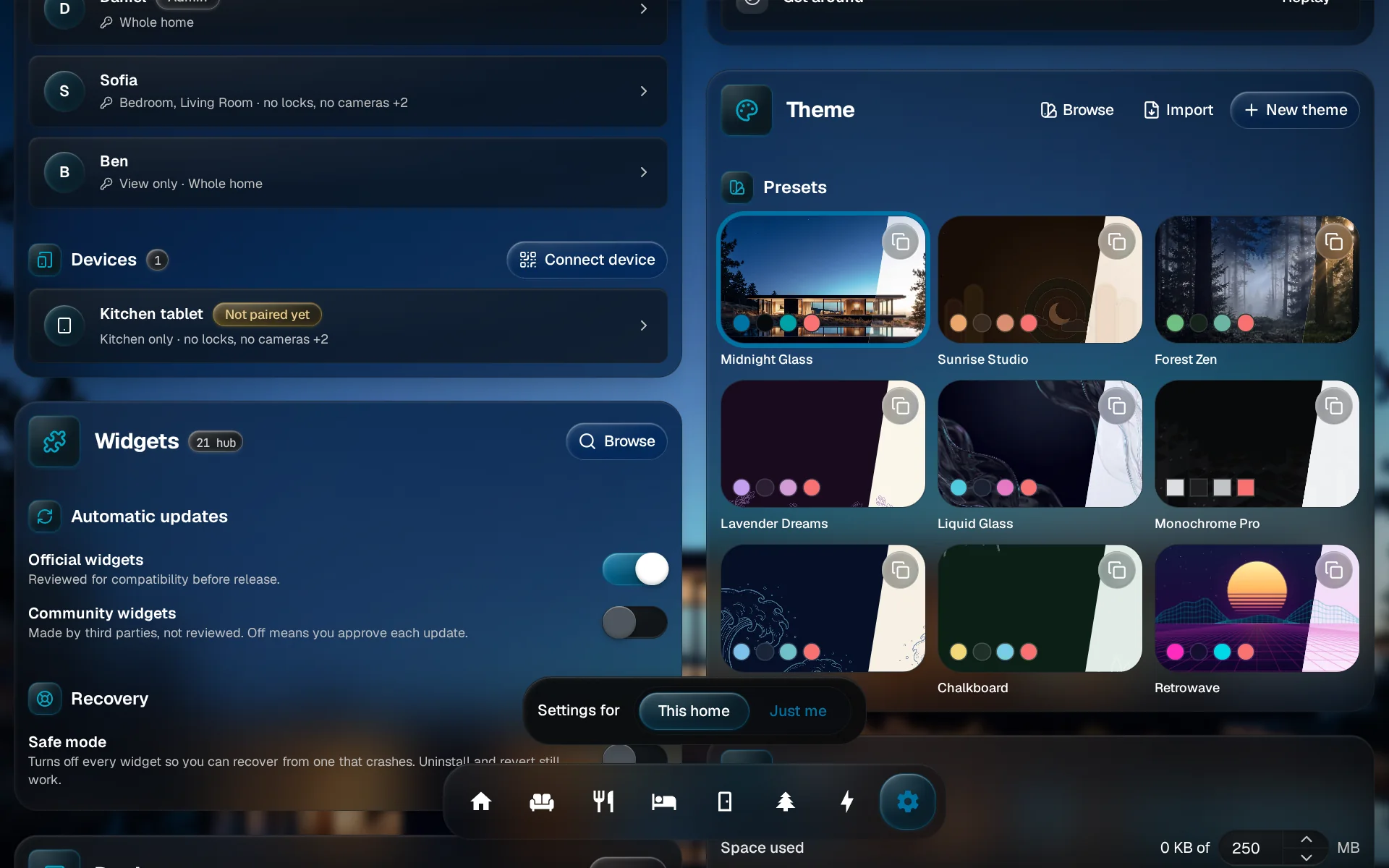
Switch to Just me
Tap Just me in the bar, then change the rows you want. For Dark mode, Auto follows Sunset to sunrise, or Custom times you set. Members land here straight away; they have no bar.
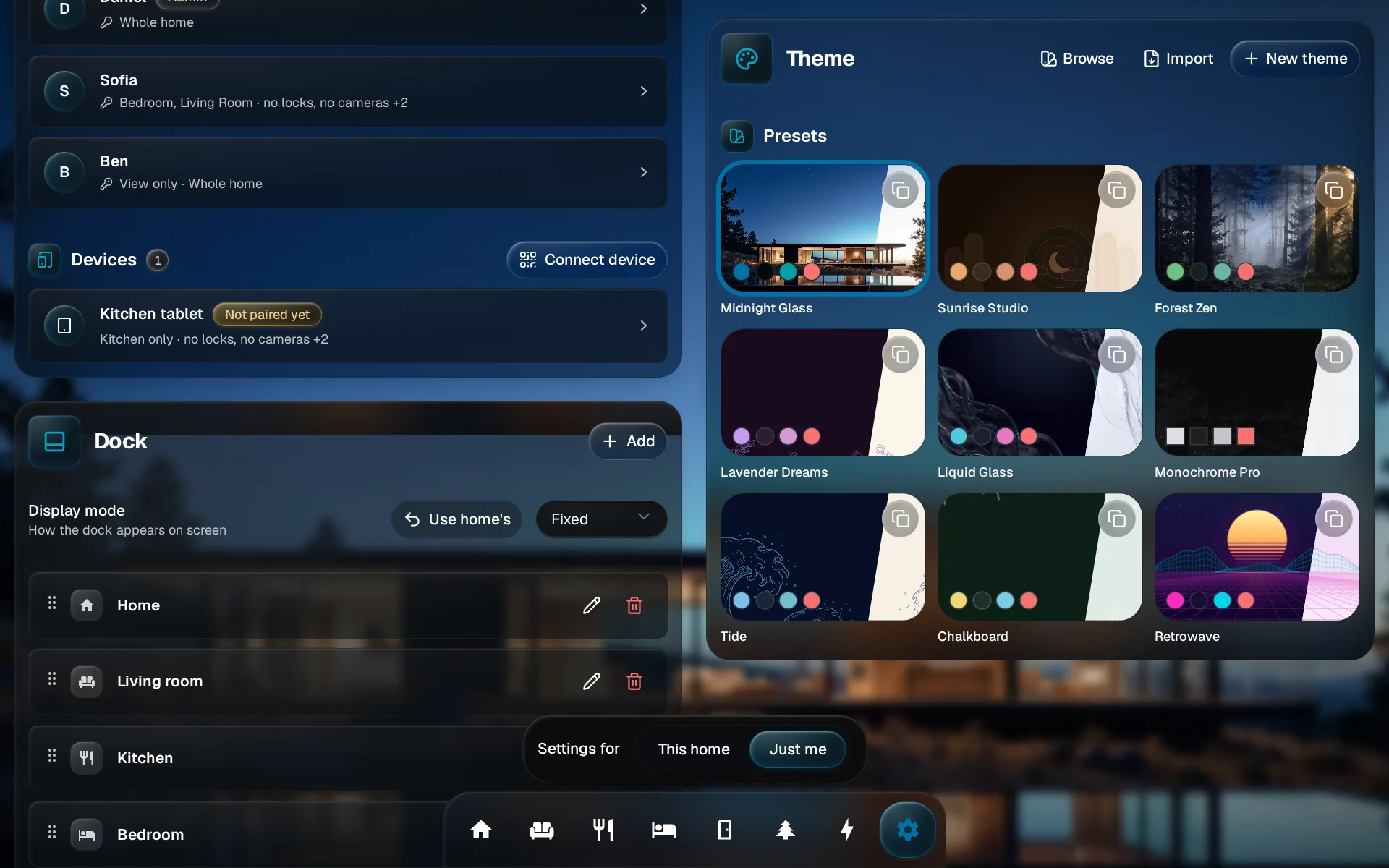
See Use home's
A row you changed for yourself shows Use home’s, on either tab, so you always see why a home change skips your screen.
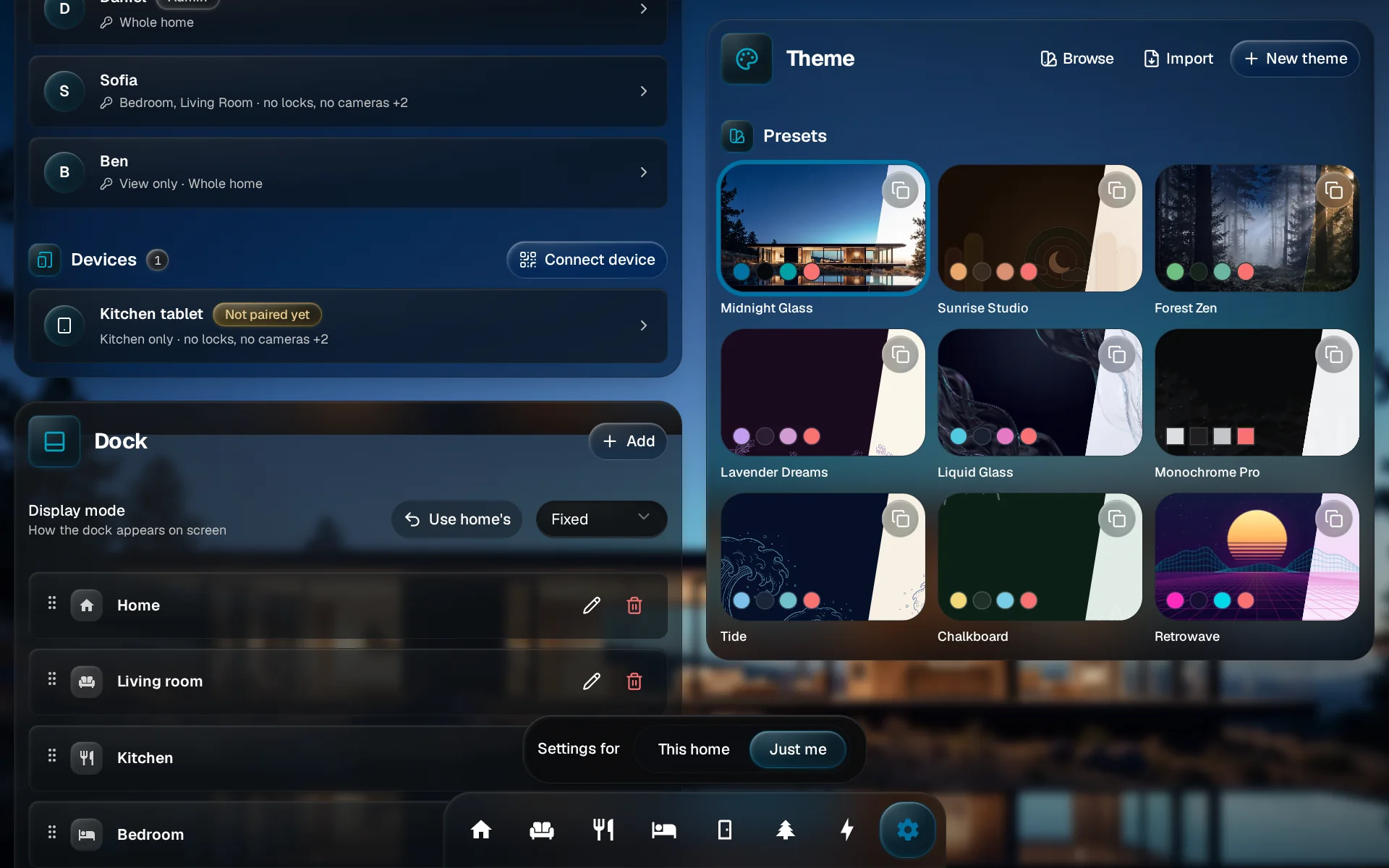
Bring back the home's choice
Tap Use home’s. The row follows the home again.
You are done when
Each person’s screen shows their own theme, dashboard, dock and dark mode. Changing the home’s choices later only moves the people who have not picked their own. Admins can also set someone’s choices from their card in People & Devices. For who can see and change what, see People & access.