Rearrange your dashboard
Everything on your dashboard can move, grow, shrink or go. Every change saves as you make it, so there is no Save button to find.
Enter edit mode
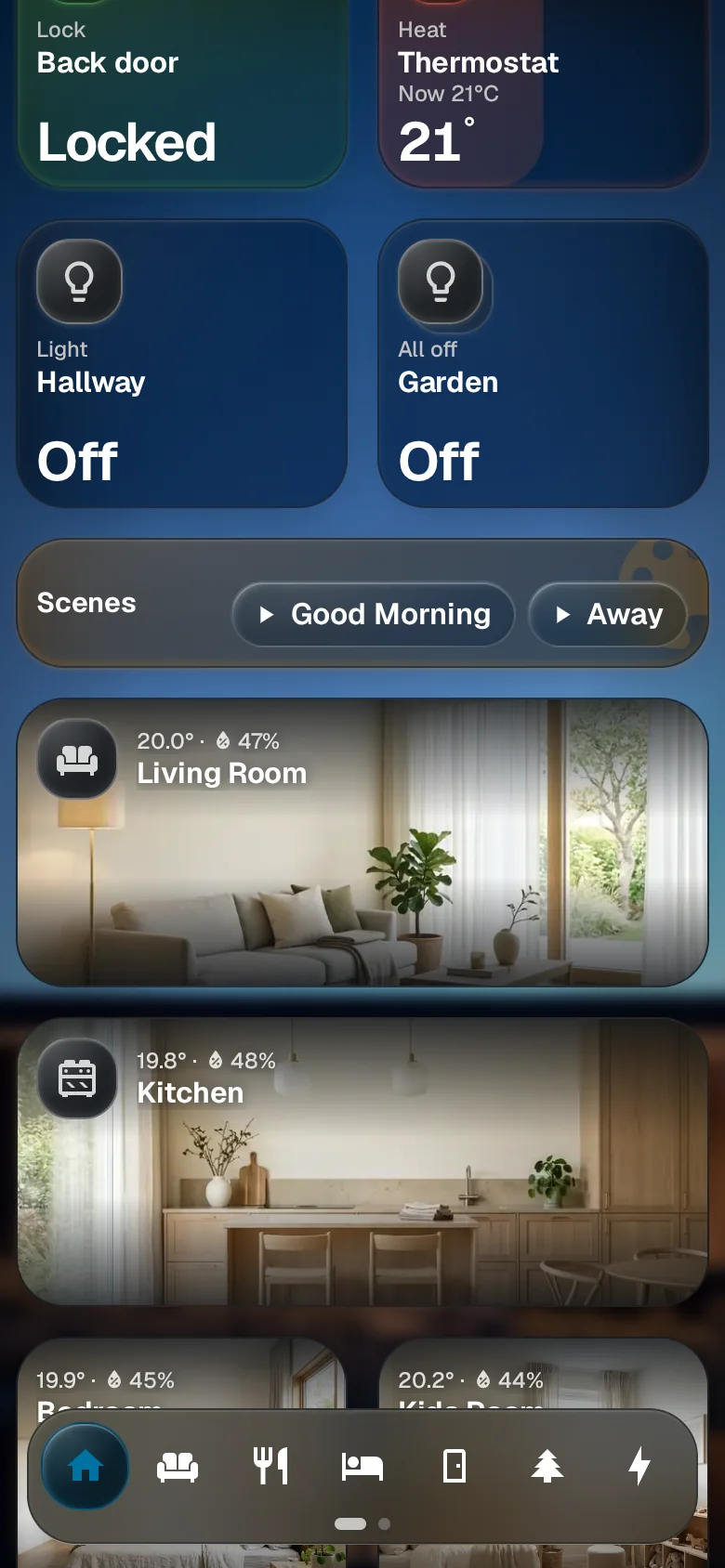
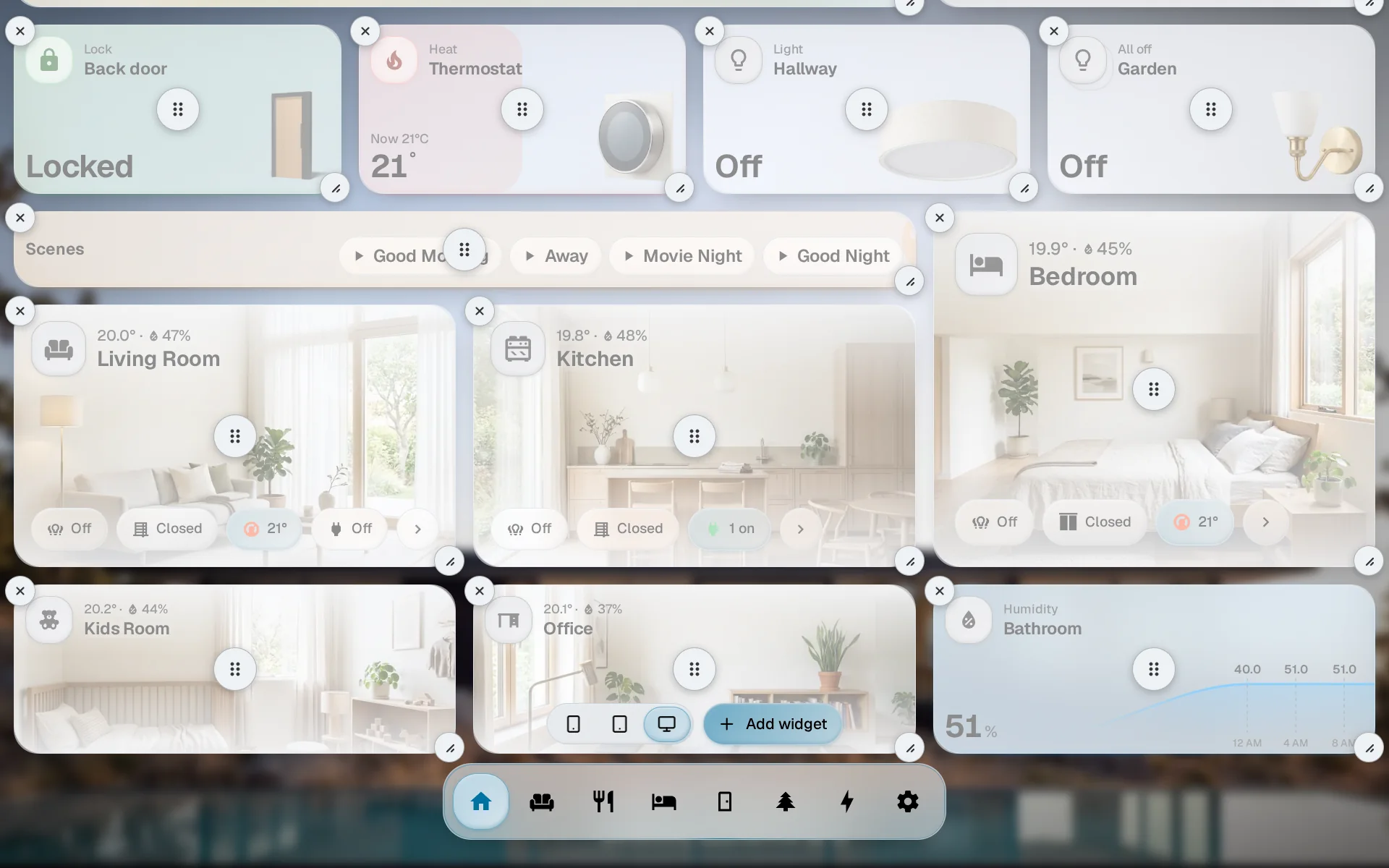
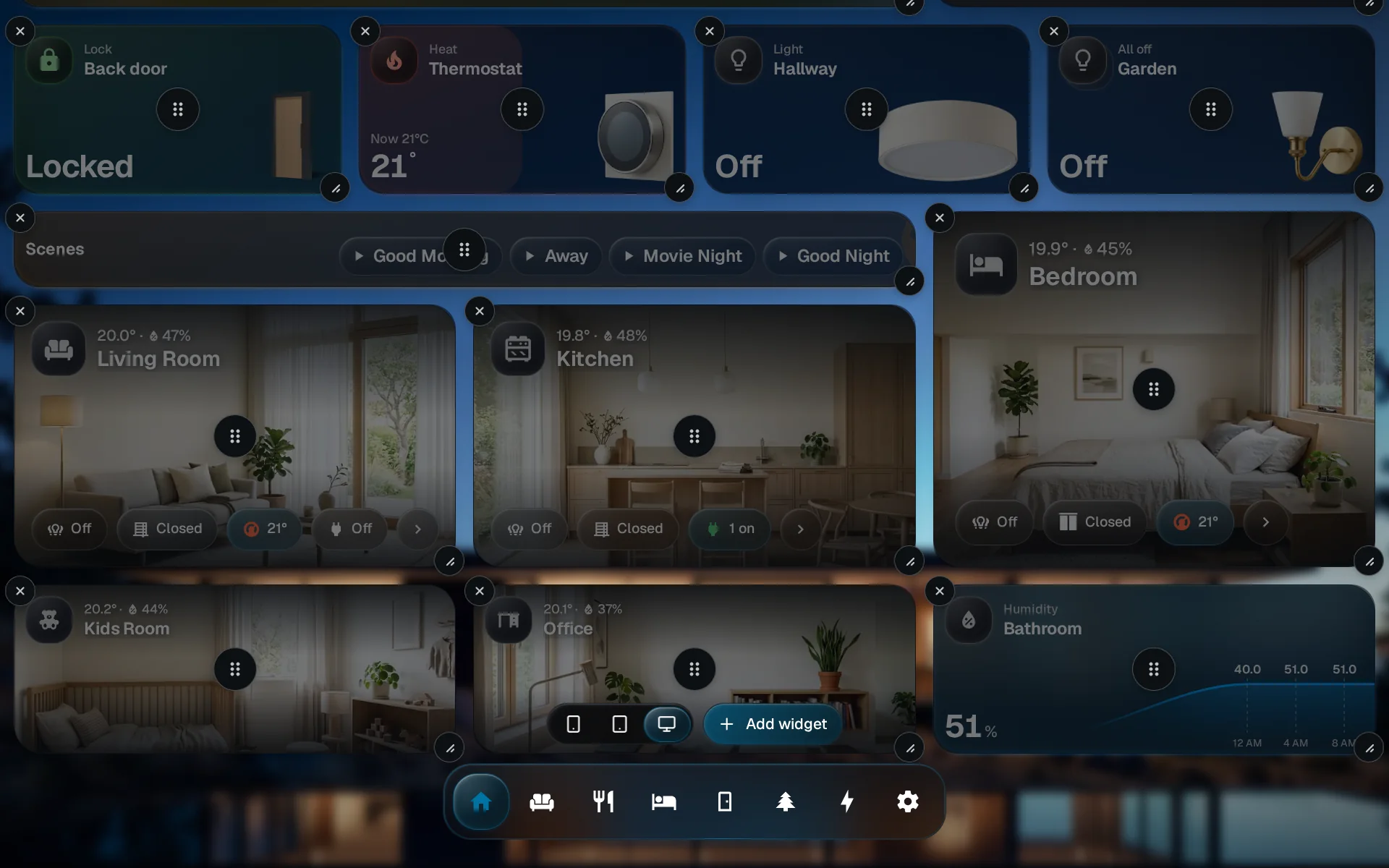
Press and hold the dock for about half a second. Each widget shows a grip in the middle, a corner handle and an X.
Add a widget
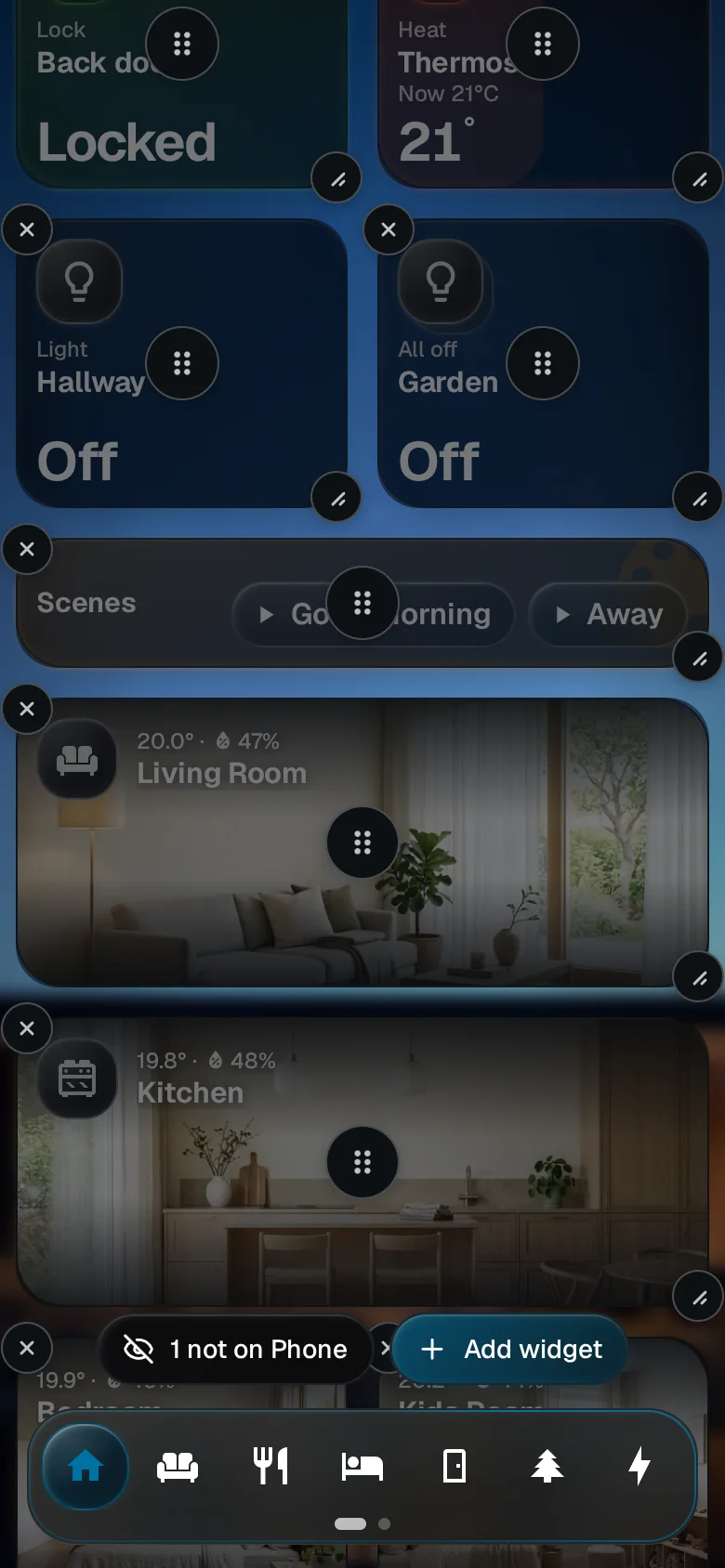
Tap Add widget, above the dock, and pick one. It lands in the first free spot for this screen size. A dialog then asks whether it goes on this screen size or every size.
Leave edit mode
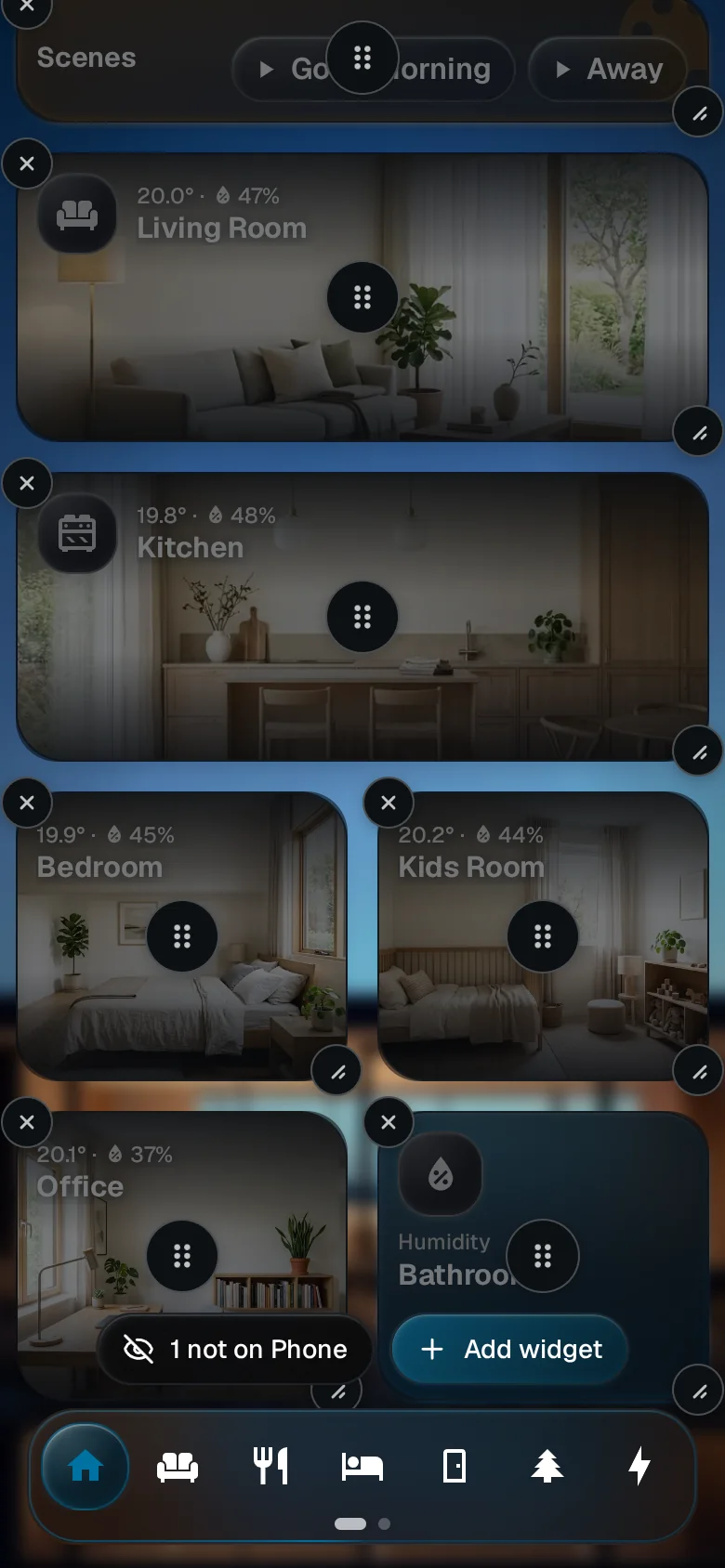
Hold the dock again. Done in the background menu does the same. Edit mode also leaves on its own after three minutes without a touch.
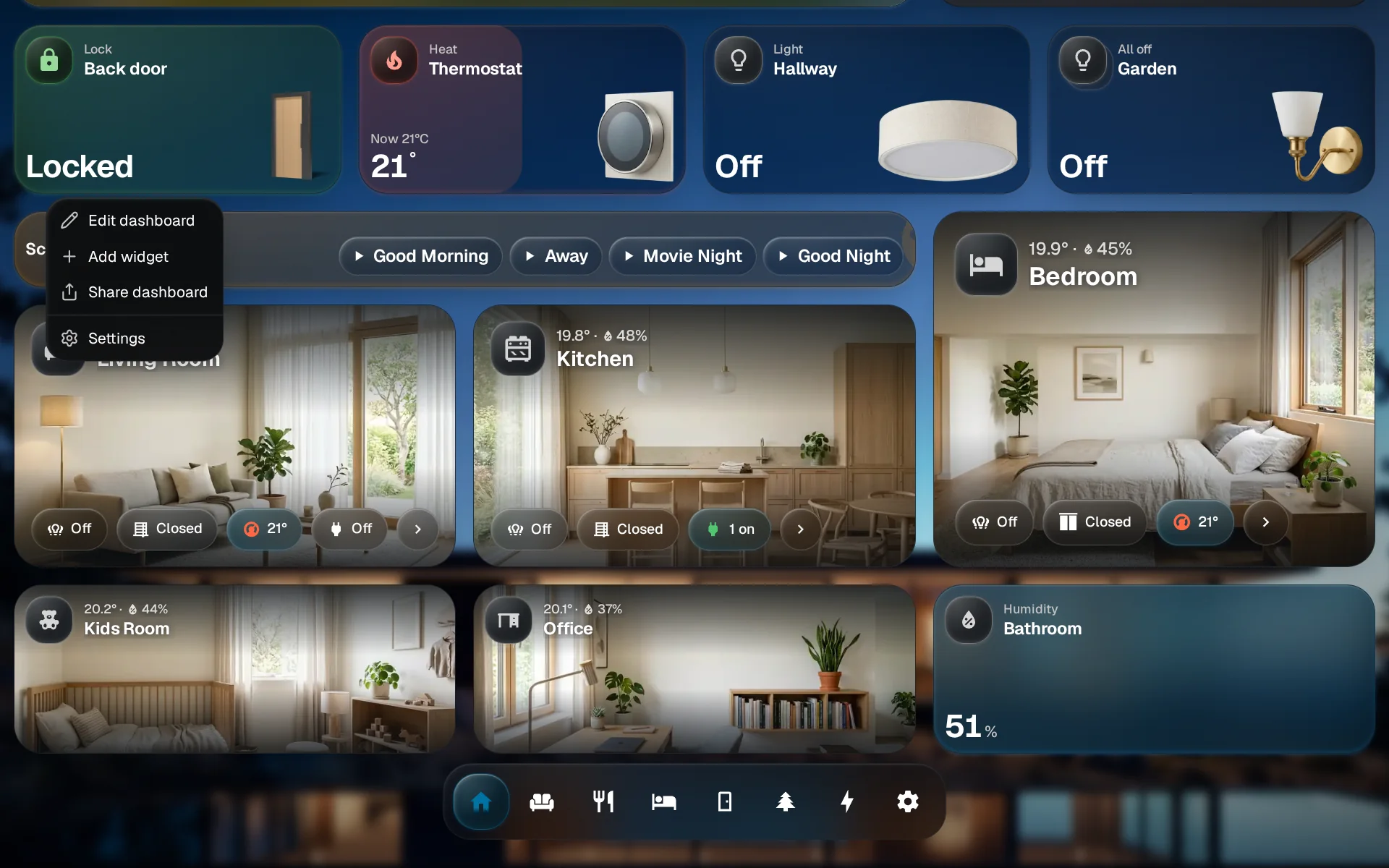
Edit the dashboard
Press and hold the background of the dashboard and choose Edit dashboard. Then the steps are the same, except that you press on a widget and drag it, and the corner handle works with the mouse.
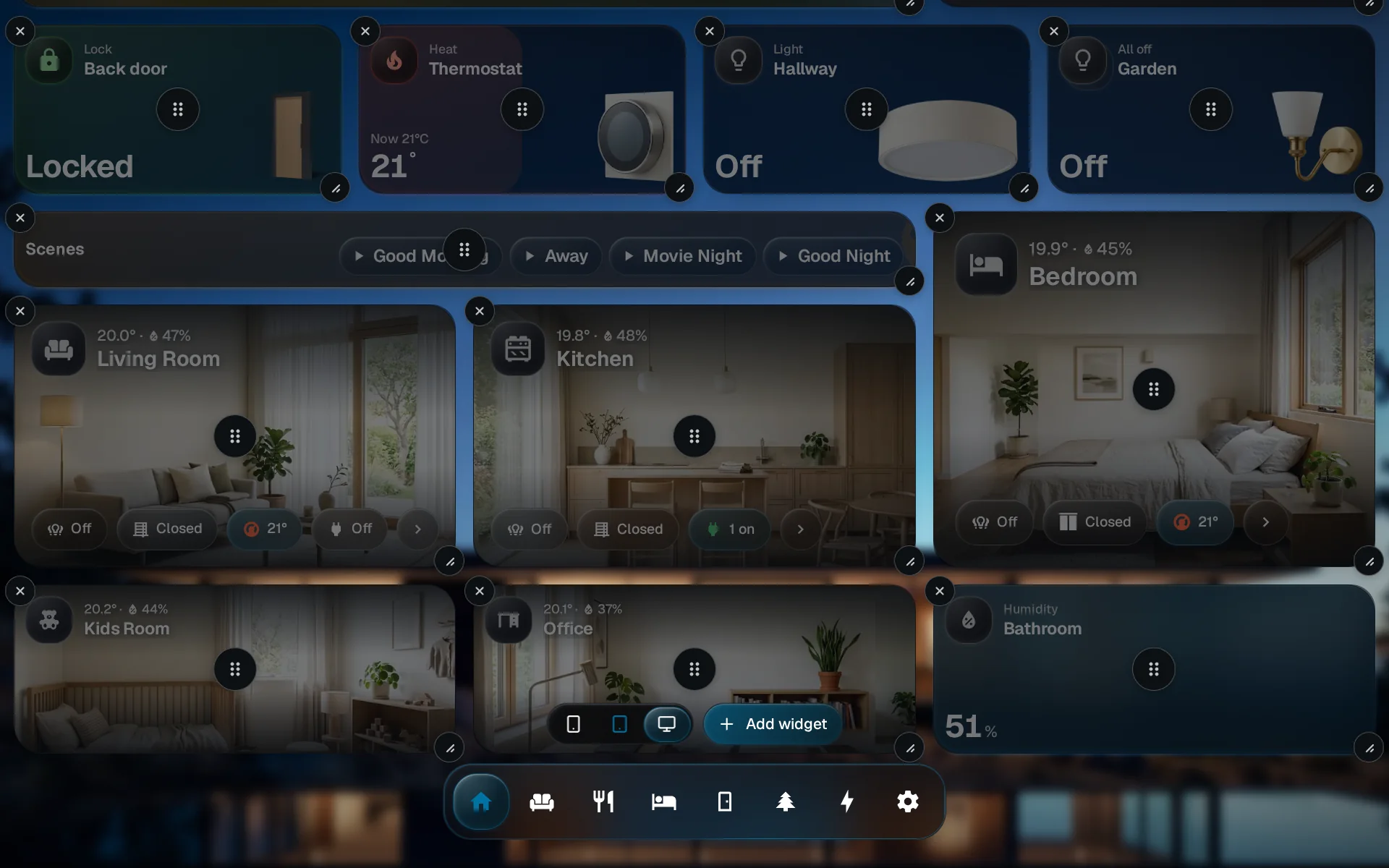
Pick a screen size
Each screen size keeps its own layout, so a change on your phone never moves the desktop layout. While you are editing, the four screen-size buttons beside Add widget, for phone, tablet, desktop and wide screen, switch the dashboard to that size at its real width. Only the sizes that fit on your screen are offered. Leaving edit mode brings you back to your own screen.
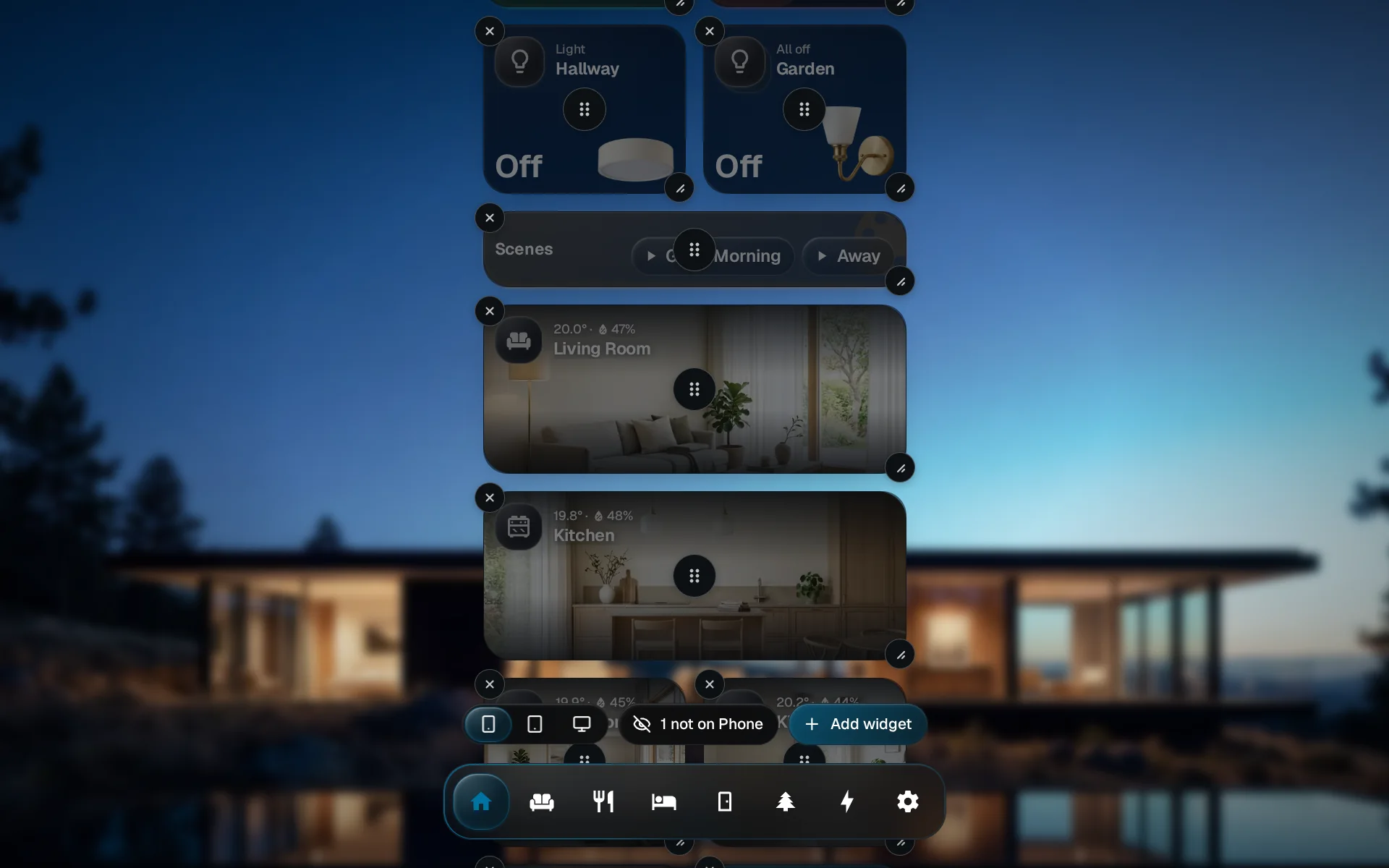
See what is missing
When some widgets are not on the size you are looking at, a button beside them says how many, for example 2 not on Phone.
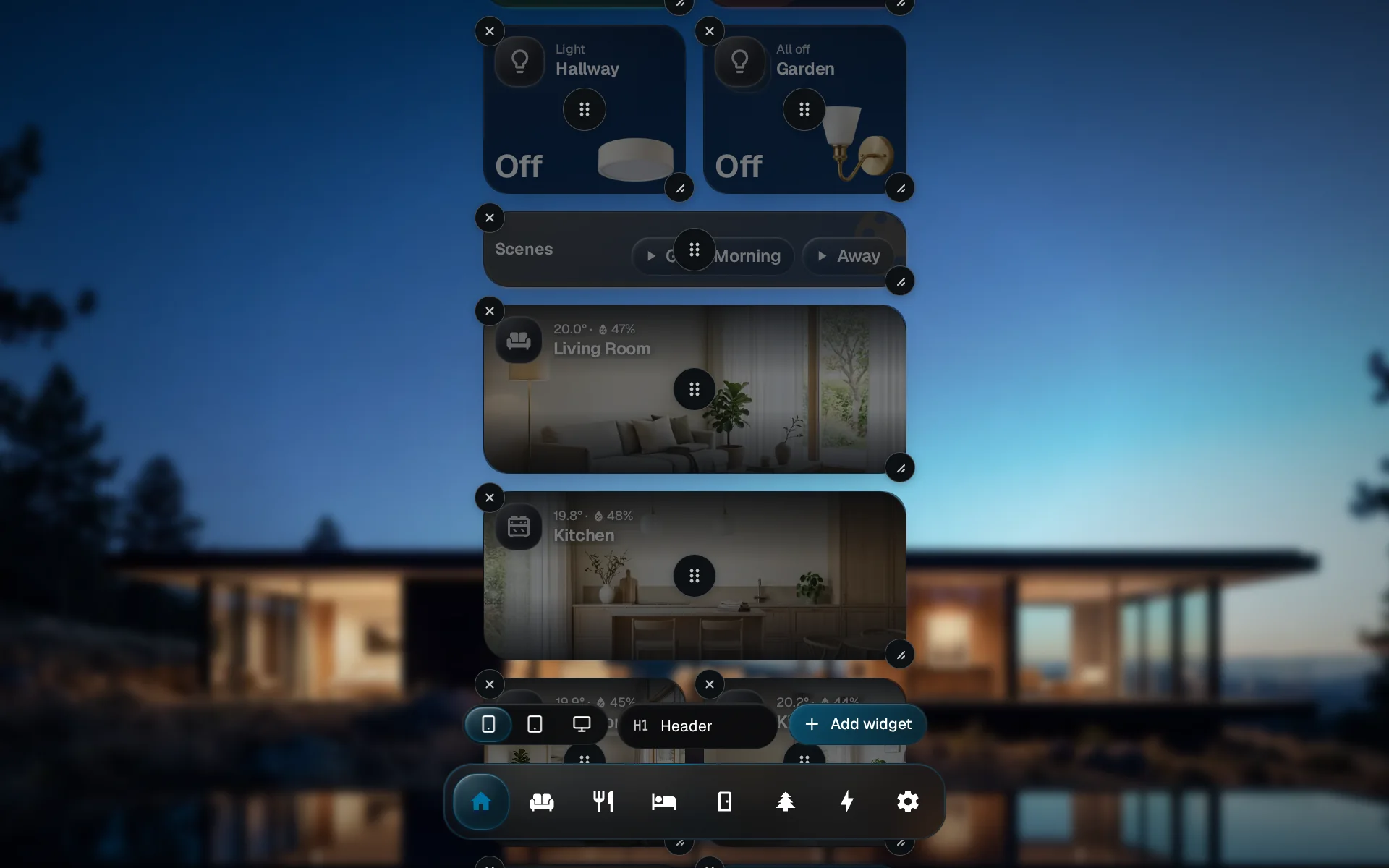
Place it on this size
Tap it, pick a widget, and the widget lands on this size. The dashboard scrolls to where it went.
Move, resize and organize
In edit mode:
- Move a widget. Drag the grip in its middle; the widgets around it make room. To reach further down while you hold one, scroll with a second finger.
- Resize it. Drag the corner handle, or pinch the widget with two fingers. Each widget stops at its own largest size.
- Add a section heading. Add a second Header widget with your own title, and it heads the widgets under it.
- Send it to another dashboard. Drag it onto a dashboard in the dock and let go. That dashboard opens with the widget lit, and Undo on the message puts it back.
If something looks off
A widget missing from one size is still on the others. Look for the not on button beside the widgets for that size, and pick the widget there.