
Remove a person or screen
When a flatmate moves out or an old tablet goes in a drawer, you remove them from Settings in three taps. Dashboards they made stay where they are.
Remove a person
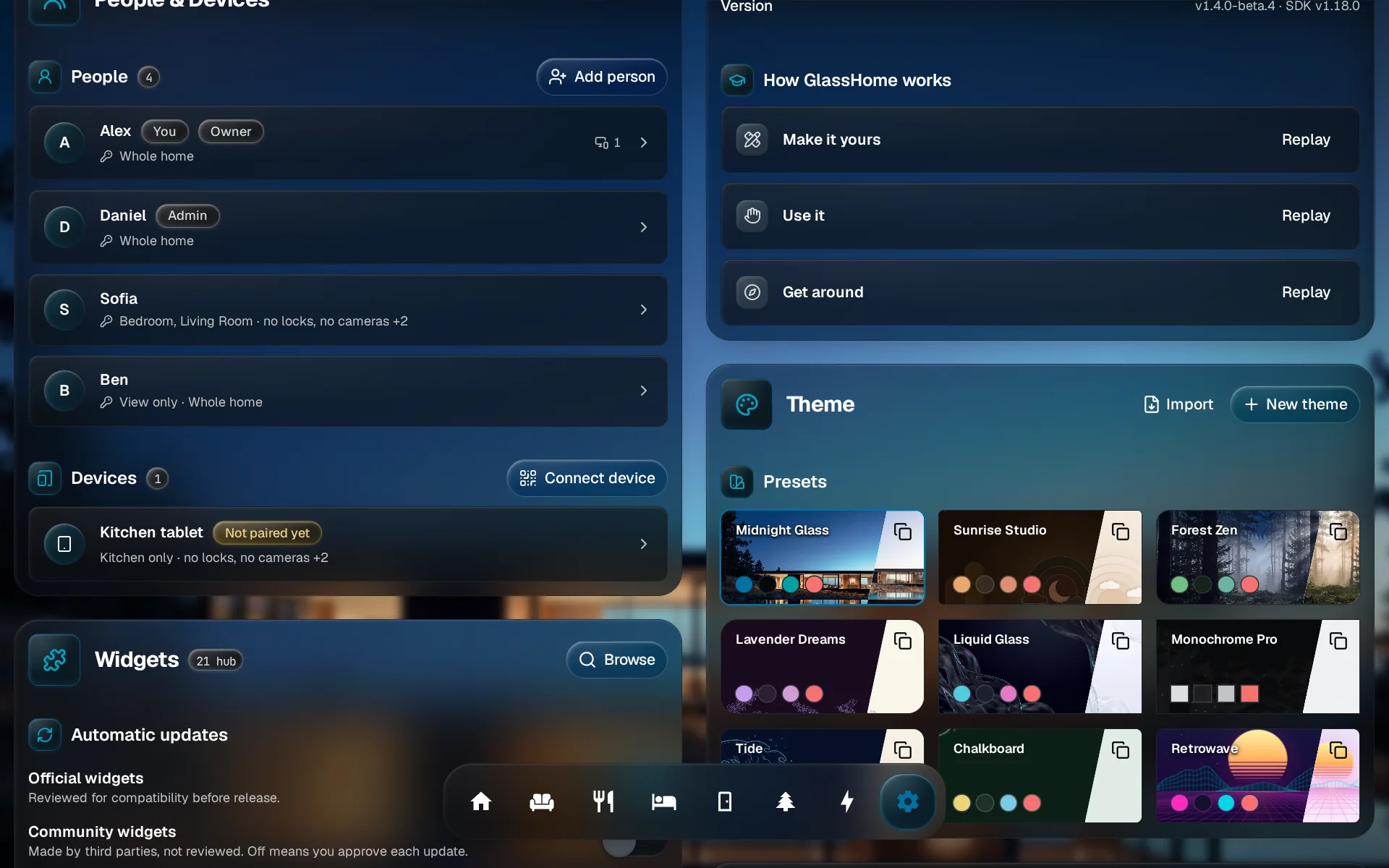
Open their card
In Settings, under People & Devices, tap the person you want to remove.
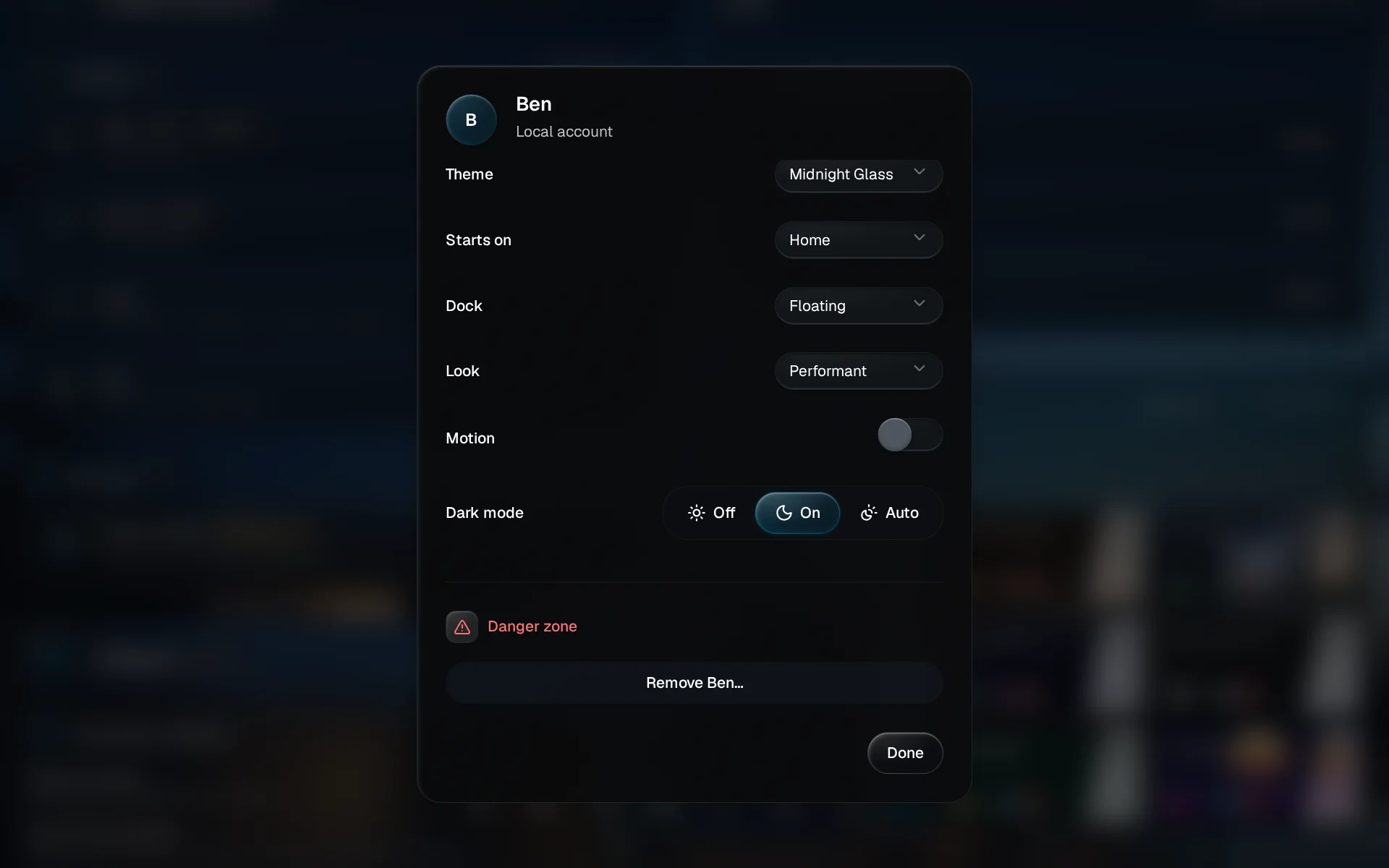
Tap Remove
Scroll to the bottom of their card. Under Danger zone, tap Remove Ben… (with their name, of course).
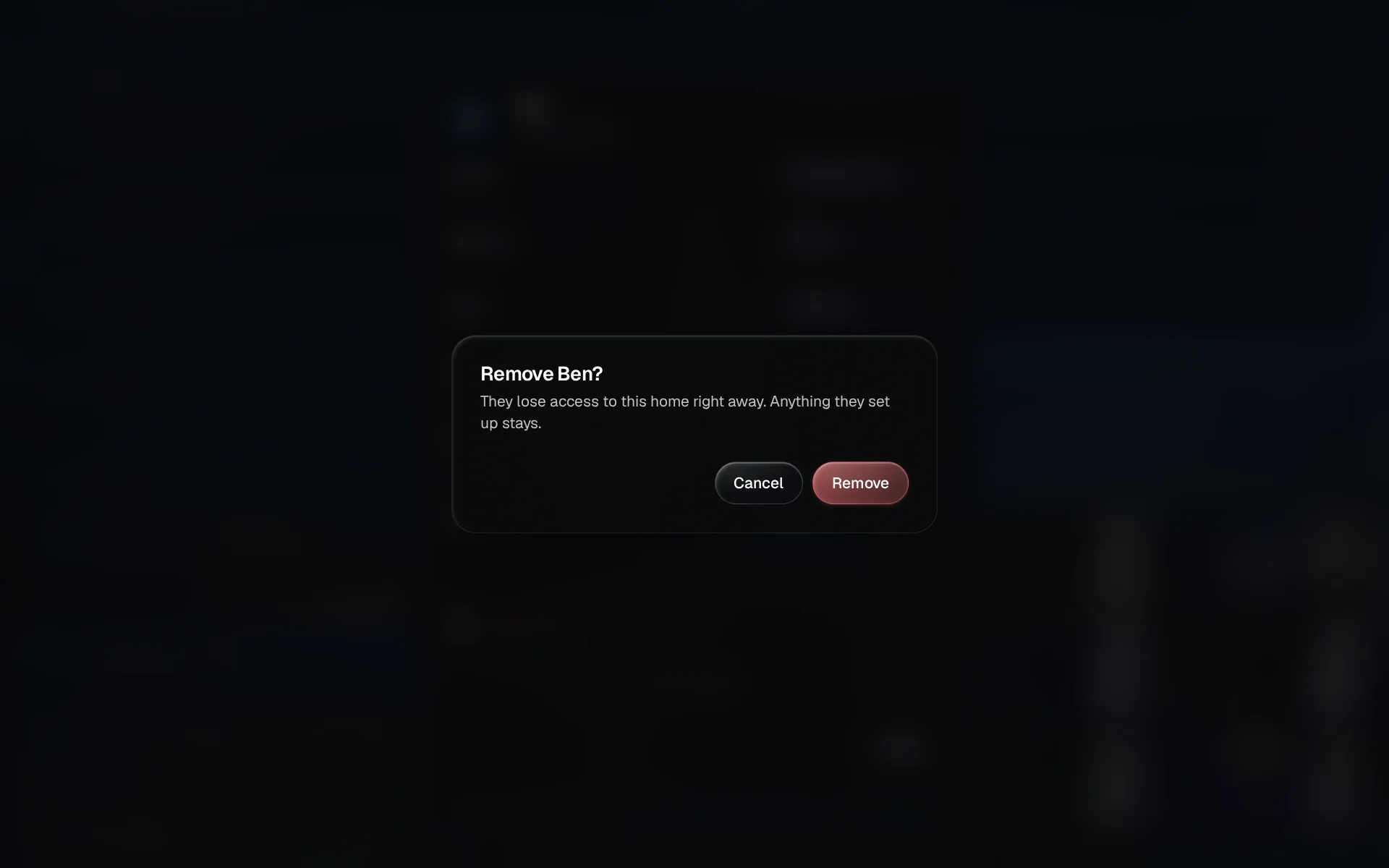
Confirm
GlassHome asks once more. Tap Remove. They are signed out of every device right away.
Unpair a shared screen
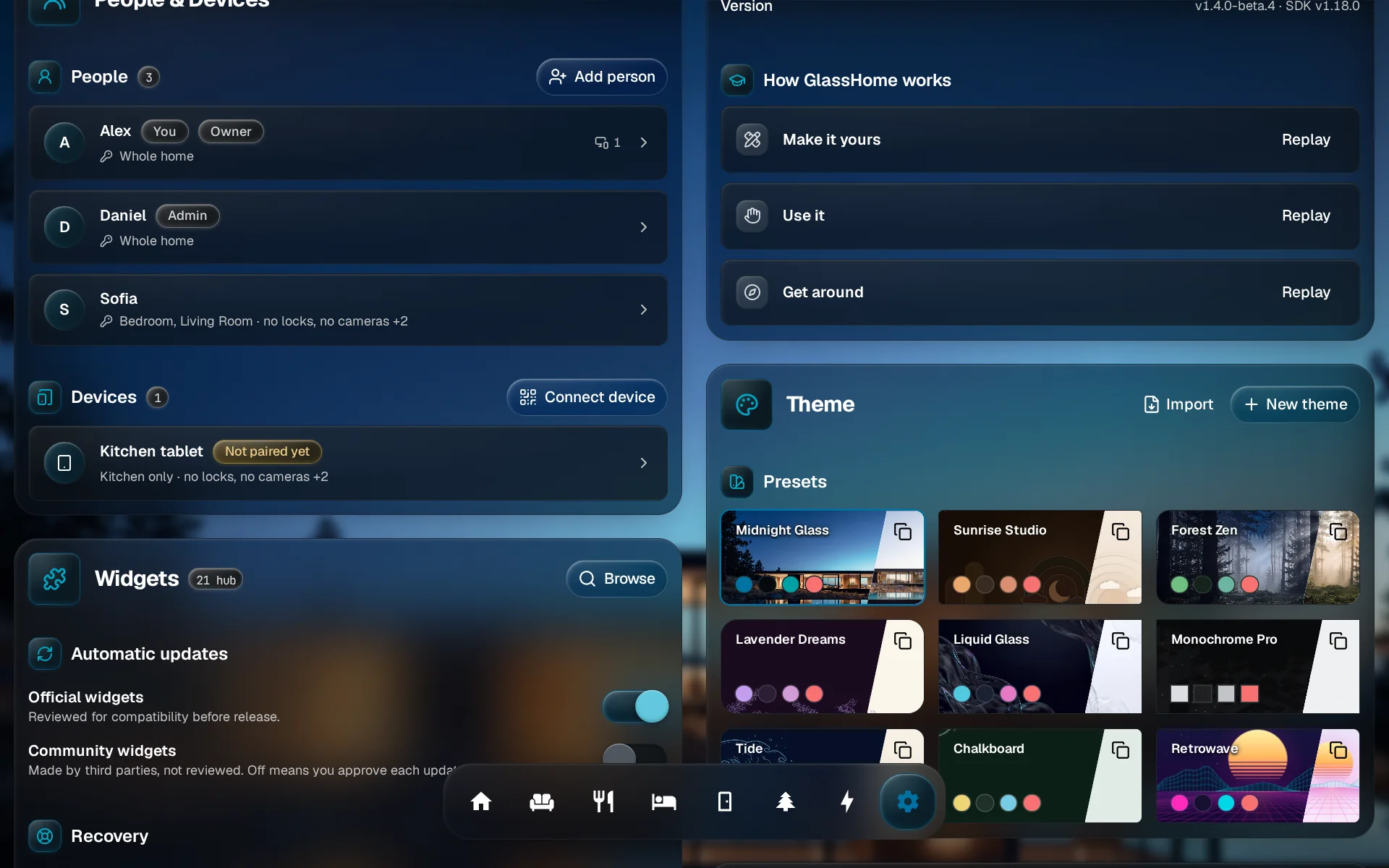
Open the screen's card
Shared screens live in the Devices list, under the people. Tap the one you want to unpair.
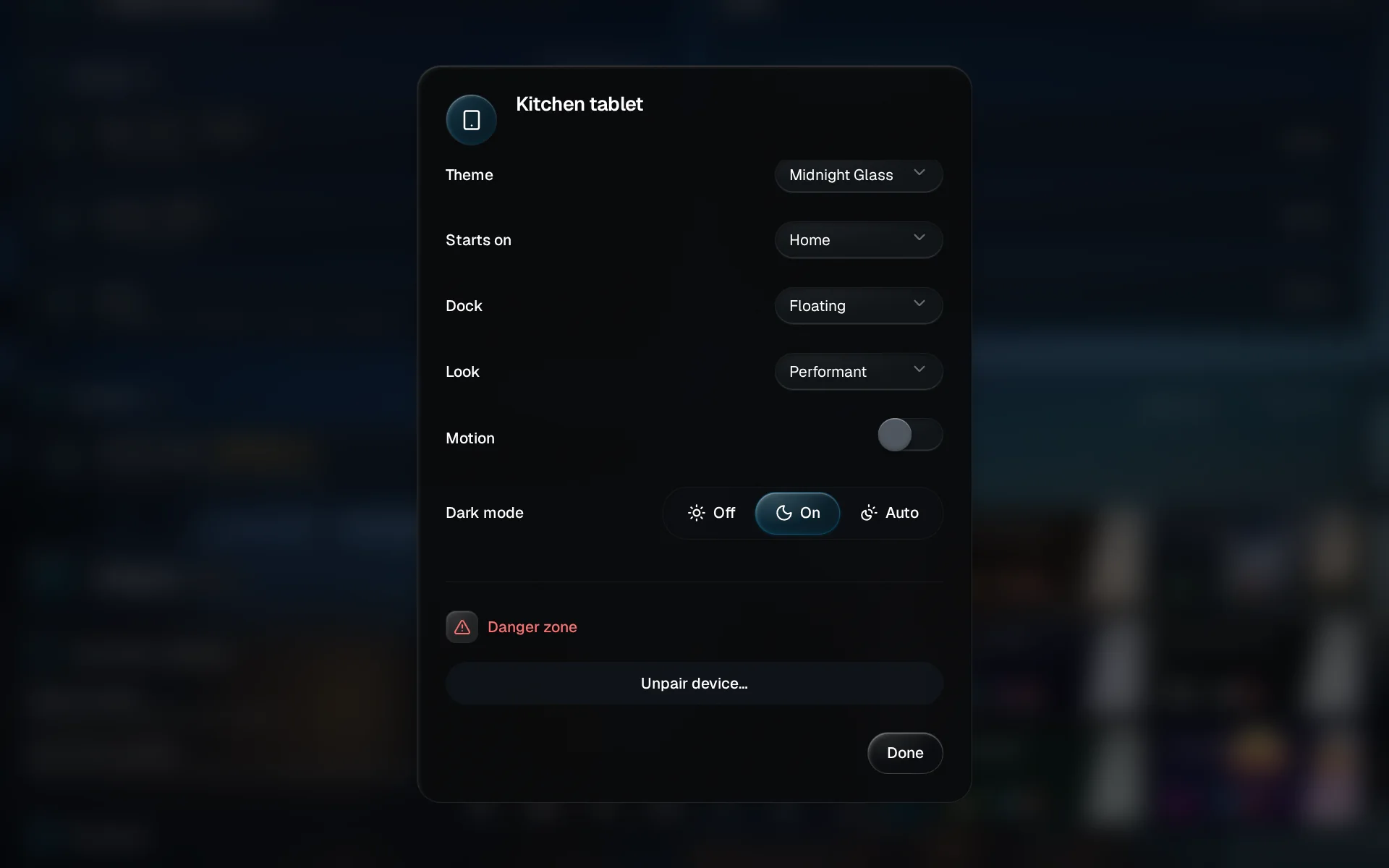
Tap Unpair device
Scroll to Danger zone and tap Unpair device….
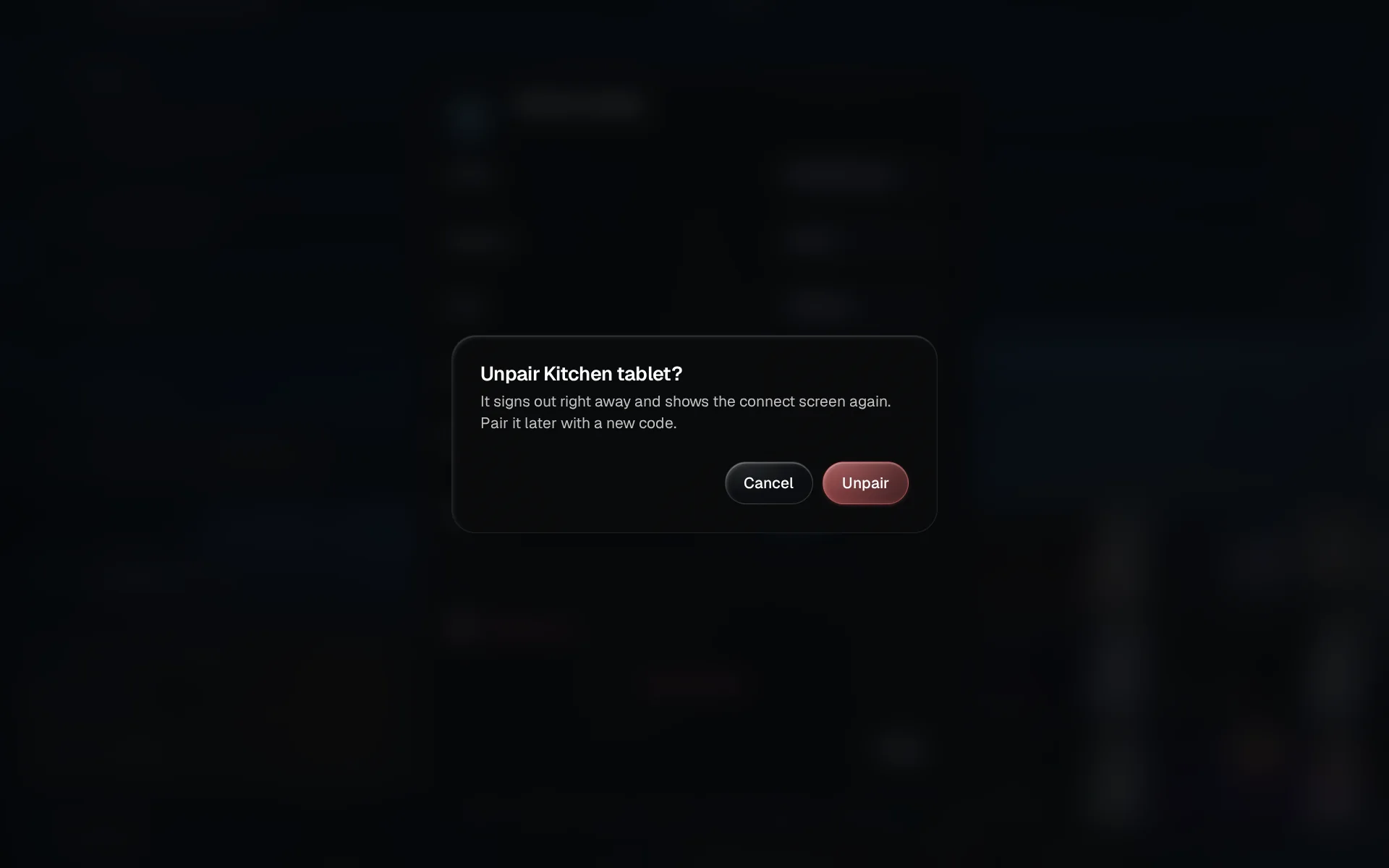
Confirm
Tap Unpair. The screen signs out on the spot and goes back to the connect screen.
You are done when
Their row is gone from People & Devices. The dashboards and widgets they set up stay put. Want them back later? Invite them again, or pair the screen with a fresh code. What happens to people who sign in with Home Assistant is in People & access.