
Sign in a tablet with a name and password
A wall tablet that cannot reach Home Assistant can still sign in. Give your account a name and password once, then type them on the tablet.
Add the name and password
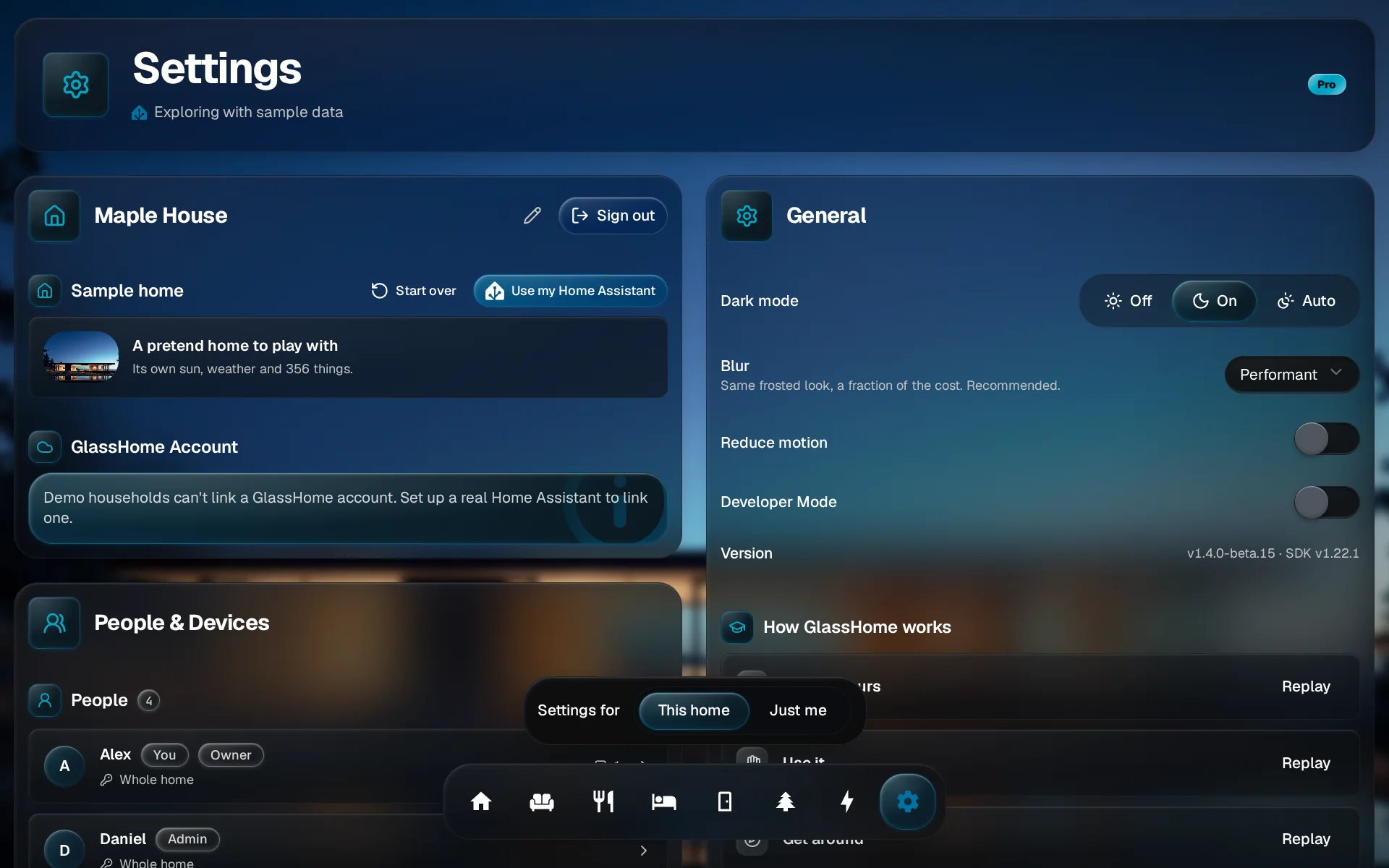
Find your home's card
Open Settings. The card at the top of the left column carries your home’s name.
Under Sign in with a name, tap Add. In Name, keep the name you will type on the tablet; it starts with your display name. Pick something short, because you can only add one name. In Password, type at least 8 characters.
Tap Save. GlassHome says Sign-in name added, and the card shows the name with Use it with your password to sign in.
Tip
The name is set once. To change it later, remove the sign-in name and add it again from the same card.
Sign the tablet in
- On the tablet, open your dashboard’s address.
- On the welcome screen, tap Name and password.
- Type the name and password, then sign in.
If the name or password is wrong, the tablet says That name or password is not right. Check the spelling of the name first, then try again.
After wrong passwords
Eight wrong passwords for one name, within about ten minutes, pause sign-in with that name. The tablet asks you to wait a few minutes. Sign-in with any other name still works, and the name works again once the pause ends.
Removing a person
The name and password stop working when you remove that person from People & Devices. Removing them deletes both, so you can add a name again later for someone else.
You are done when
The tablet is signed in with your name, and it stays signed in until someone signs it out. Want the tablet to have its own rooms and dashboards too? Set up a kitchen tablet.