
Invite someone
Your partner, a flatmate, the grandparents who visit every Sunday: each of them can get their own GlassHome login. None of them needs a Home Assistant account.
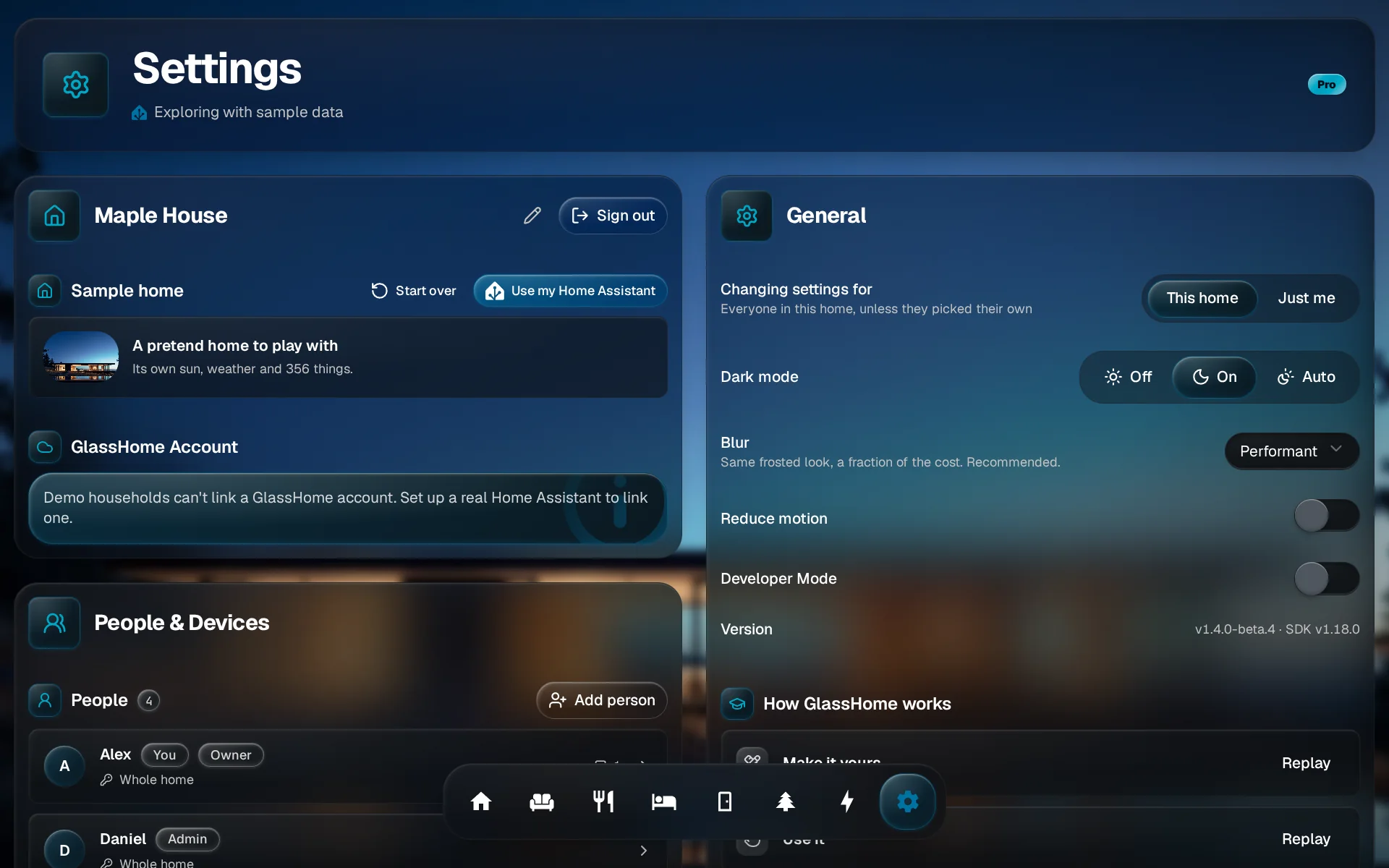
Tap Add person
Open Settings, go to People & Devices and tap Add person.
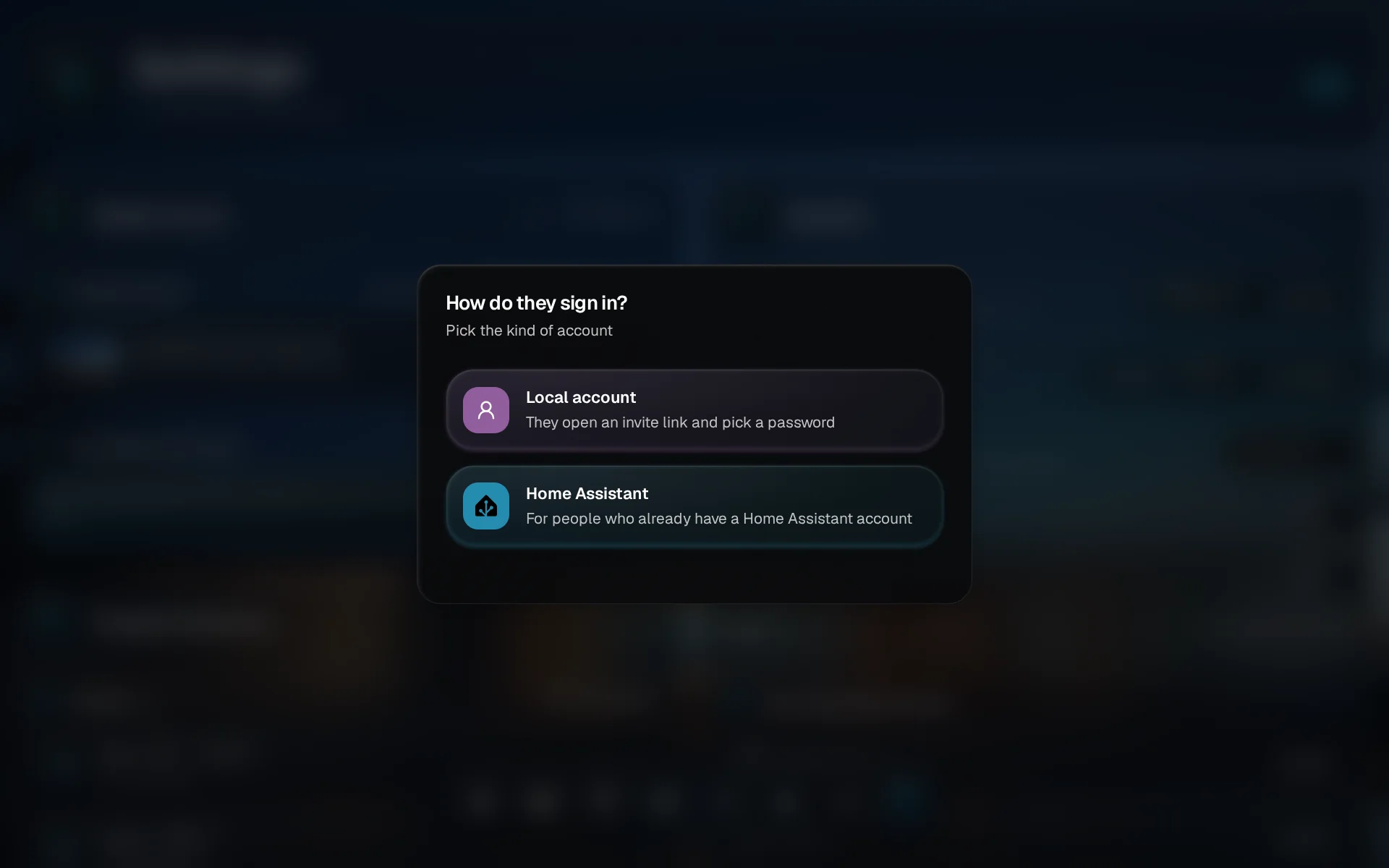
Choose Local account
Pick Local account. They get an invite link and choose their own password.
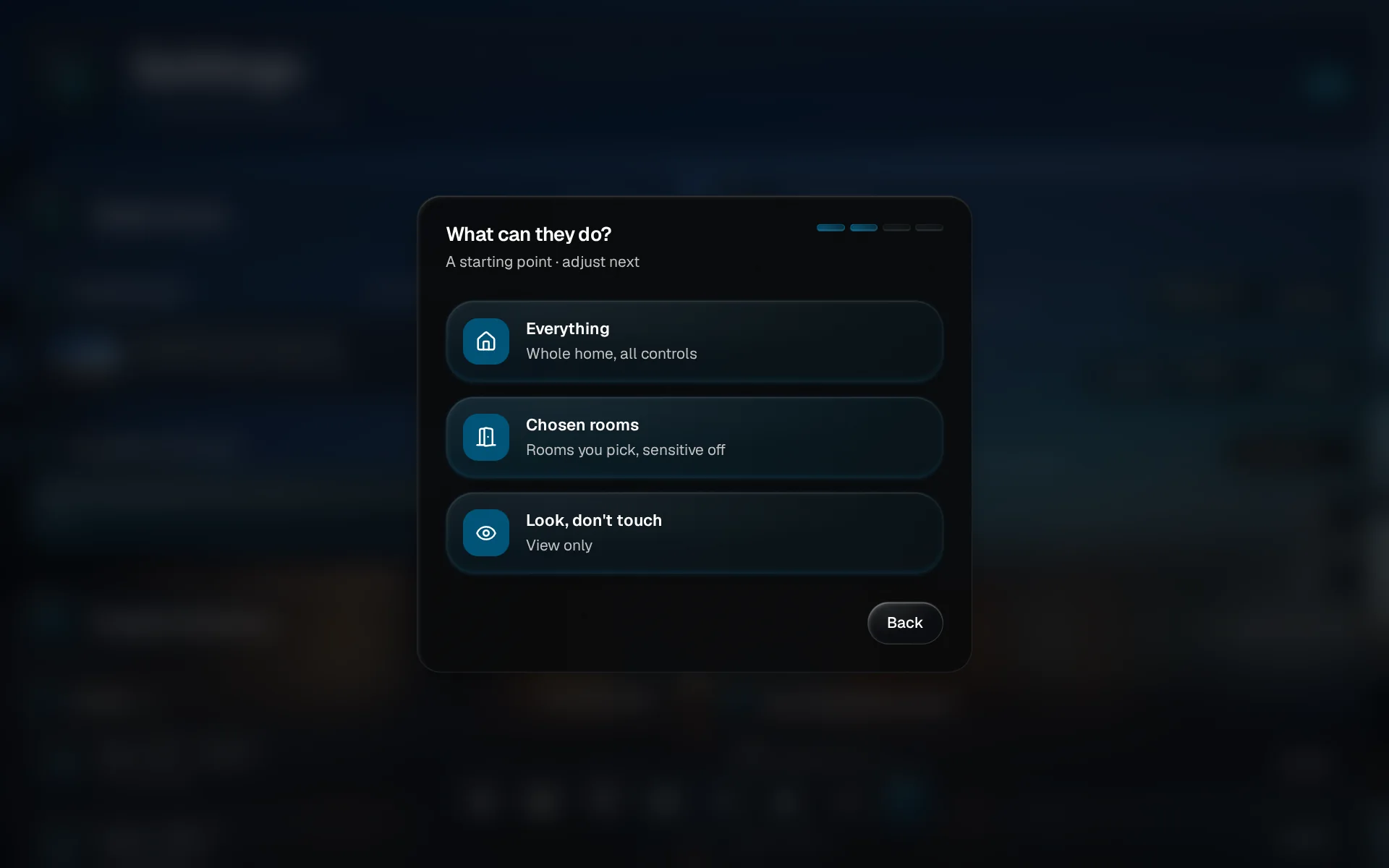
Pick a starting point
Everything, Chosen rooms or Look, don’t touch. It only fills in the next screen, so pick the closest and fine-tune there.
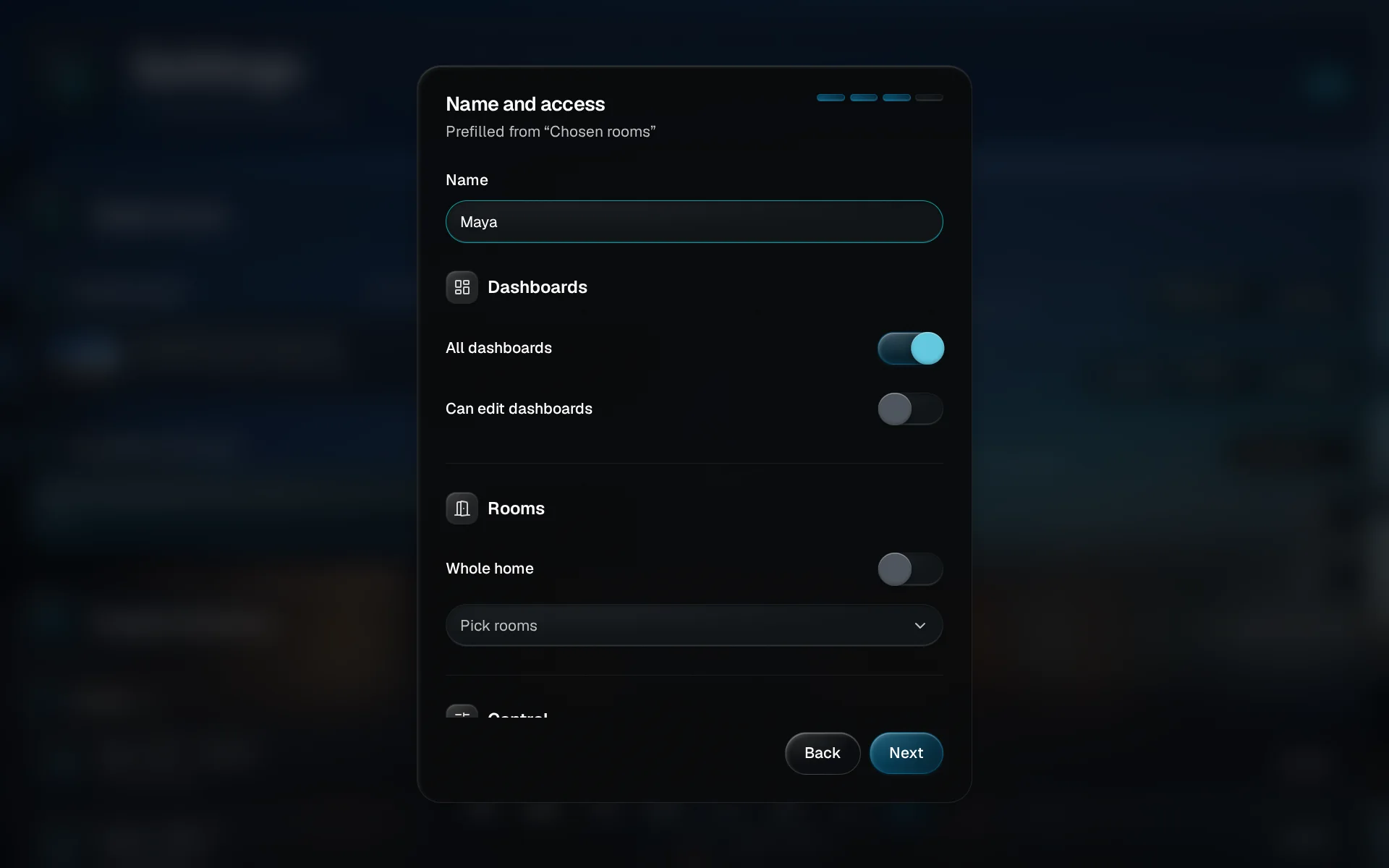
Type their name
Type the name they will see on their screen. Below it, choose which dashboards they see, and whether they can edit them.
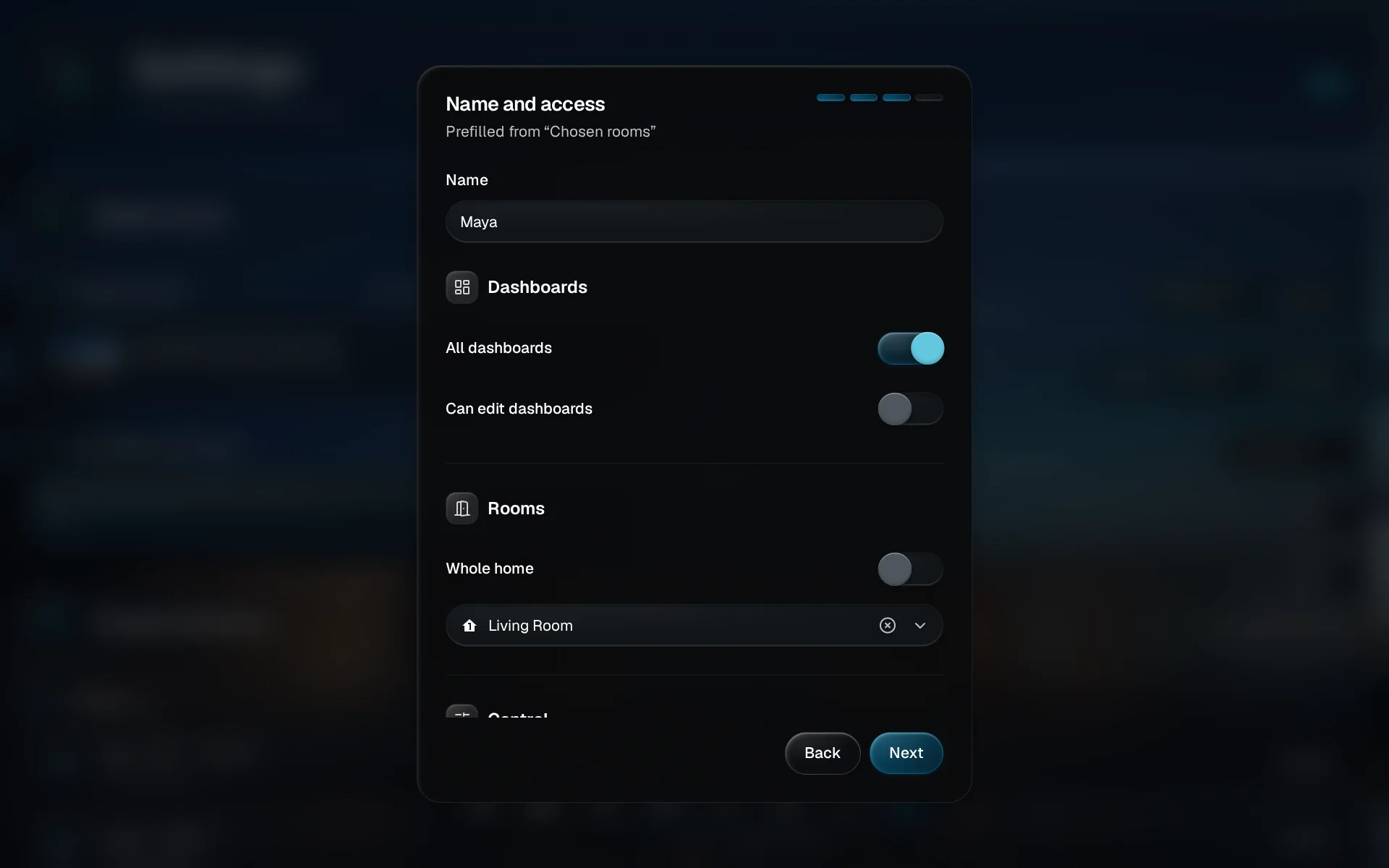
Pick their rooms
Pick the rooms they may use and check Control. Door locks, alarm, cameras and garage stay off unless you switch them on. Tap Next.
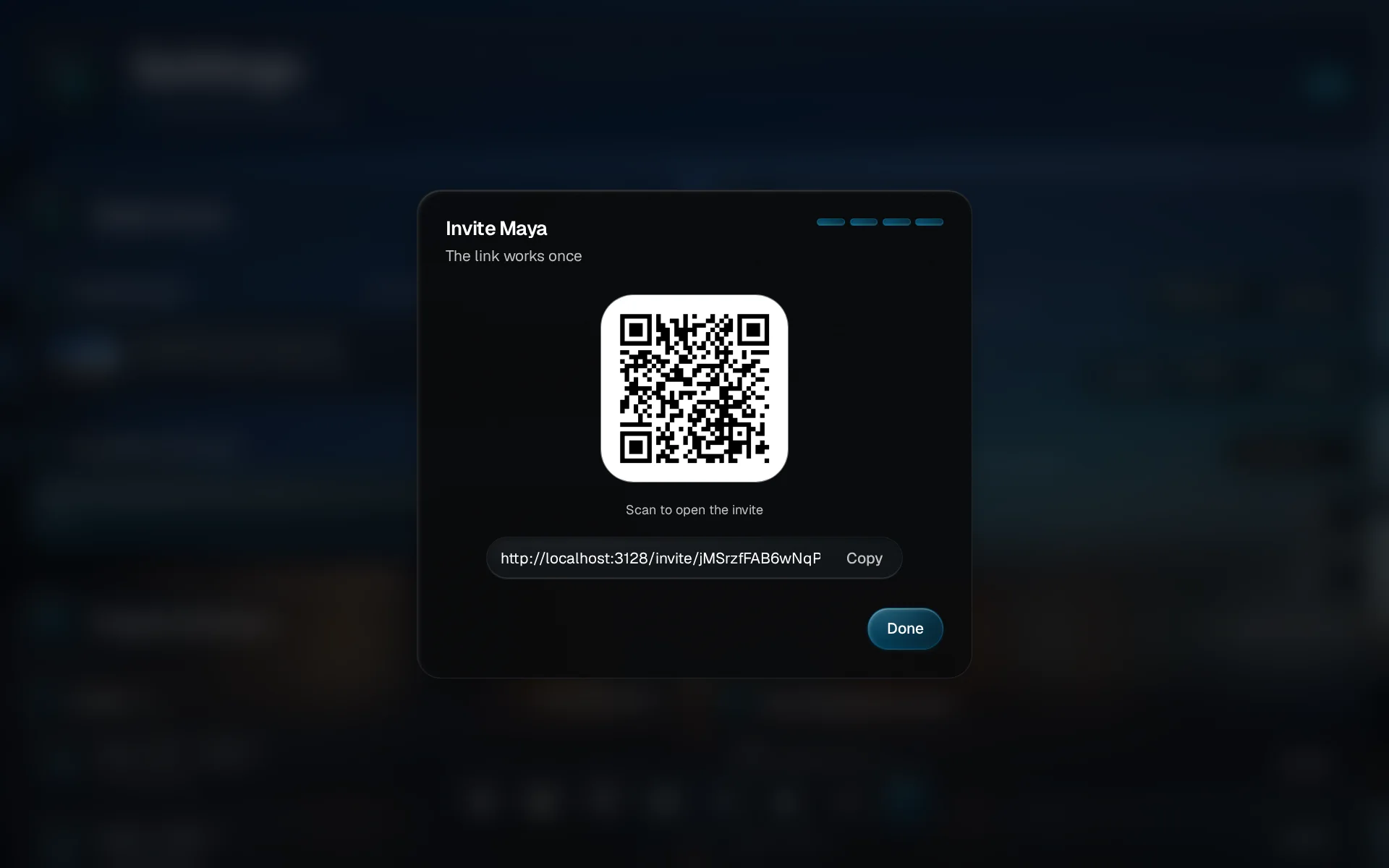
Share the link
Tap Copy and send them the link, or let them scan the QR code. The link uses your dashboard’s own address, works once and runs out after 7 days, so treat it like a house key.
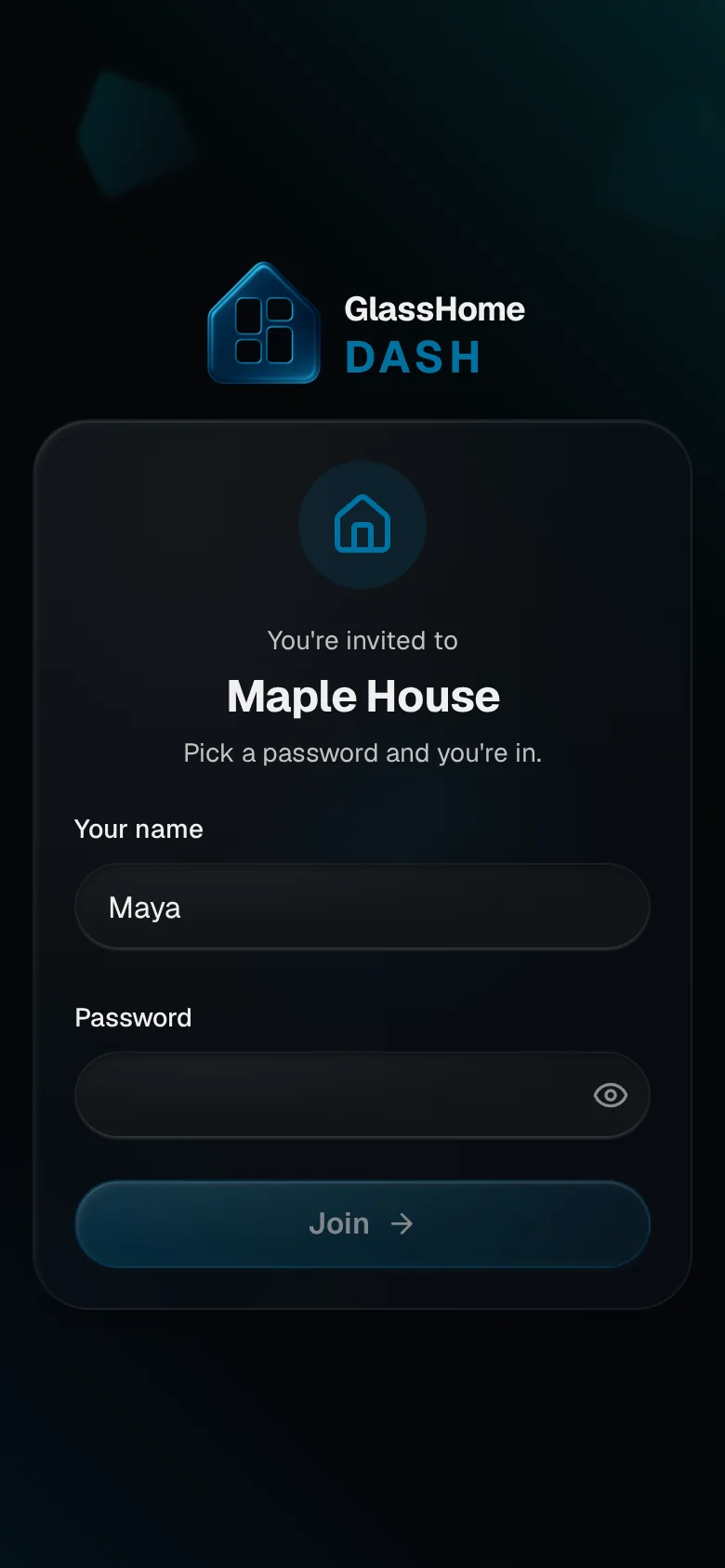
They open it and join
They open the link, check their name, pick a password and tap Join. That’s their only chore.
You are done when
They land on the dashboards you gave them, and their row shows up in People & Devices. From then on they sign in with Name and password on the welcome screen. Want to change what they can reach? Choose what someone controls. Invites, resends and forgotten passwords are covered in People & access.