
Connect Home Assistant
GlassHome shows what Home Assistant already knows about your house: the lights, the heating, the music. Connecting them is one sign-in, and GlassHome usually finds Home Assistant before you have to type anything.
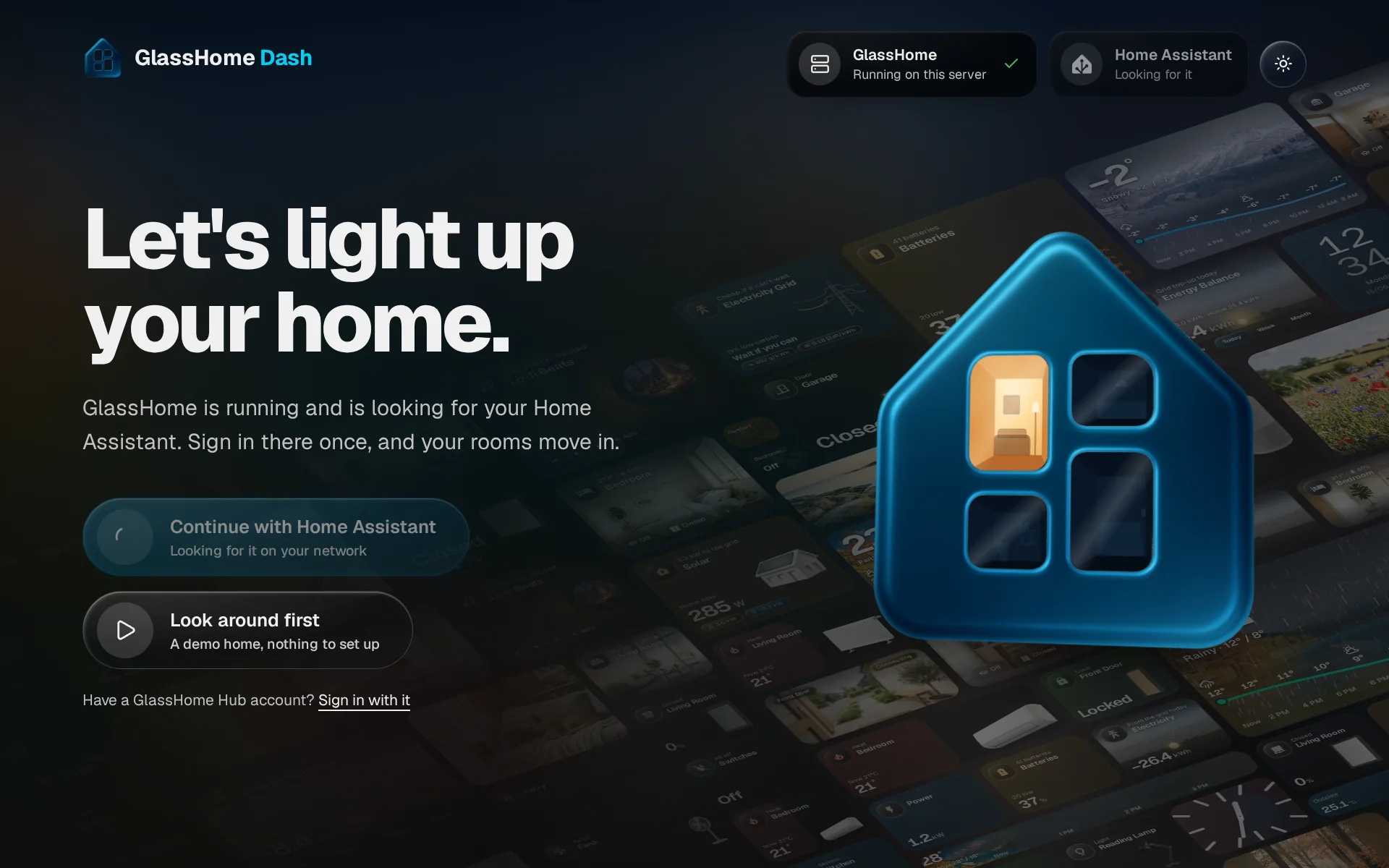
Open GlassHome
Go to the address you installed GlassHome at, for example http://192.168.1.100:3123. The welcome screen says Let’s light up your home. and starts looking for Home Assistant on its own. The Home Assistant card says Looking for it while it does.
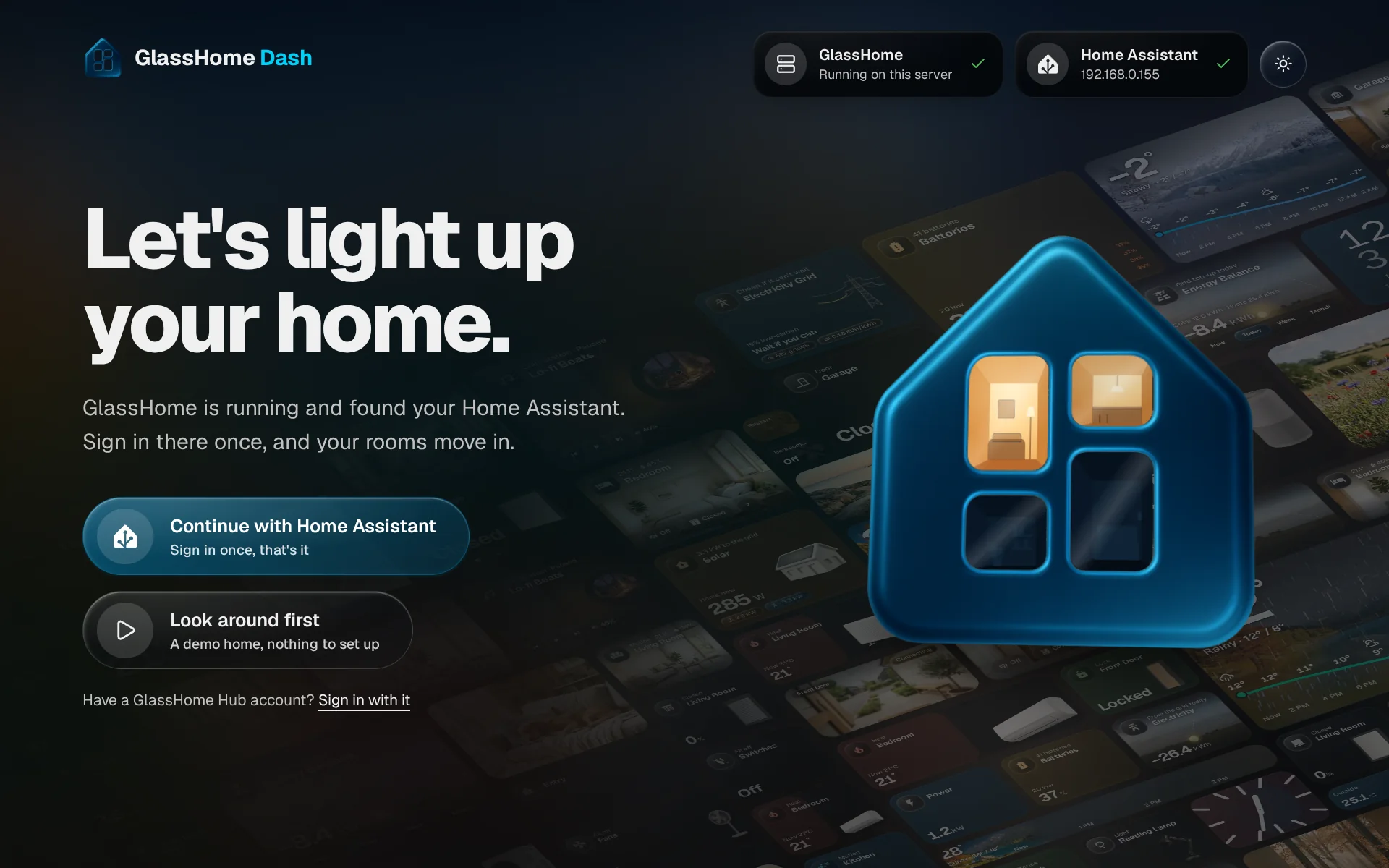
Found it? Continue
When GlassHome finds it, the Home Assistant card shows its address and the button under it reads Sign in once, that’s it. Tap Continue with Home Assistant.
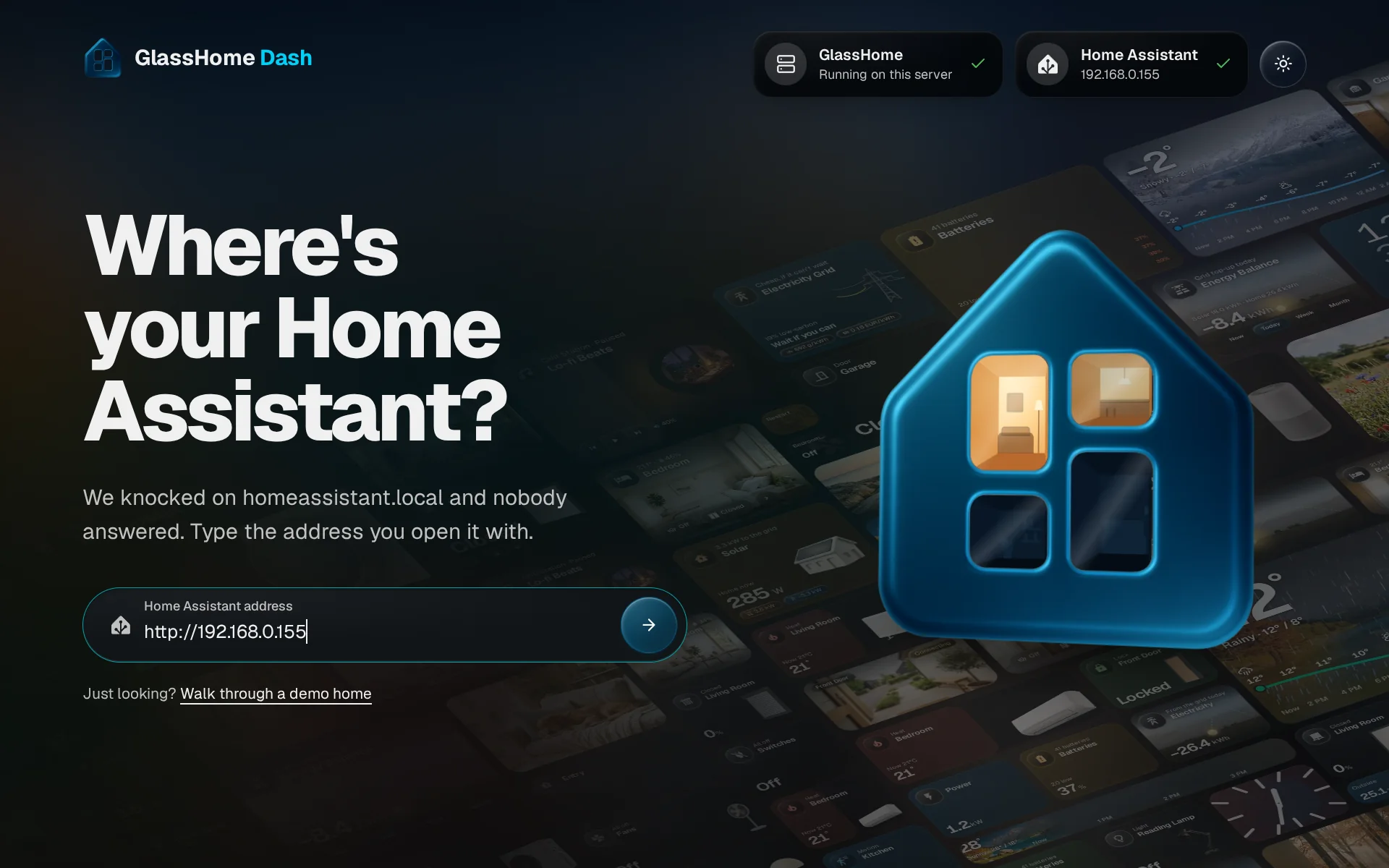
Not found? Type the address
If the screen asks Where’s your Home Assistant?, type the address you open Home Assistant with in a browser, for example http://192.168.1.20:8123. Copy it from the browser’s address bar, http:// and all. The arrow next to the field lights up once Home Assistant answers. Tap it.
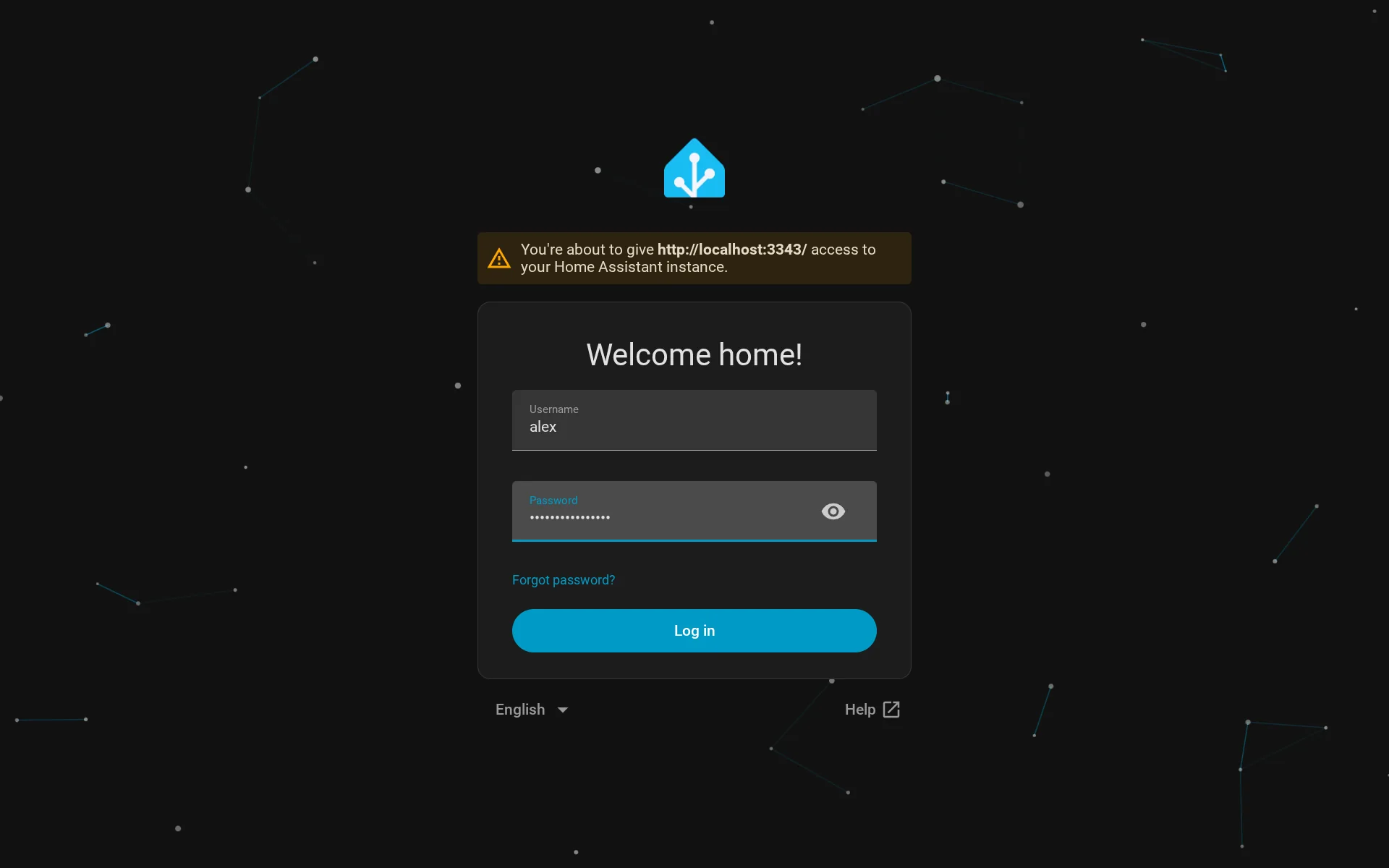
Sign in to Home Assistant
Your browser opens Home Assistant’s own sign-in page. The yellow box above the form names the GlassHome address that asks for access, so you can see who is knocking. Sign in with your usual Home Assistant name and password. GlassHome never sees the password, and Home Assistant sends you straight back.
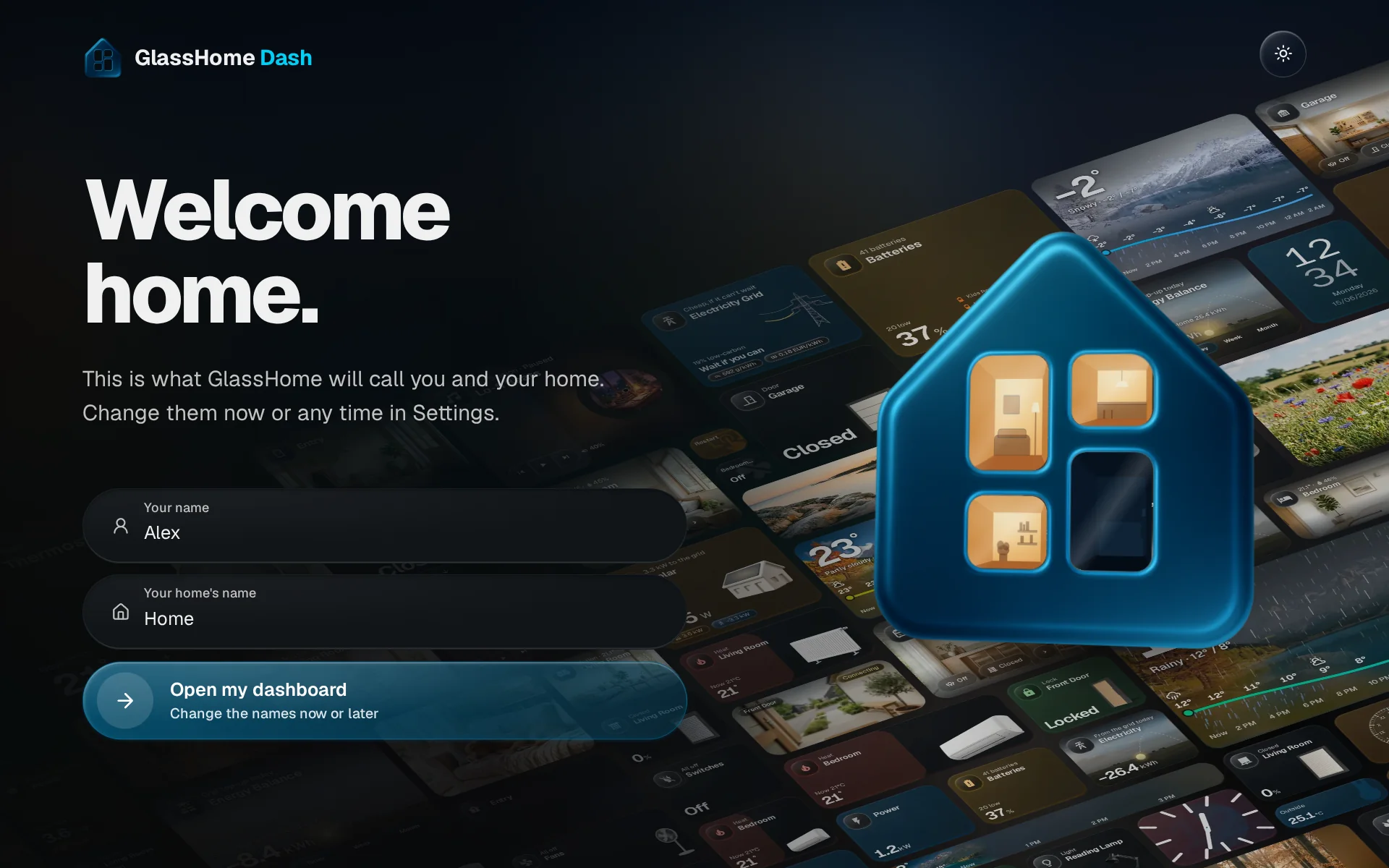
You're in
Back in GlassHome, the screen says Welcome home. Check your name and your home’s name, then tap Open my dashboard.
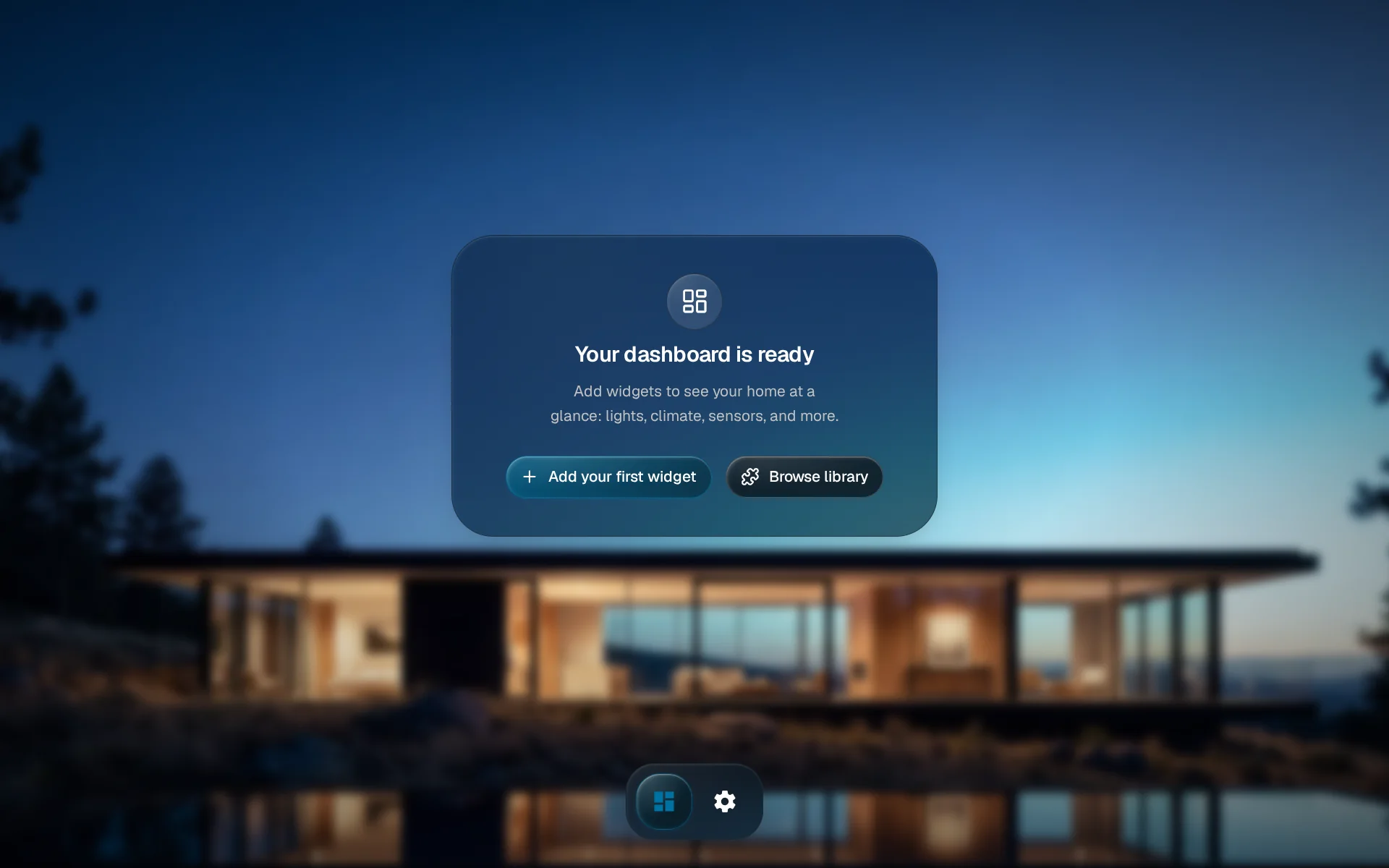
Your dashboard
A short tour offers to show you around: tap Show me, or Skip tour to look on your own. Your dashboard starts empty. Tap Add your first widget to put a light, the heating or a sensor on it.
Which address to type
Use the address that opens Home Assistant in a browser on this computer, while you are at home.
- Try its number first.
http://192.168.1.20:8123works on more networks thanhttp://homeassistant.local:8123. Home Assistant shows its number under Settings > System > Network. - Keep the port, if it has one. Most Home Assistants answer on
:8123. One set up on Home Assistant OS since August 2026 answers with no port at all, likehttp://homeassistant.local. - Use the address at home. A Nabu Casa or other internet address works only while the internet does, and GlassHome warns you when you type one. To reach your dashboard from outside, see Remote access.
- Match http and https. If your Home Assistant opens with
http://, typehttp://. A number like192.168.1.20withhttps://almost always fails with The certificate at that address isn’t trusted., because the certificate belongs to your internet address.
When GlassHome says
| Message | What to do |
|---|---|
| That address doesn’t resolve. For a .local name, use the IP instead. | Type Home Assistant’s number instead of homeassistant.local. |
| Home Assistant isn’t answering on that port. | Check the port: the one in your browser’s address bar, or none. Running the Home Assistant addon? See the box below. |
| Home Assistant didn’t answer in time. | Make sure Home Assistant opens in a browser, then try again. |
| The certificate at that address isn’t trusted. | Use the http:// address at home, or your full internet address with its own name. |
| That address redirects. Use the direct Home Assistant address. | Type the address Home Assistant itself runs on, without a proxy or login page in front. |
| This device couldn’t open Home Assistant at … Try its IP address. | GlassHome found Home Assistant, but this browser couldn’t open its sign-in page. Type the number instead. Once your home is set up, Code from a phone also works here. |
| Something went wrong setting things up. Try again. | Reload the page and start again. If it keeps happening, report a problem. |
Running the Home Assistant addon
If every address says Home Assistant isn’t answering on that port. while Home Assistant opens fine in your browser, something on the Home Assistant machine blocks GlassHome. Look for a server_host: line under http: in configuration.yaml: remove it and restart Home Assistant. On a Debian install, a firewall can do the same; allow 172.30.32.0/23 to reach Home Assistant’s port.
Later on
- Home Assistant moved to a new address. Open Settings, open Home Assistant on your home’s card, type the new address and tap Save. Your dashboards stay as they are.
- A banner says Home Assistant needs a fresh sign-in. Someone who manages the home taps Sign in to Home Assistant on the banner and signs in once. Everyone else is back in right after.
You are done when
GlassHome and Home Assistant are connected. Next, rearrange your dashboard, or put one on the kitchen tablet. How the pieces fit together: How GlassHome connects.