
Turn on PRO in your home
PRO lives on your GlassHome account at glasshome.app. The GlassHome running in your home learns about it once you link the two, which takes a code and one tap.
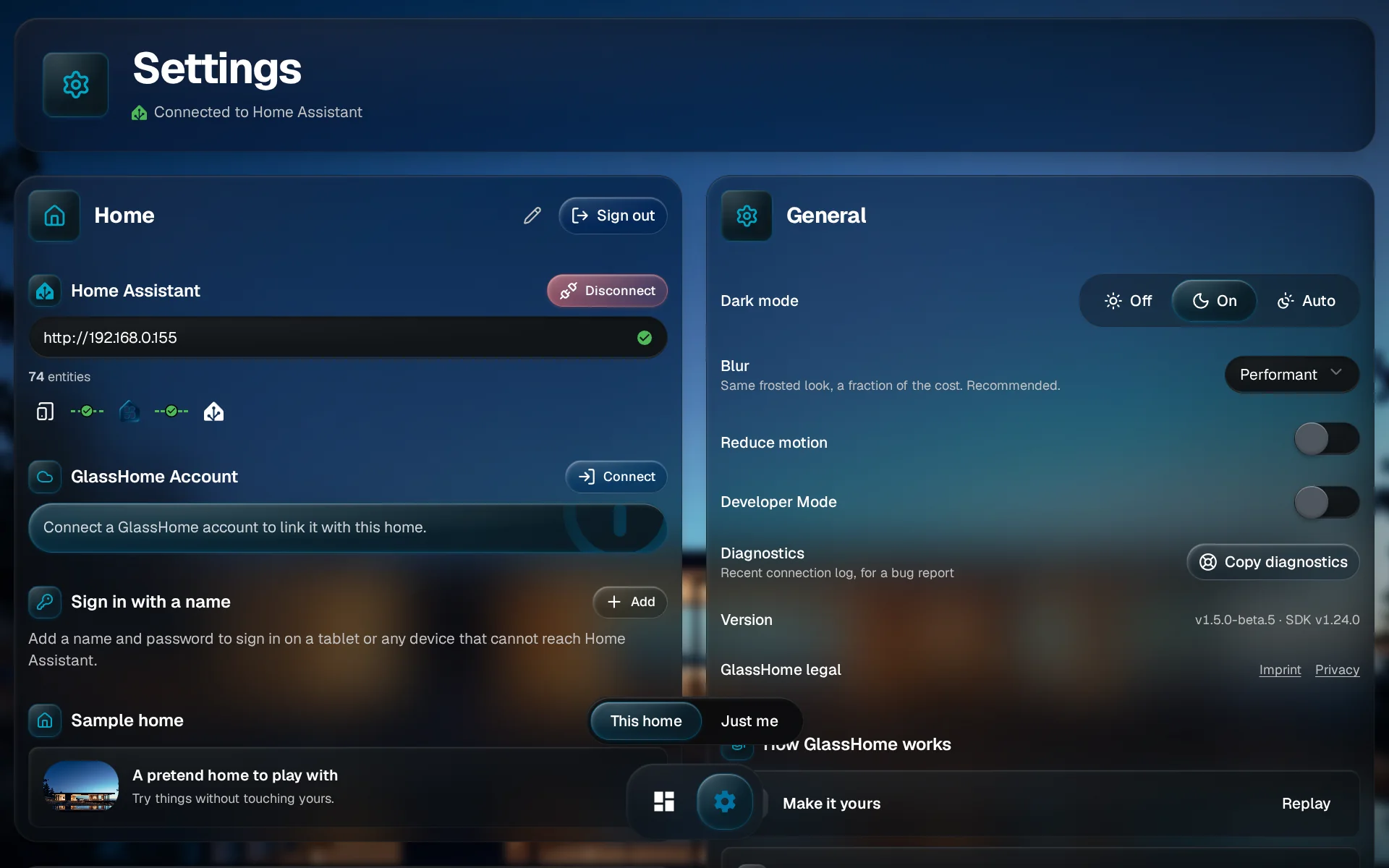
Open Settings and tap Connect
In GlassHome, open Settings and find GlassHome Account on your home’s card. Tap Connect.
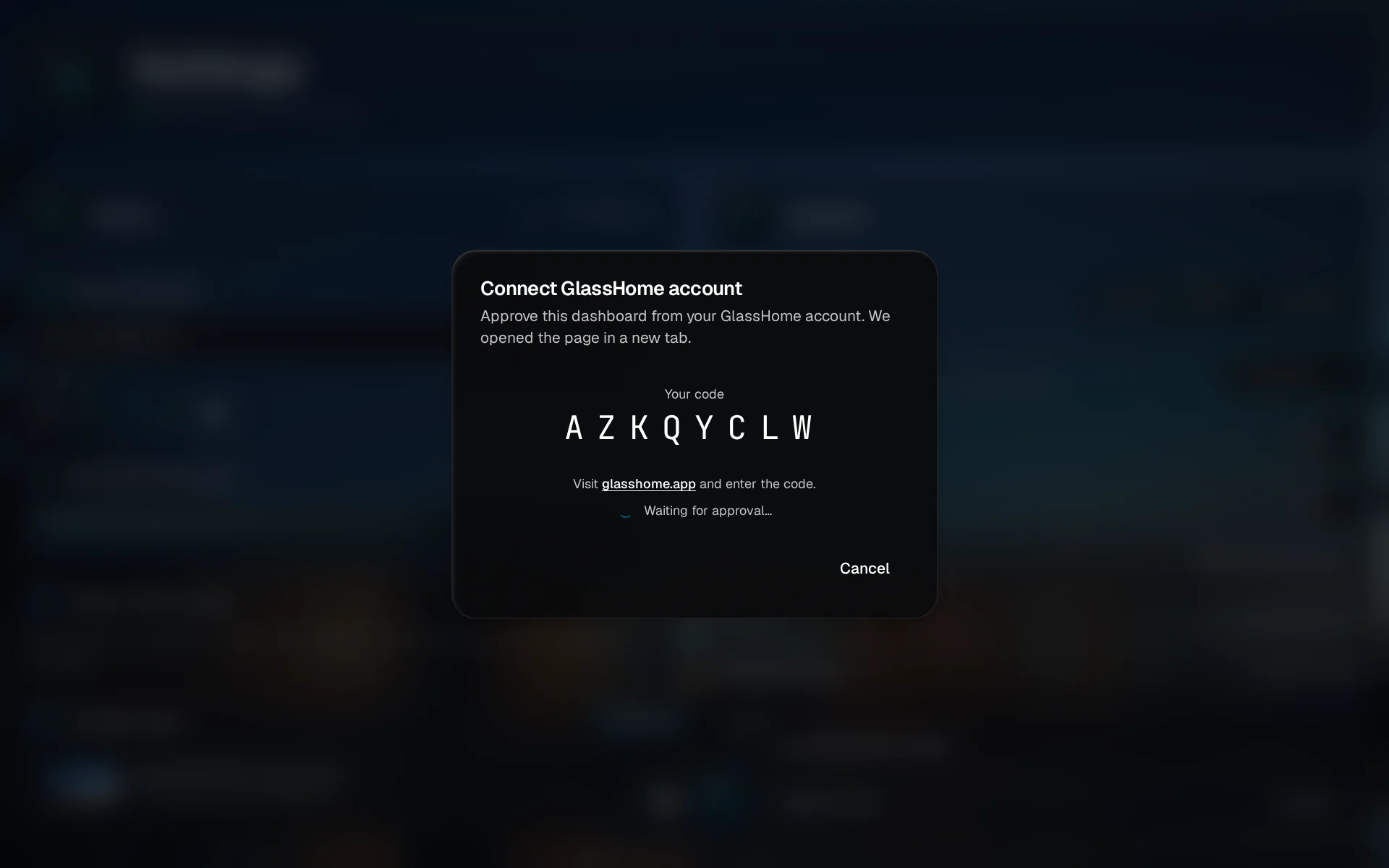
Keep the code on screen
GlassHome shows a code and opens glasshome.app in a new tab. Leave this screen open; it says Waiting for approval until you are done. No new tab? Tap glasshome.app in the dialog and type the code there.
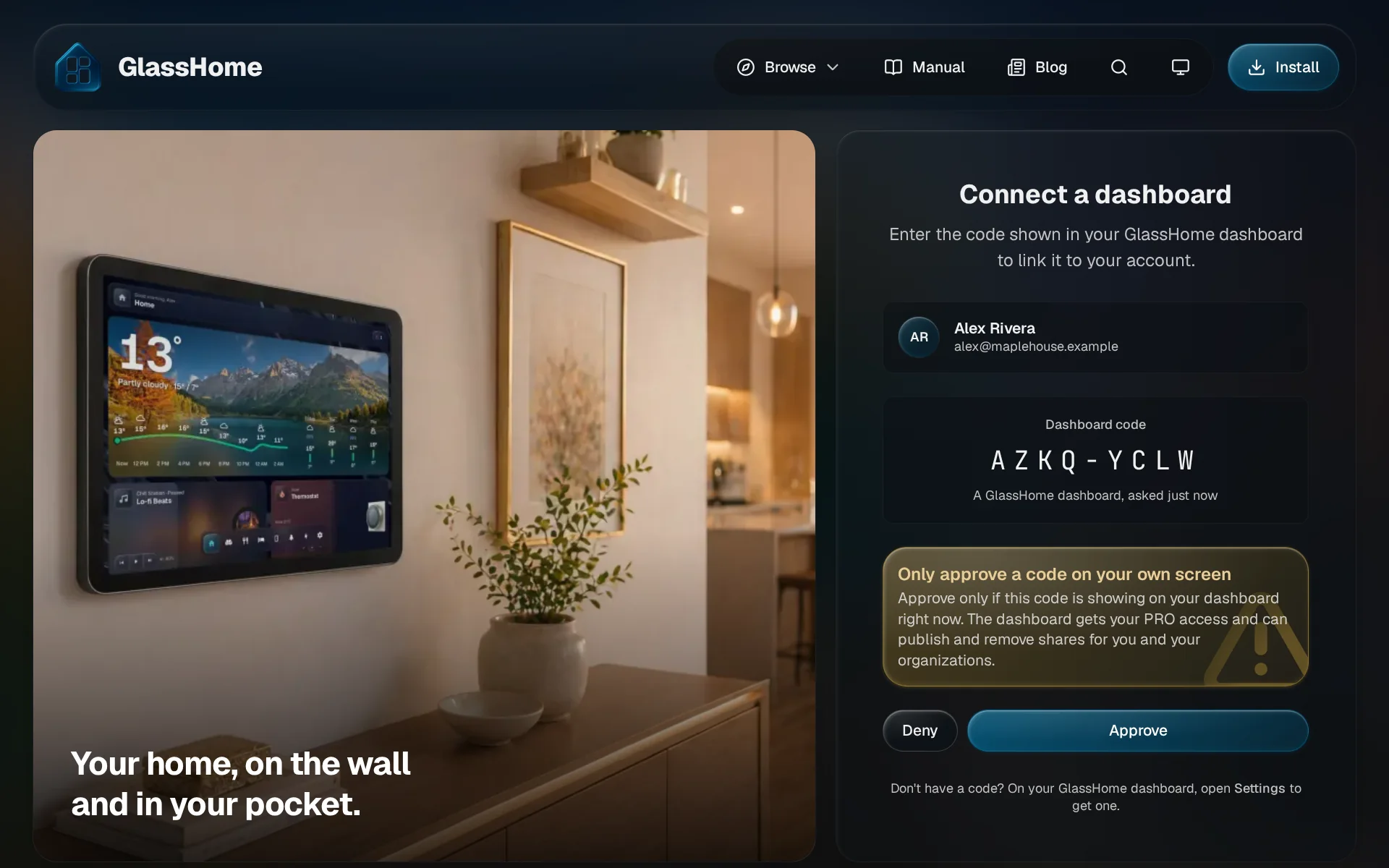
Approve on glasshome.app
Sign in if glasshome.app asks. Check two things: the account at the top is the one you bought PRO with, and the code matches the one on your GlassHome screen. Then tap Approve.
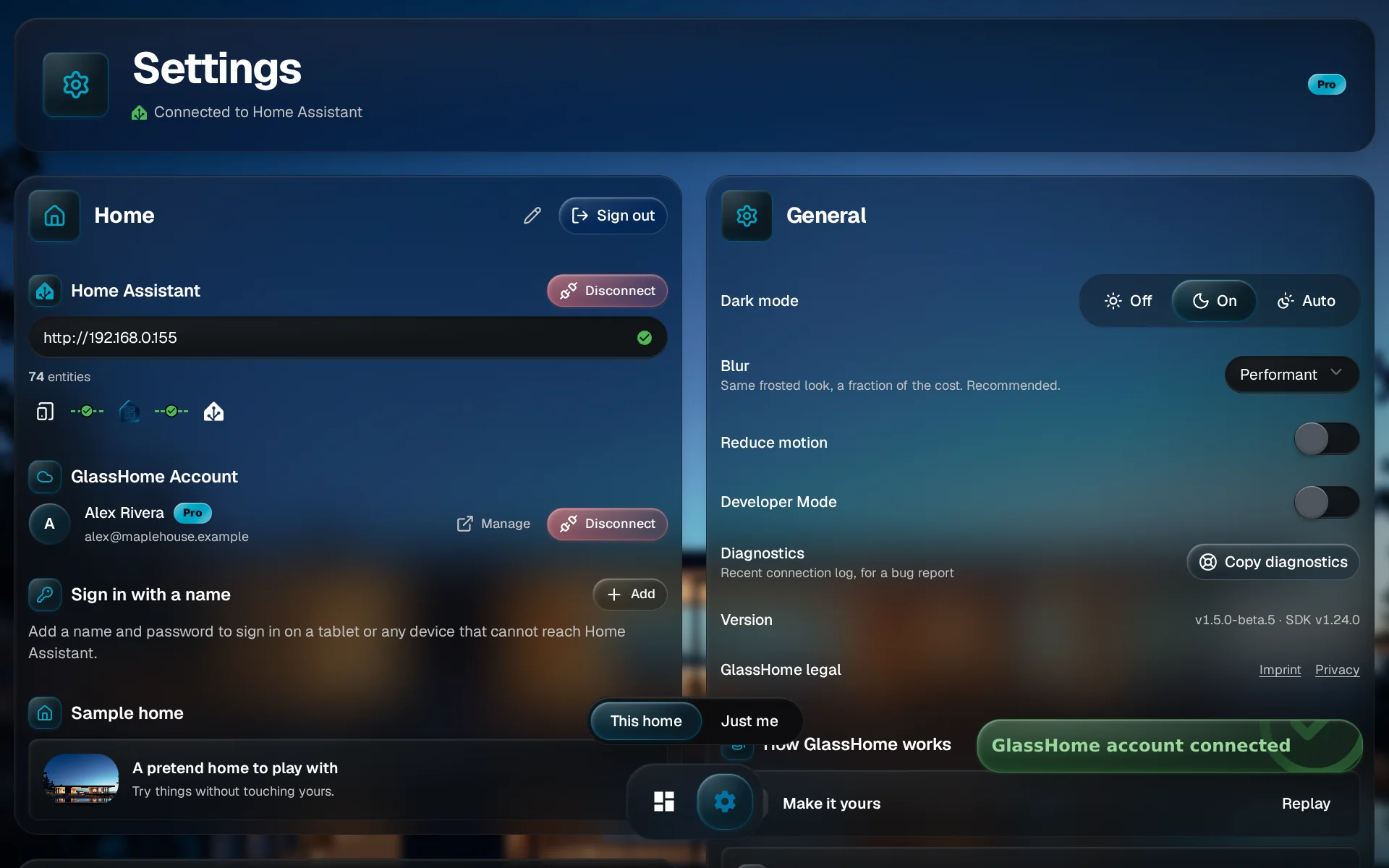
PRO shows next to your name
Back in GlassHome, the dialog closes and GlassHome Account shows your account with a Pro badge. Bought PRO after linking? Open Settings again and the badge appears.
One link is enough
PRO counts for the whole home. Once one person links an account with PRO, everyone in the house gets it, on every phone and on the kitchen tablet. Nobody else needs to link anything.
When it doesn’t work
| What you see | What to do |
|---|---|
| Couldn’t reach GlassHome right after tapping Connect | The GlassHome server in your home can’t reach glasshome.app, even when your browser can. On Docker, add dns: [1.1.1.1] under the GlassHome service in your compose file and start it again. |
| The code expired before approval. | Codes last 10 minutes. Tap Get a new code and approve the new one. |
| Linked, but no Pro badge | The account you approved with doesn’t have PRO. Check the email under your name in GlassHome Account. Wrong one? Tap Disconnect, then Connect again and sign in at glasshome.app with the account you bought PRO with. |
| This GlassHome account is already connected to another user on this dashboard. | Someone else in your home linked that account already. Sign in to GlassHome as them and tap Disconnect first, or leave it: their link already gives the whole home PRO. |
| Demo households can’t link a GlassHome account. | You are in the demo home. Set up your own Home Assistant first, then link. |
Still stuck? Report a problem with a screenshot of what you see, and I’ll take a look.
You are done when
PRO is on in your home. Try a community widget, save your own theme, or share a dashboard. What else PRO includes: PRO.