navigation, gestures, swipe, dock, long press, hold, slider, next dashboard, how to use
Find your way around
A handful of gestures run the whole dashboard. They are the same on a phone, a tablet and a computer, where a click is a tap.
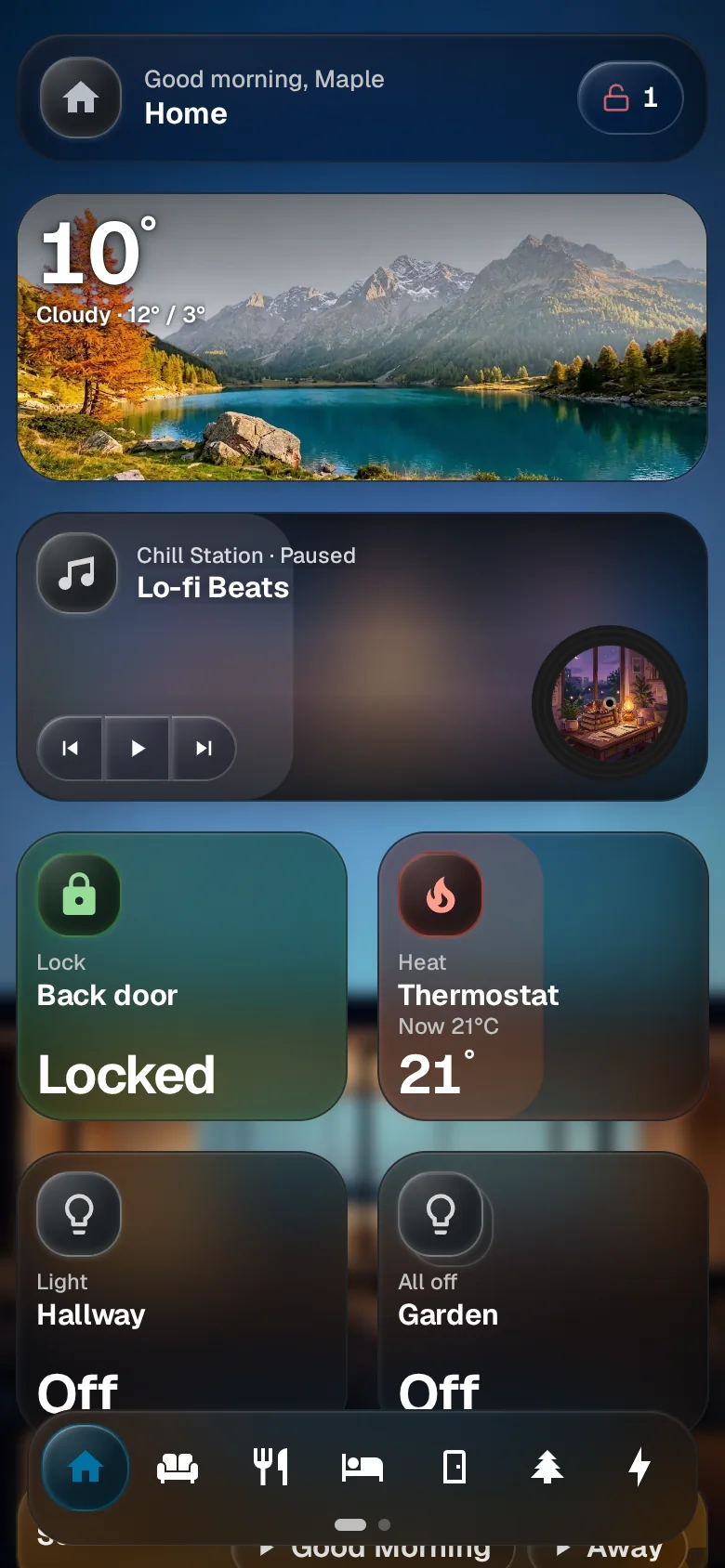
Tap a widget
A tap does the obvious thing: a light turns on or off, a lock locks, a scene runs.
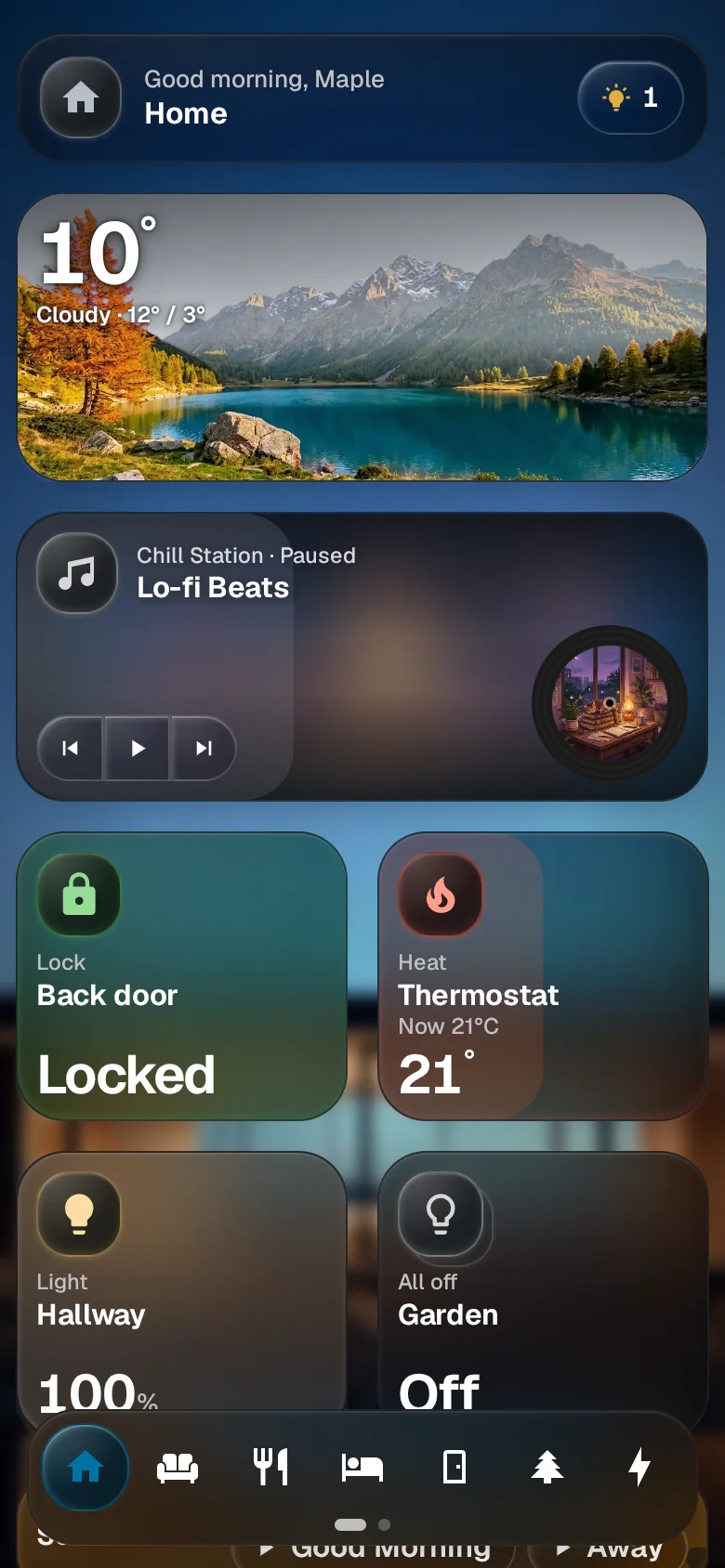
Hold a widget
Press and hold a widget for the rest of what it can do, such as each lamp of a group or a light’s colour. Tap outside the sheet to close it.
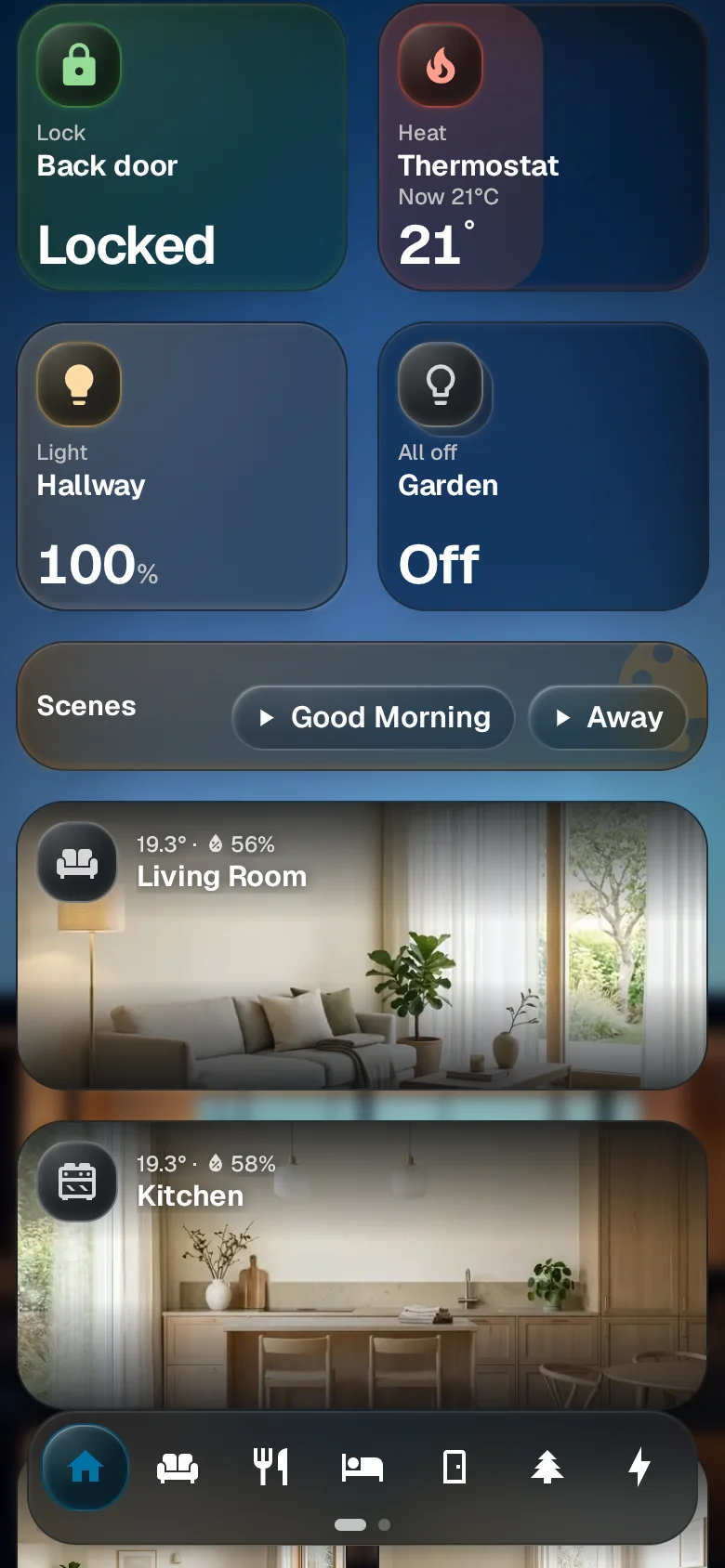
Scroll
Drag up and down to see the rest of the dashboard. The dock stays at the bottom.
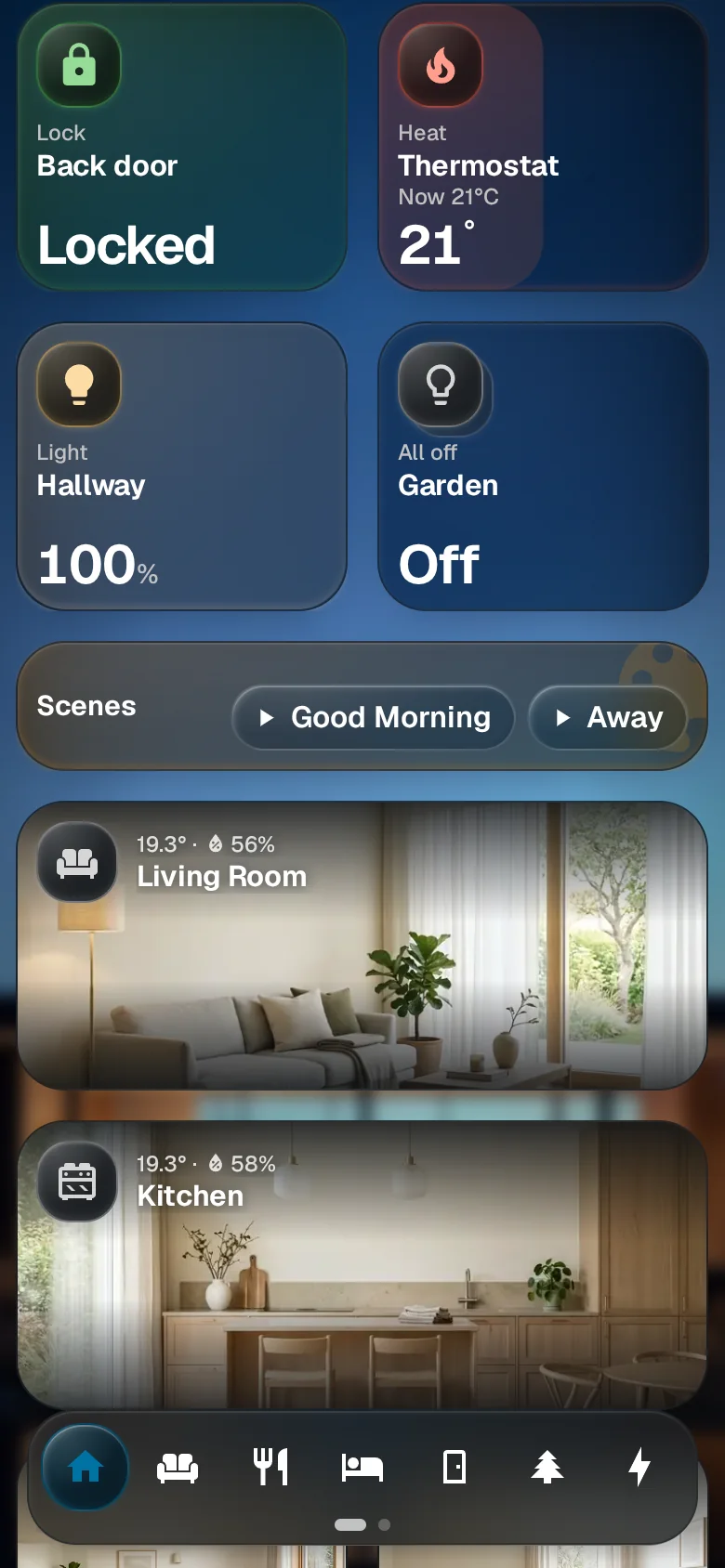
Slide a slider
Drag sideways across a light, a fan or a blind to set how much. The widget keeps your finger, so the dashboard stays where it is.
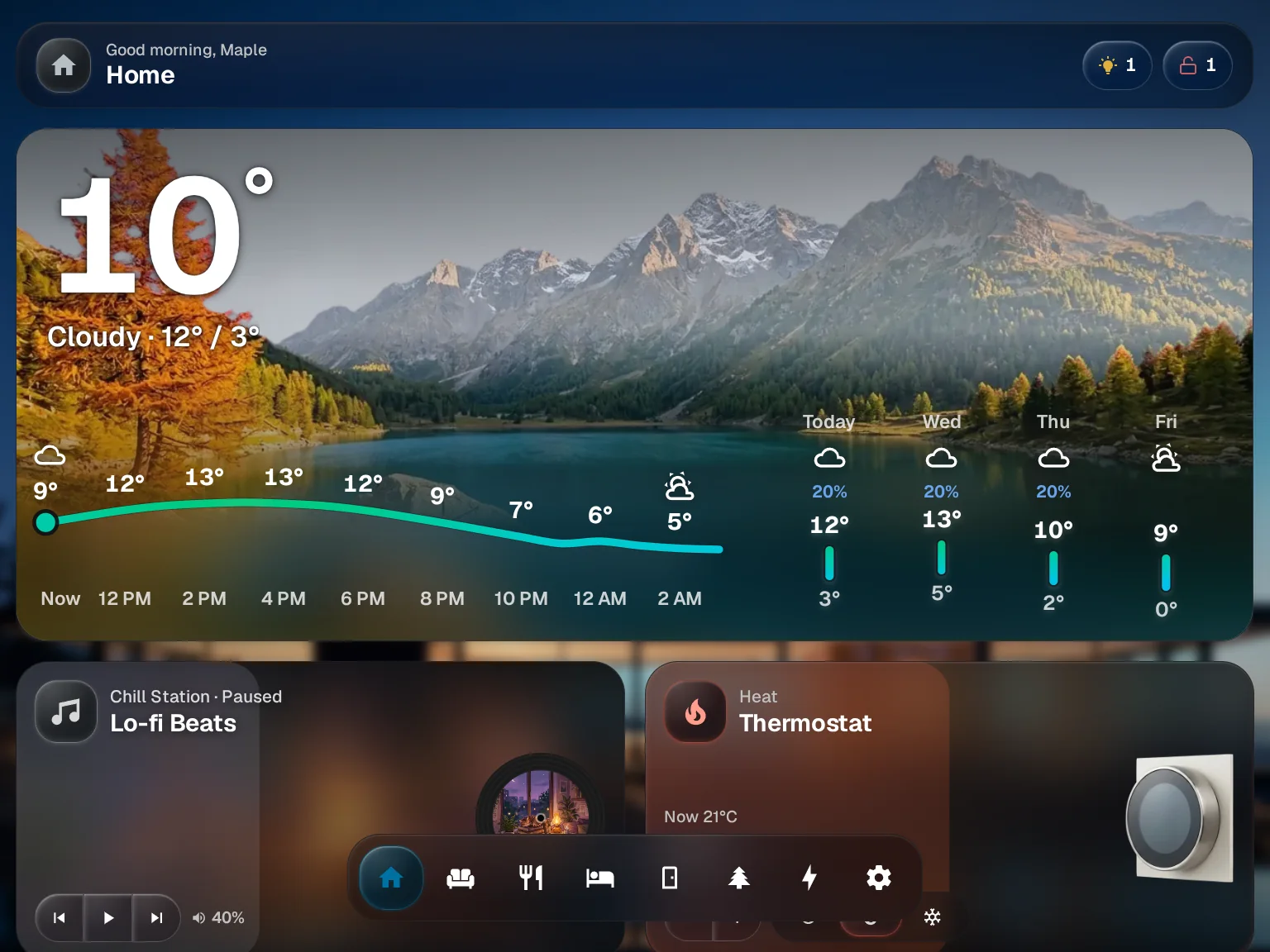
Pick a dashboard
Each icon in the dock is a dashboard. Tap one to open it.
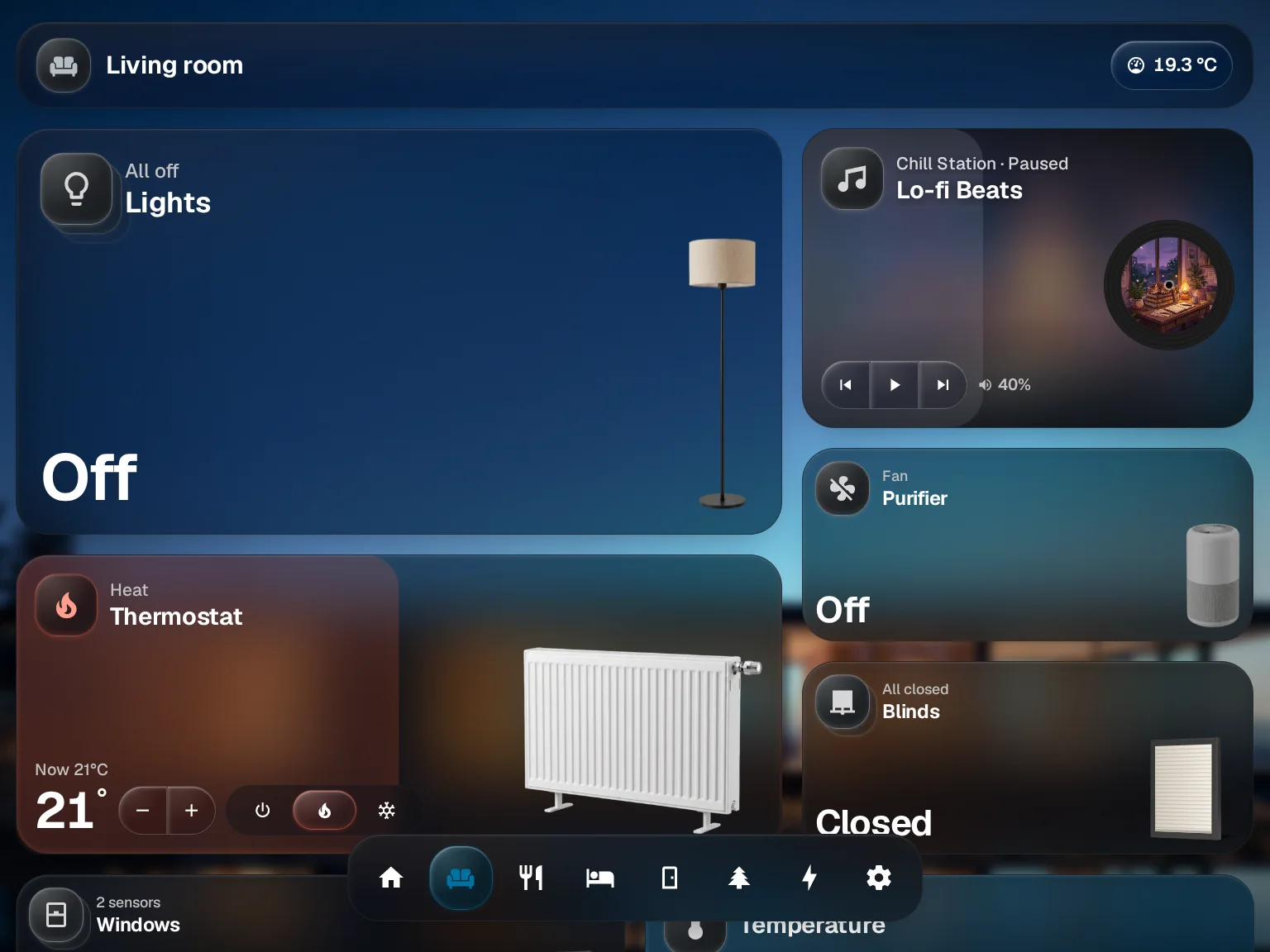
Swipe to the next one
Swipe sideways anywhere on the dashboard to move to the next or previous one in dock order. One or two fingers work on a touchscreen, two on a trackpad.
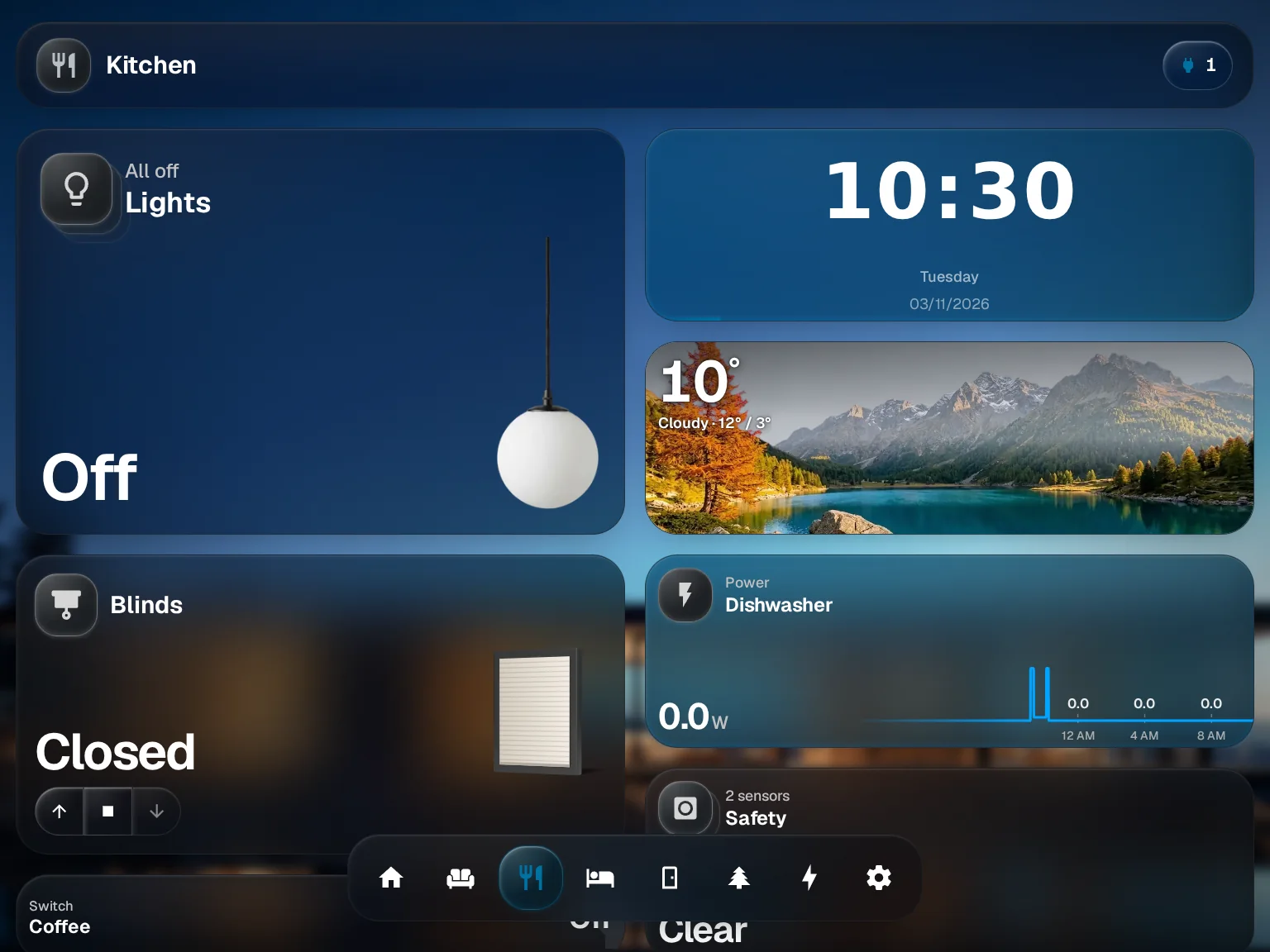
Open Settings
The gear at the end of the dock opens Settings. Tap a dashboard in the dock to go back.
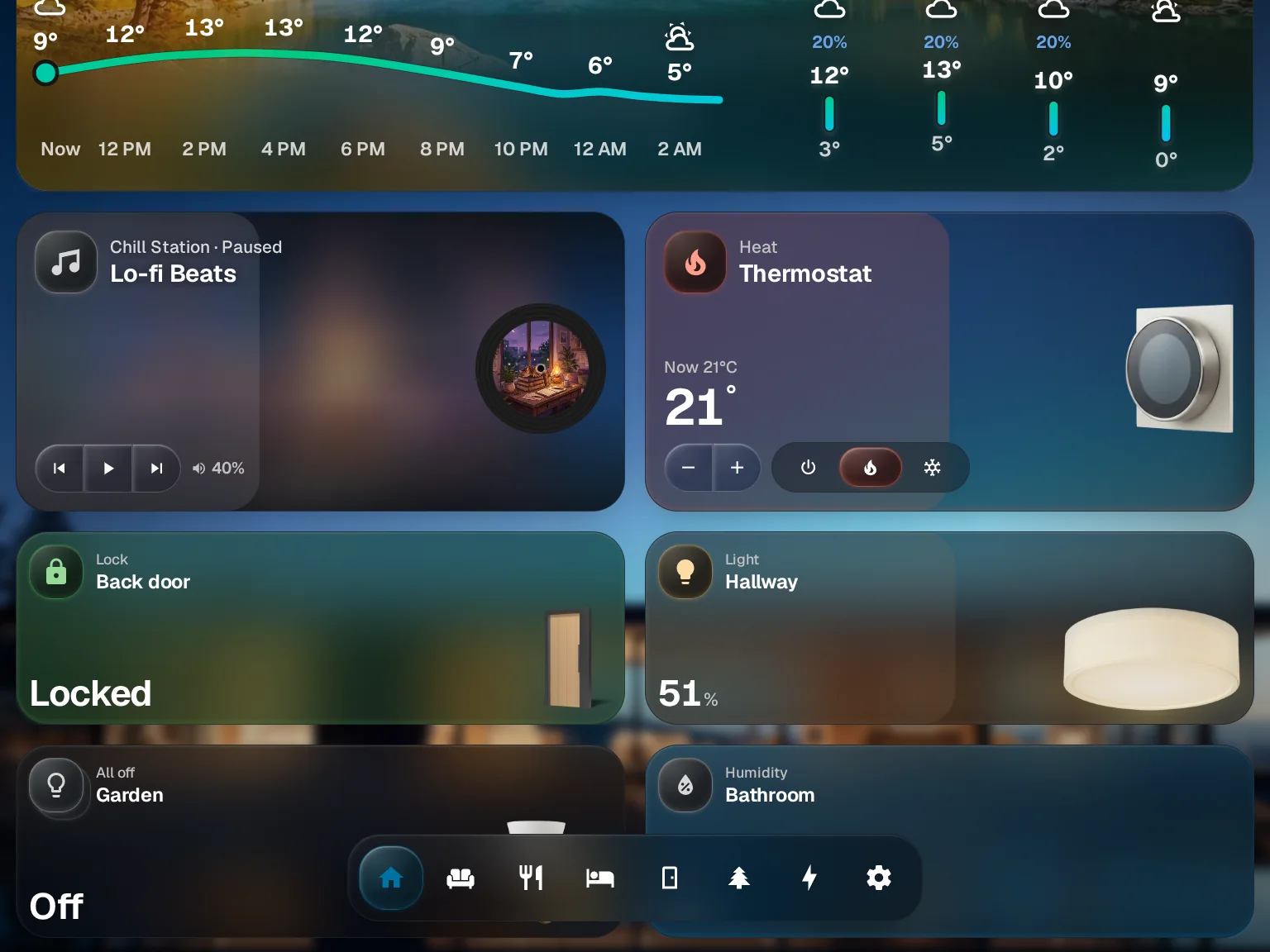
Hold the dock to edit
Press and hold the dock for about half a second to move, resize, add or remove widgets. Hold it again when you are done.
You are done when
You know every gesture the dashboard uses. Rearrange your dashboard picks up from edit mode, and Layouts covers several dashboards.