dock, add dashboard, hide dashboard, hidden, reorder, left, right, position, new member, shared dashboard, can't see dashboard
Set up the dock
The dock holds the dashboards each person opens most. Everyone starts from the home’s dock, and a dashboard they may see is in it without anyone adding it. This guide makes one for the whole home, then shows how a single person puts it away and gets it back.
Hold the dock
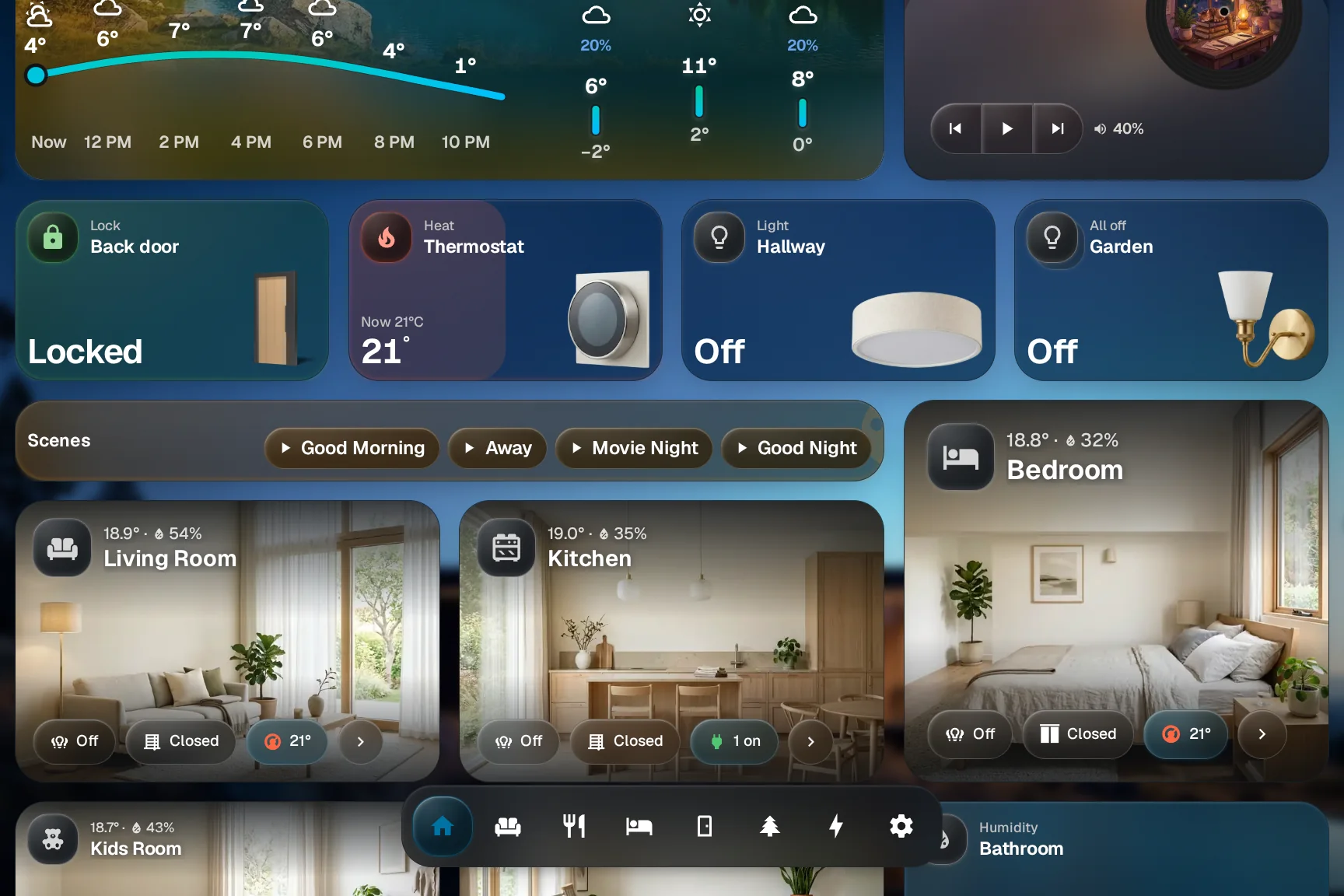
Press and hold the dock for about half a second. Its items start to wiggle and a + slot appears at the end. Settings, then Dock, then Edit dock gets you here too.
Tap the plus
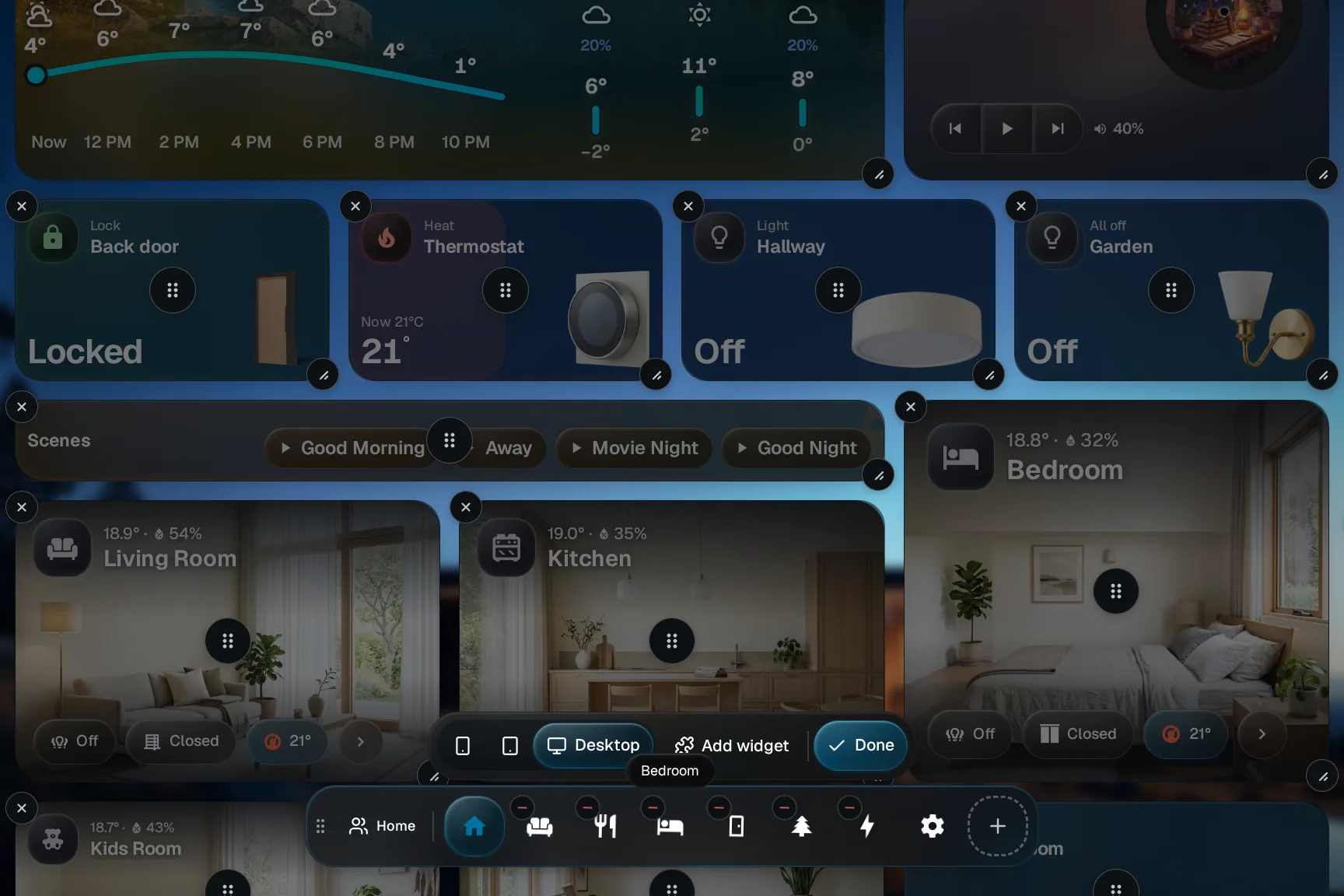
The + opens Add to dock. It makes a dashboard or a link to any web address.
Pick a layout
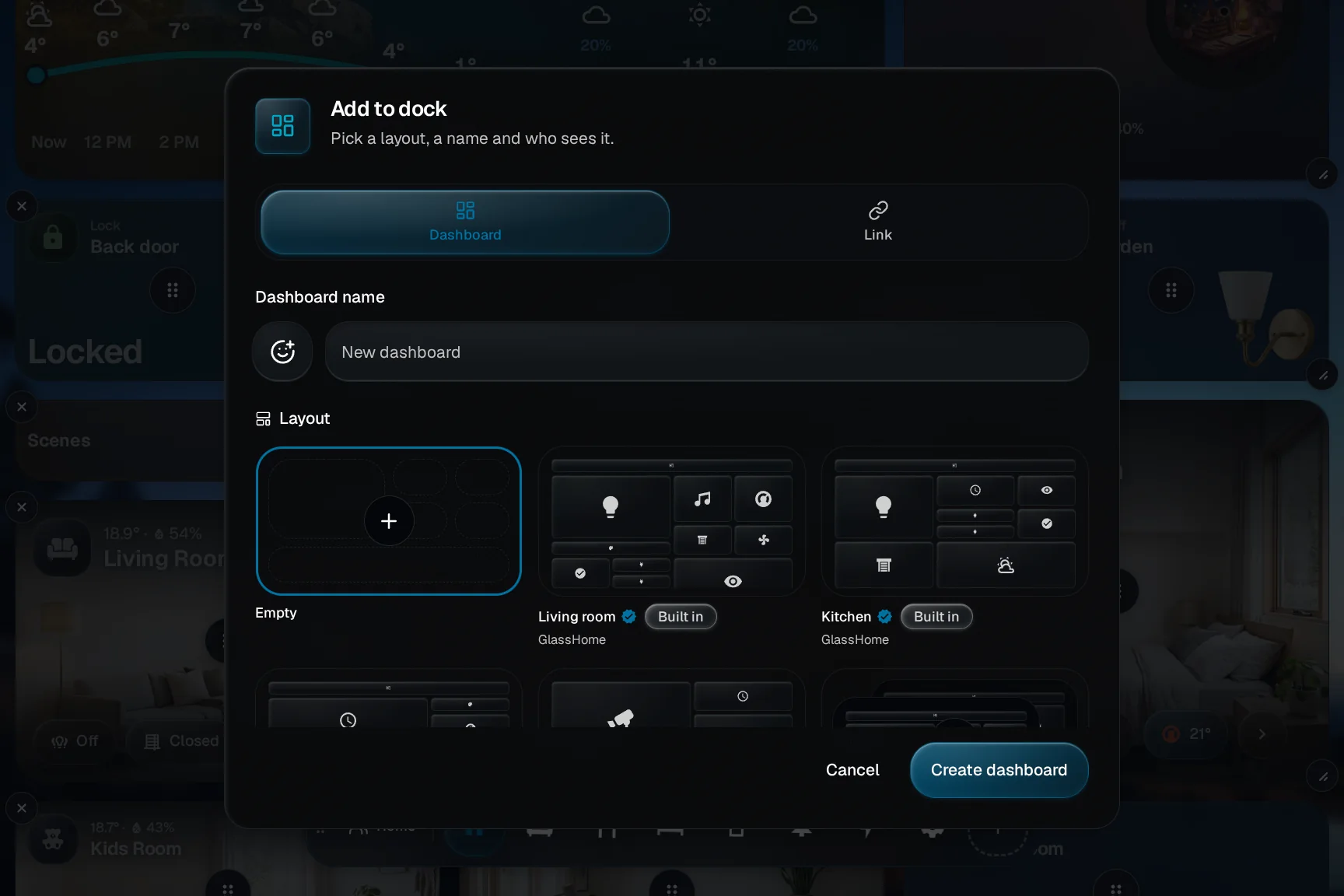
Under Dashboard, the first block is the layout. Empty starts blank. Living room, Kitchen, Bedroom and Hallway come with their widgets already placed, and each card says who made it. More layouts opens the whole browser, and the layout you choose there joins the cards, selected, with its maker beside the name.
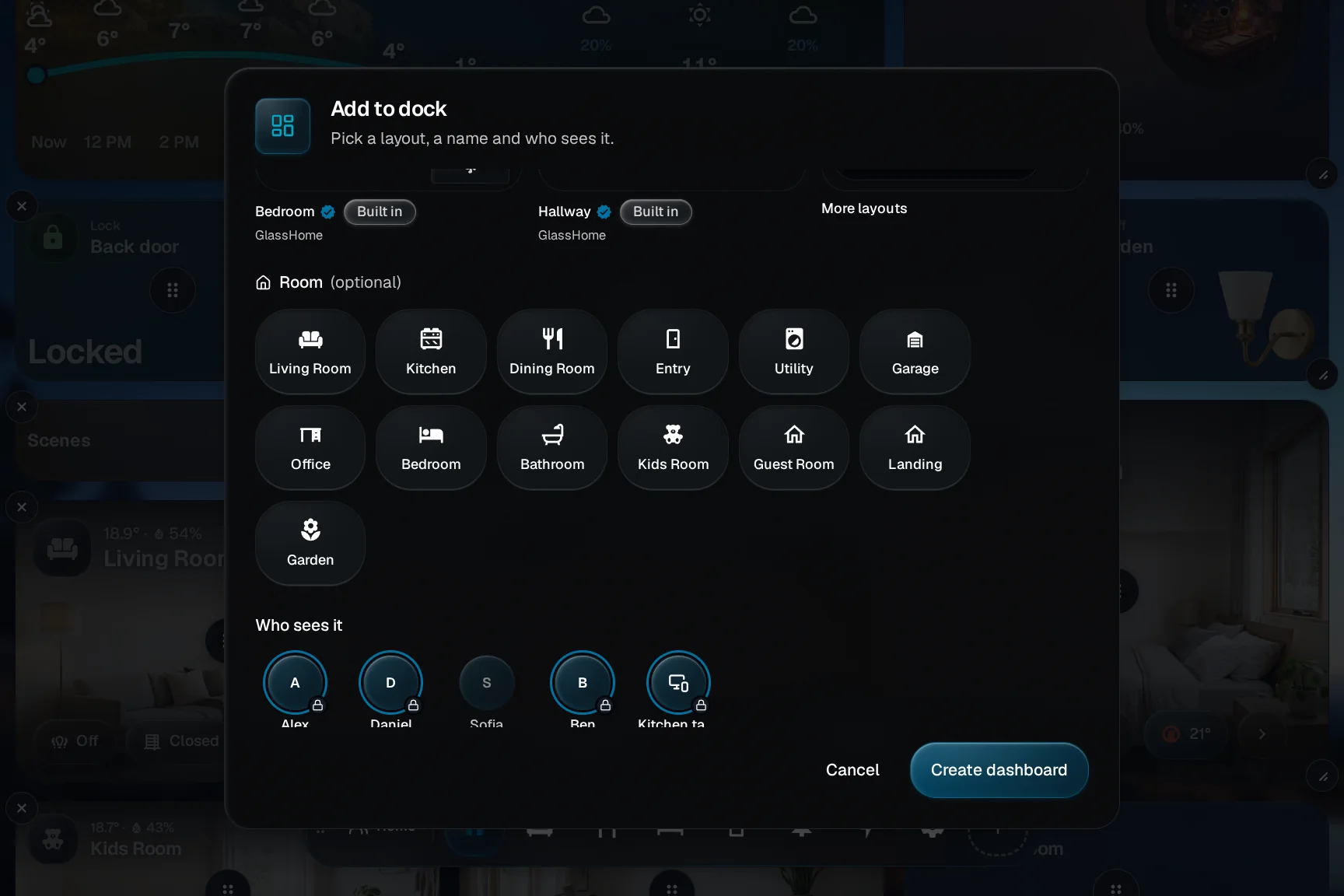
Pick a room
The Room row has a tile for every room in your home. Tap one and the name and icon fill in, and you can still change both. A room that already has a dashboard is left out.
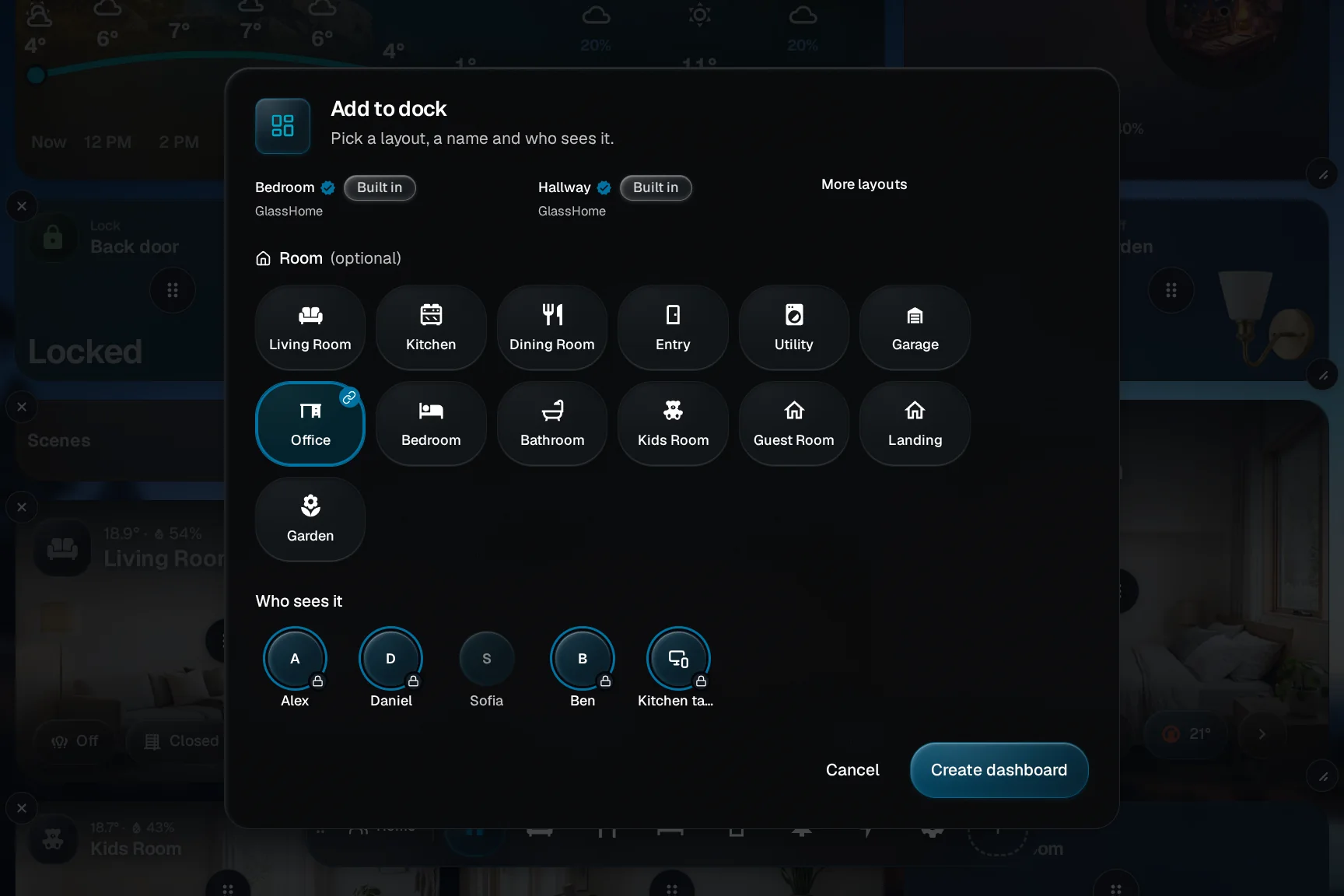
Choose who sees it
Who sees it shows a face for each person. A face with a ring gets the dashboard in their dock, in the same place, the moment you tap Create dashboard. Tap a face to leave that person out. A lock means they already see every dashboard, so that face stays on.
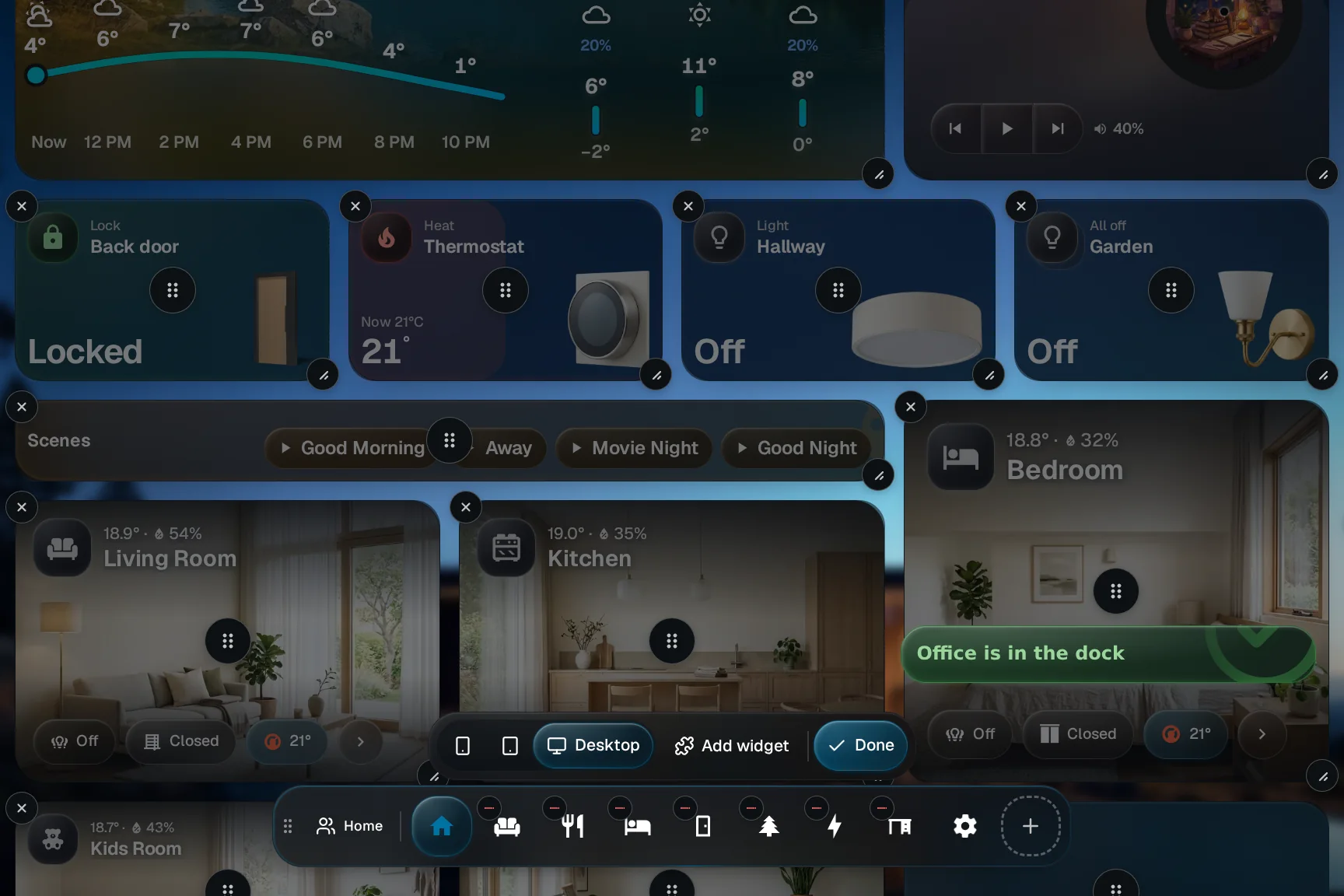
It lands in the dock
The new dashboard sits just before Settings. Drag it to move it. Everyone’s dock follows the same order until they rearrange their own.
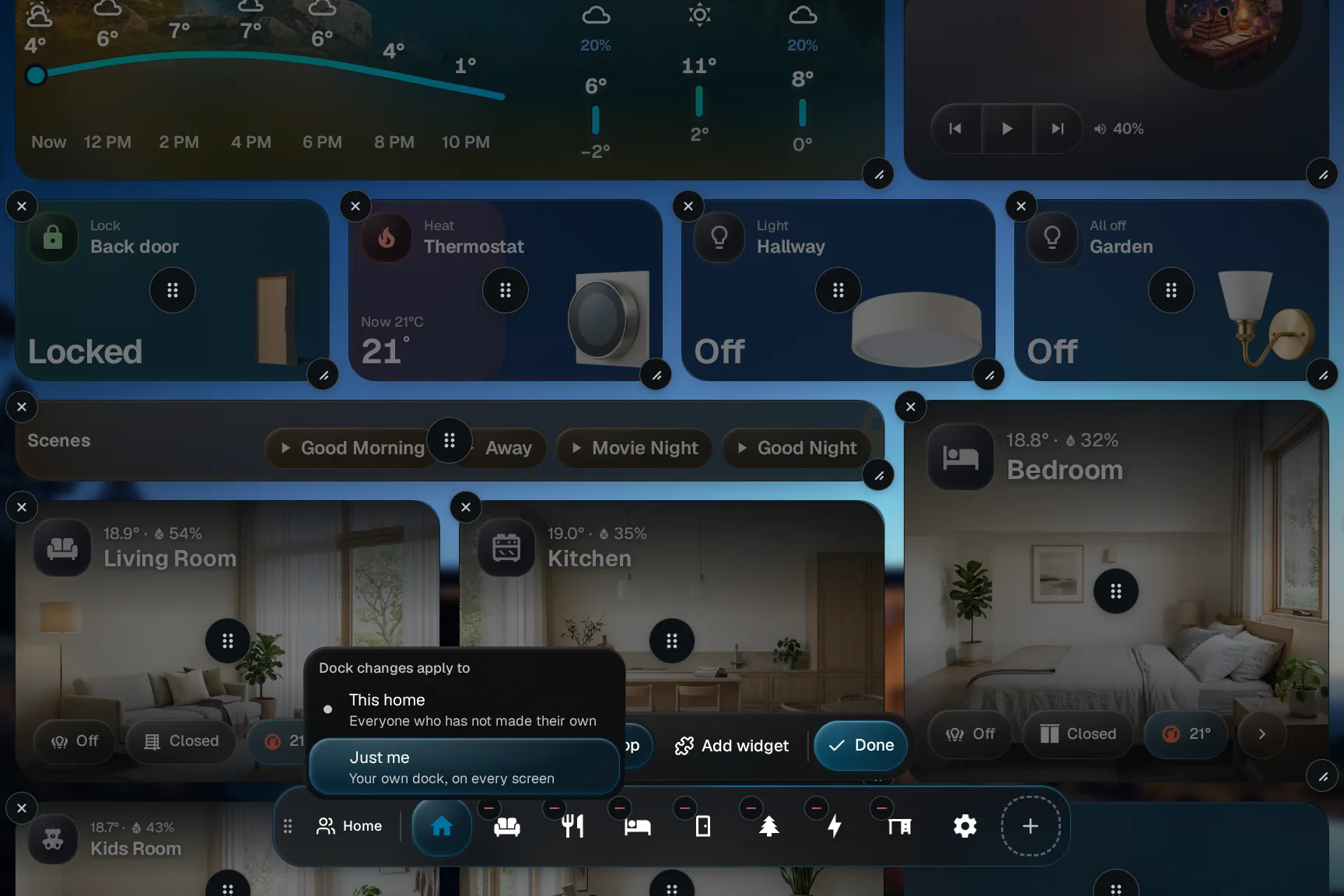
Switch to Just me
The chip at the start of the dock says whose dock you change. Tap it: This home is the dock everyone starts from. Just me changes only yours, so the next two steps leave everyone else alone.
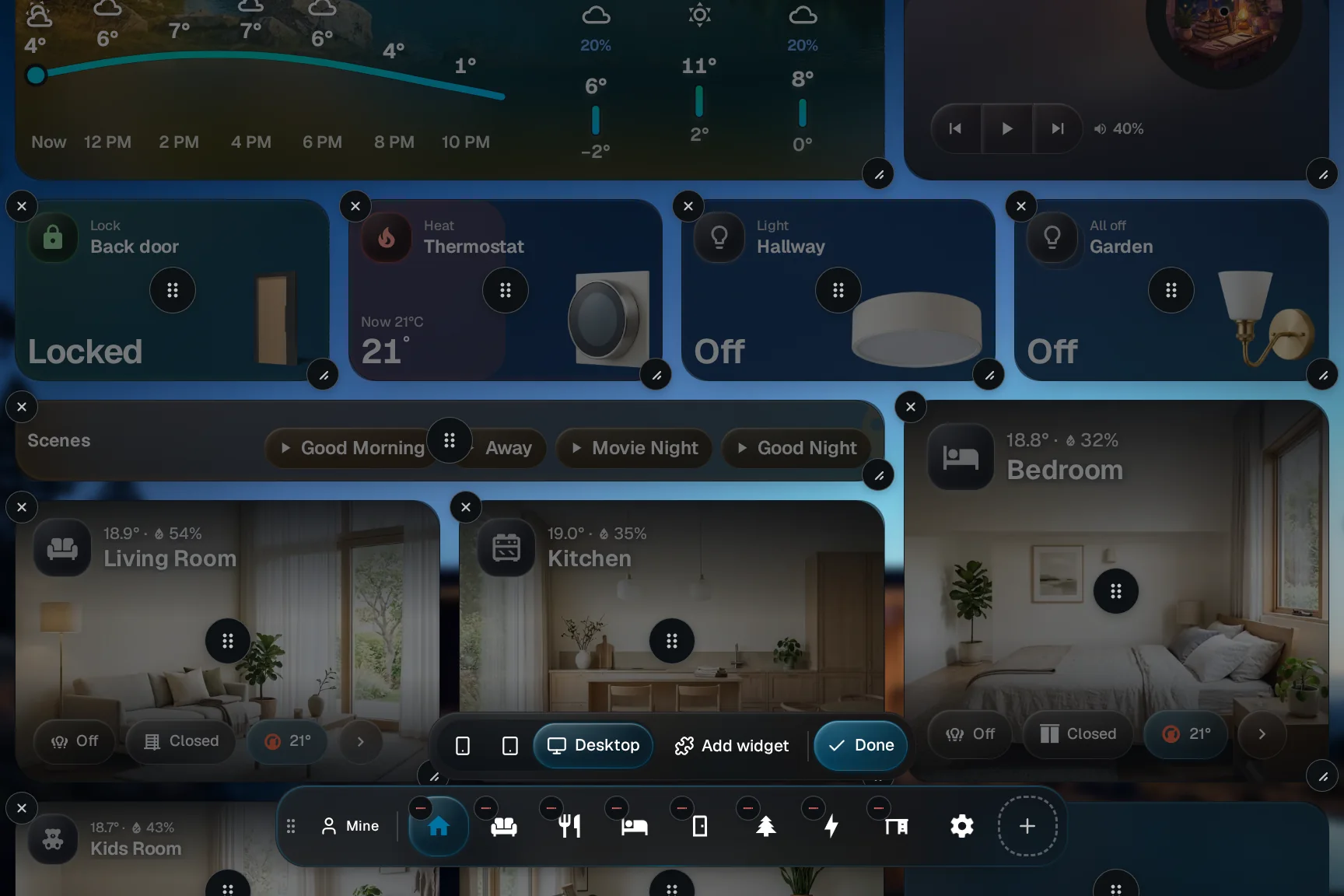
Put one away
Tap the − on a dashboard you never open, such as Outside in January.
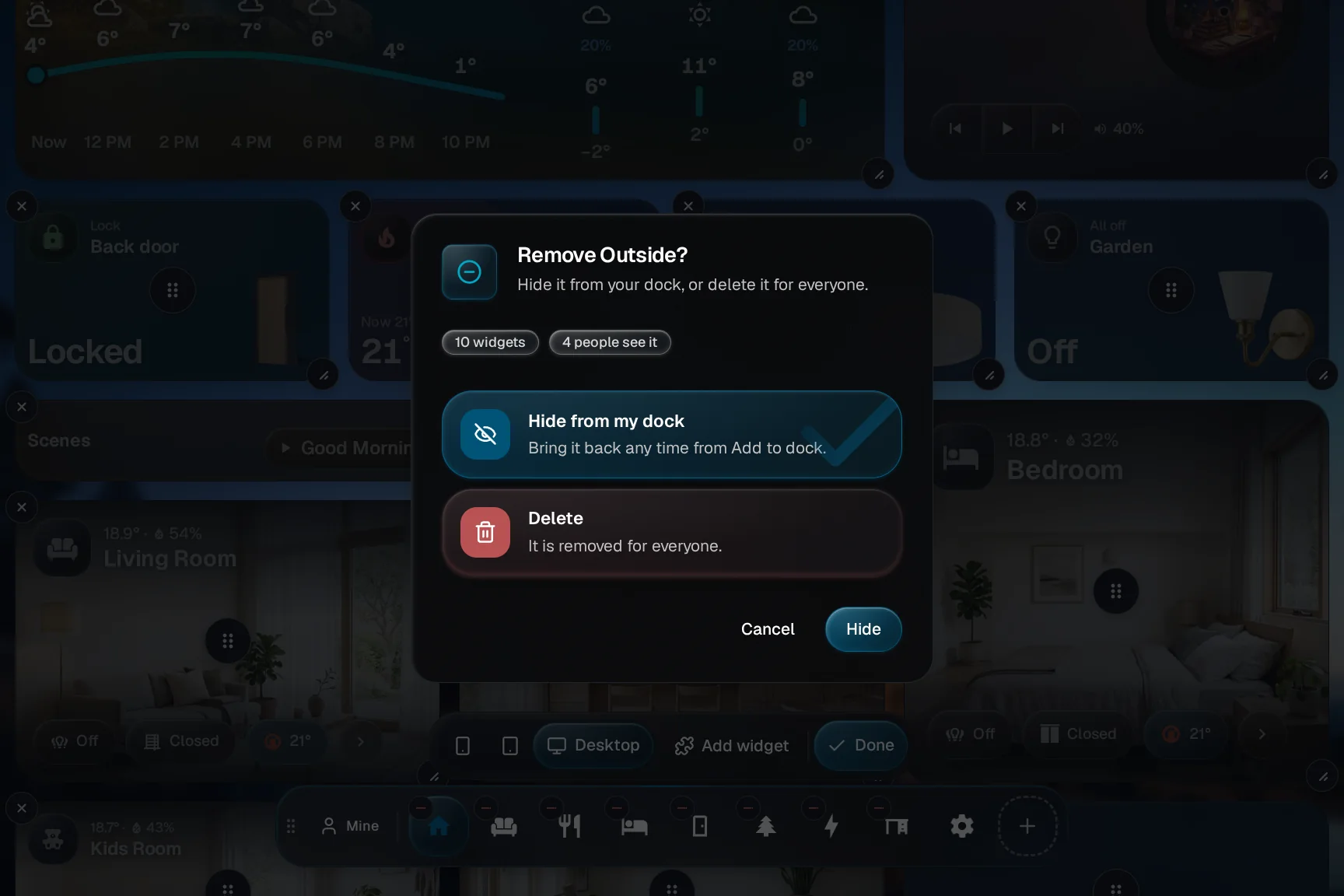
Hide it or delete it
Hide from my dock keeps the dashboard for everyone else. Delete removes it for the whole home and shows how many widgets and people it affects. Deleting is only offered to people who may edit that dashboard.
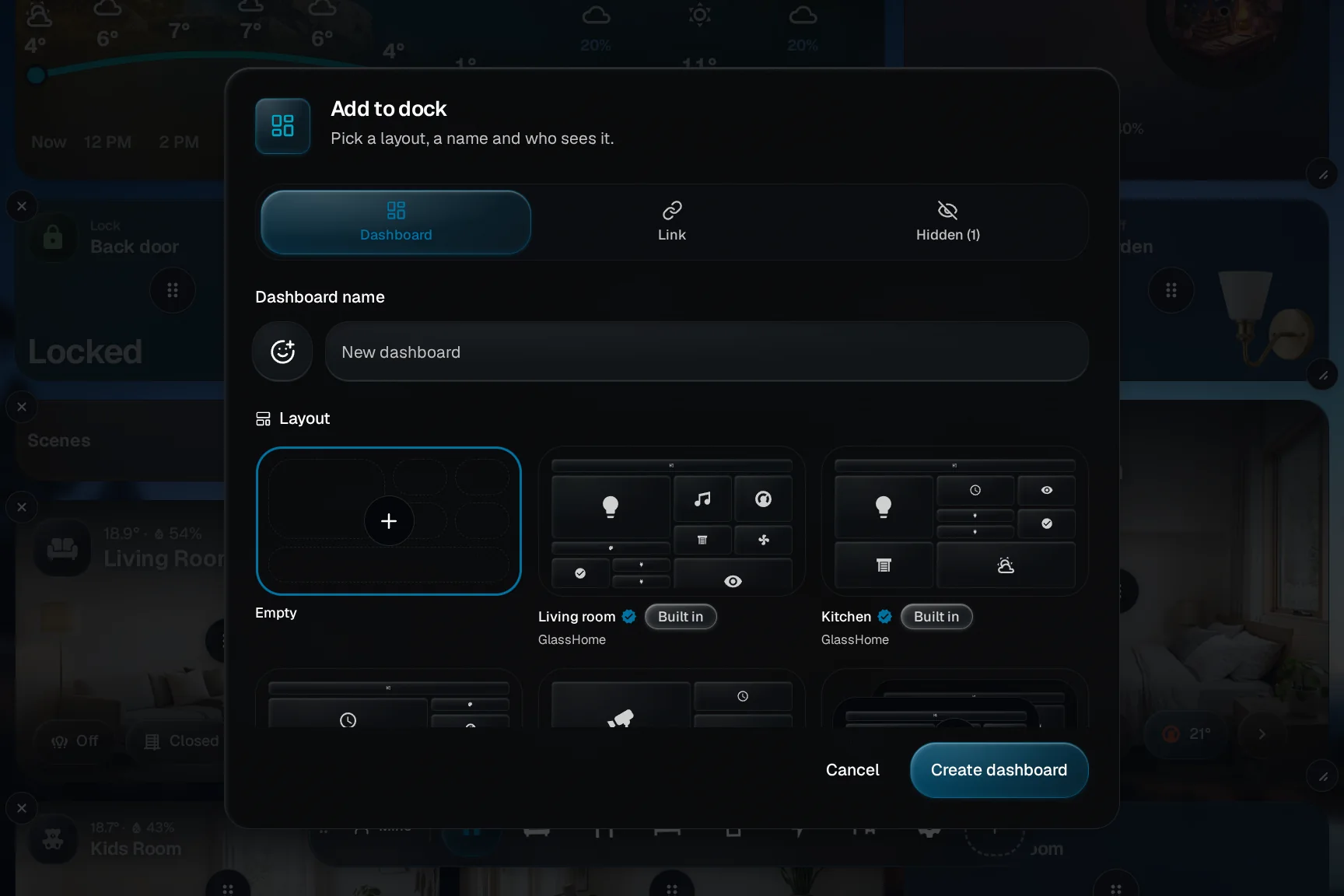
Open Hidden
Once something is hidden, the + dialog gets a Hidden tab.
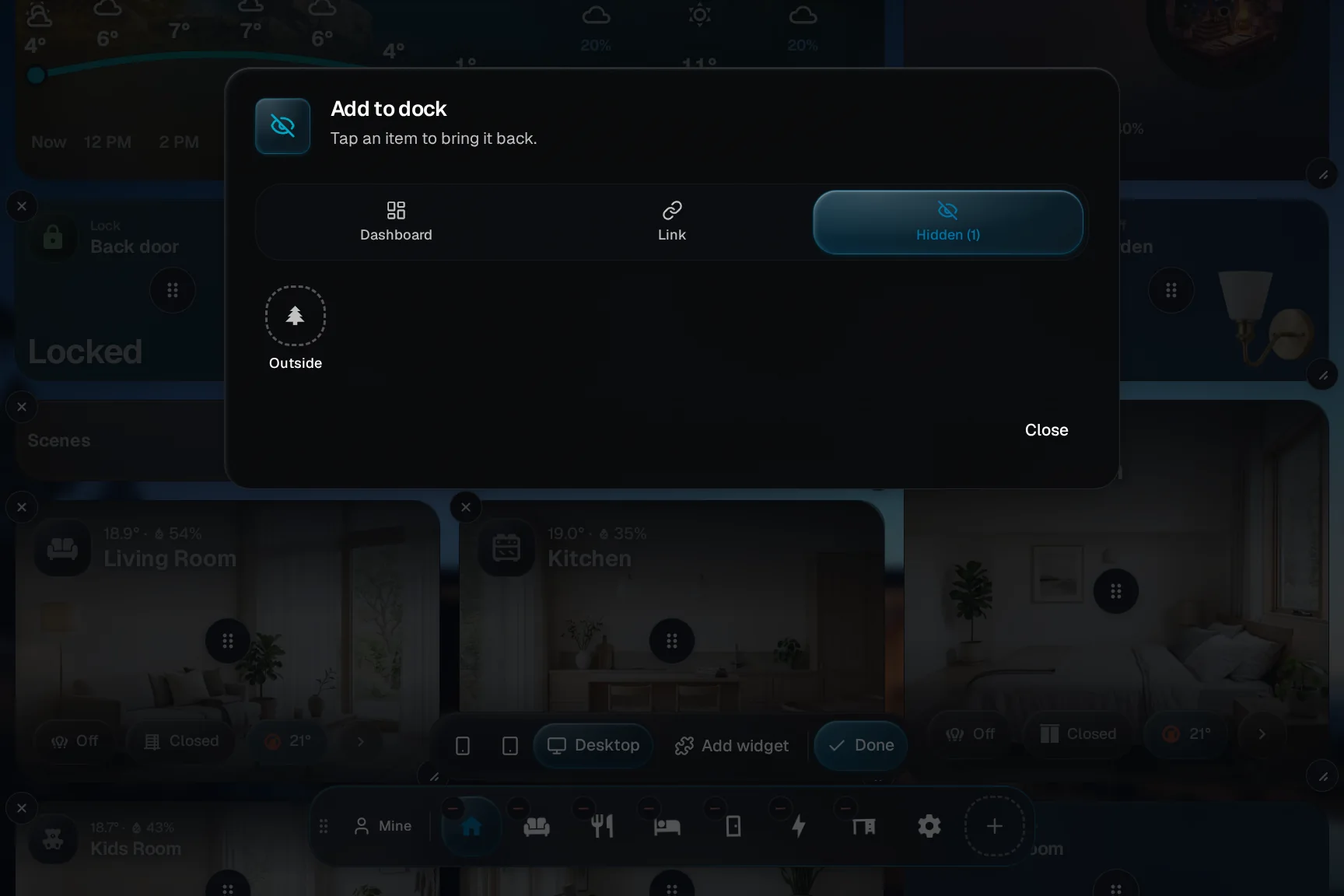
Show it again
Tap Show and the dashboard returns to its old place. Close the dialog and tap Done to leave edit mode. While yours differs from the home’s, the chip at the start of the dock offers Reset to home dock, which puts everything back.
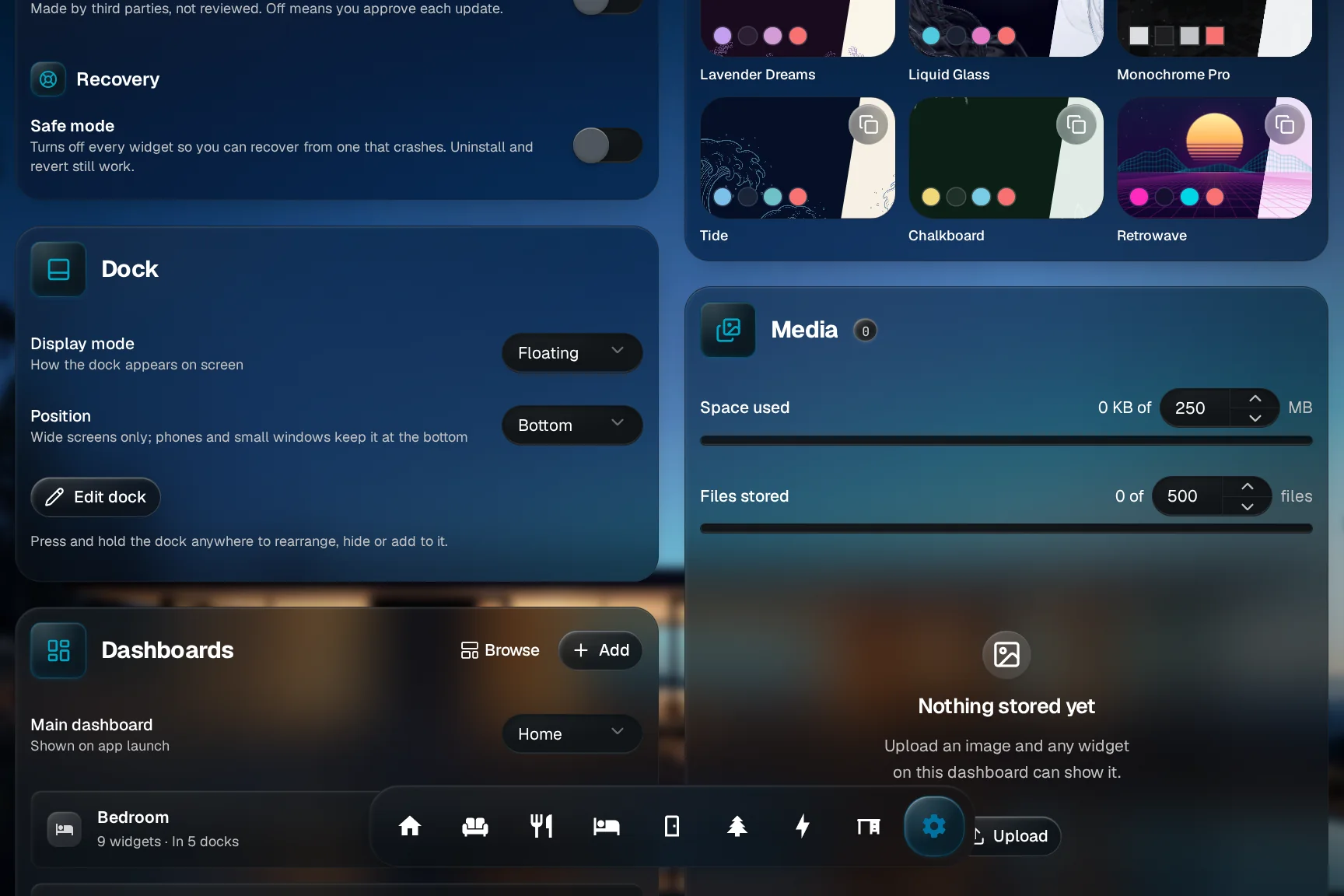
Open the dock settings
In Settings, the Dock card has Display mode and Position.
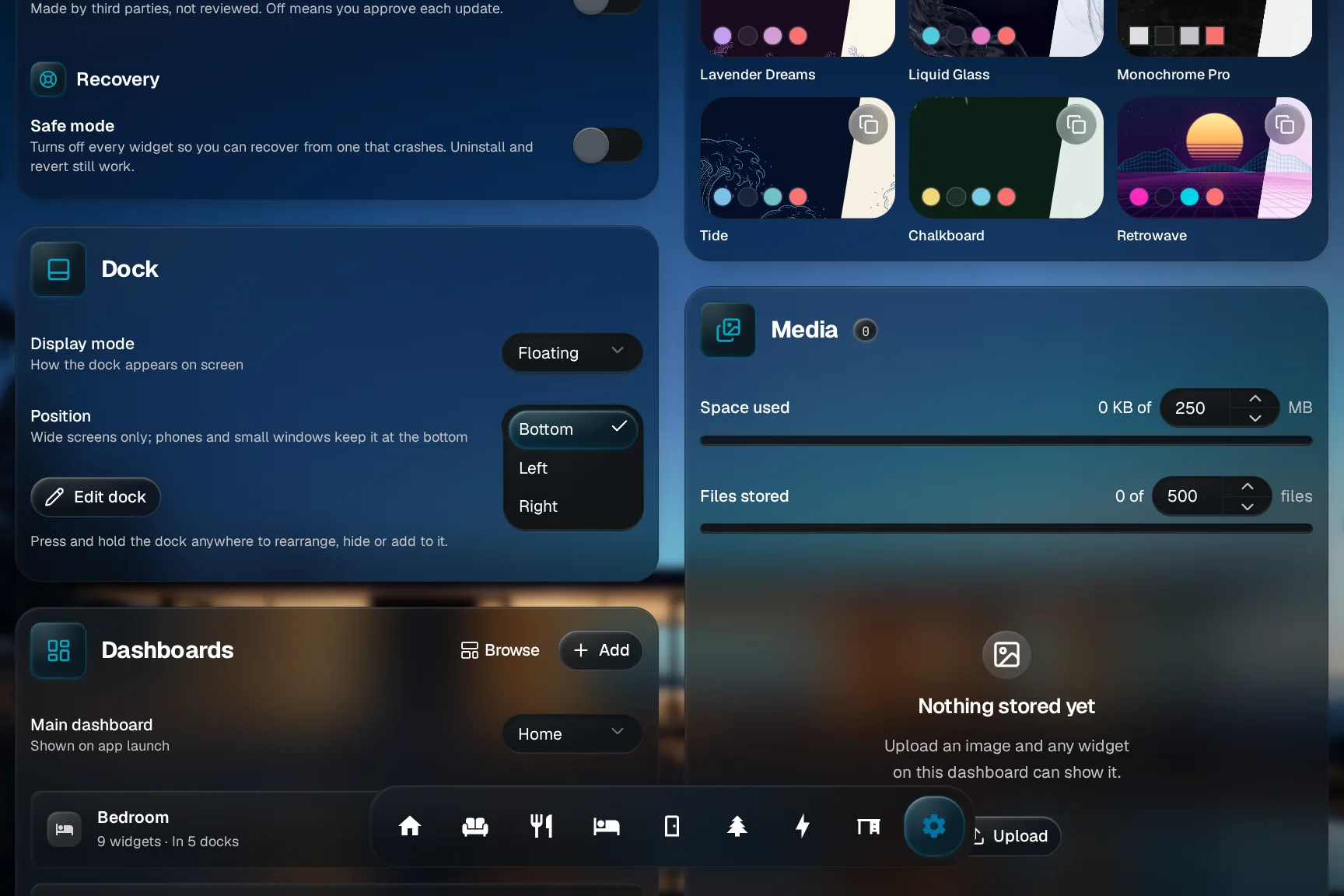
Pick a side
Choose Left or Right. The dock moves at once and the dashboard keeps its layout. A phone and a small window keep the dock at the bottom.
You are done when
The dock is set up. A new member sees the home’s dock, and every dashboard they may open is in it. If someone says they cannot see a dashboard, check their access in People & access, because the dock follows it. Every gesture is in Editing the dock.